

Thinking about embedding your Instagram feed on your website? You’ve got a couple of solid options. For a single post, Instagram's own "Embed" feature works a treat. If you're after your entire, dynamic feed, a third-party widget is the way to go. Either way, you're essentially just copying a small piece of code and pasting it into your site's HTML to bring your website to life with fresh, engaging content.
Why You Should Embed Instagram on Your Website
Adding your Instagram feed isn't just about making your site look good; it's a smart move that builds social proof and keeps visitors hooked. A live feed turns a static webpage into a dynamic hub, showing off your brand's personality and latest activity without you having to manually update your site all the time.
Integrating your Instagram feed offers several compelling advantages, turning your website from a simple brochure into an interactive brand experience.
Key Benefits of Instagram Integration
| Benefit | Impact on Your Website | Best For |
|---|---|---|
| Boosted Engagement | Increases the time visitors spend on your site by providing interactive, fresh content. | E-commerce sites, blogs, and portfolios looking to reduce bounce rates. |
| Enhanced Social Proof | Showcases real-world product use and customer interactions, building instant credibility. | Brands selling physical products, service providers, and local businesses. |
| Automated Fresh Content | Your website content updates automatically every time you post on Instagram. | Anyone wanting to keep their site looking current without constant manual work. |
| Follower Growth | Provides a direct, visual prompt for website visitors to follow your Instagram account. | Businesses and creators focused on building a strong social media community. |
This integration bridges the gap between your social channels and your website, creating a more cohesive and trustworthy online presence.
Boost Engagement and Build Trust
A live, interactive feed gives people a reason to stick around longer, flicking through your latest photos and updates without ever leaving your site. This increased "dwell time" is a great signal to search engines that your site offers real value. More than that, it connects your social world with your main digital hub.
This is a particularly potent strategy in the UK. With an estimated 33.4 to 35.1 million active users – that's roughly half the population – Instagram is a massive platform for audience connection, especially for the crucial 18-34 age group.
Pro Tip: Featuring user-generated content (UGC) from your feed is a game-changer. When potential customers see real people loving and using your products, it provides a level of authentic social proof that slick, professional product shots just can't compete with.
Grow Your Audience Organically
Think of your embedded feed as a subtle, but effective, call-to-action. Visitors who are already enjoying your website can see your latest social posts and follow you with a single click, helping you grow your audience naturally.
This simple tactic is a cornerstone of a smart marketing strategy for small business growth. It creates a powerful loop where your website drives social followers, and your social media, in turn, drives engaged traffic back to your site.
Using Instagram’s Native Embed Feature
Sometimes, the simplest approach is the best one. If you want to embed an Instagram post on your website, the most direct route is using Instagram’s own built-in tool. This is my go-to method for when I want to spotlight a single, important post – think a big company announcement, a glowing customer testimonial, or the winner of a recent competition.
The beauty of this official method is that it’s completely free and doesn’t require any third-party plugins or complicated tools. It works on pretty much any website platform that gives you access to the HTML, whether that’s a custom-coded site, a WordPress page, or a Shopify product description. You just find the post, grab the code, and pop it into your site's back-end.
Finding and Using the Embed Code
Getting the code itself is a piece of cake. First, pull up the specific public Instagram post you want to feature on your desktop browser. Look for the three dots (…) in the top-right corner of the post and give them a click. You’ll see an ‘Embed’ option in the menu that appears.
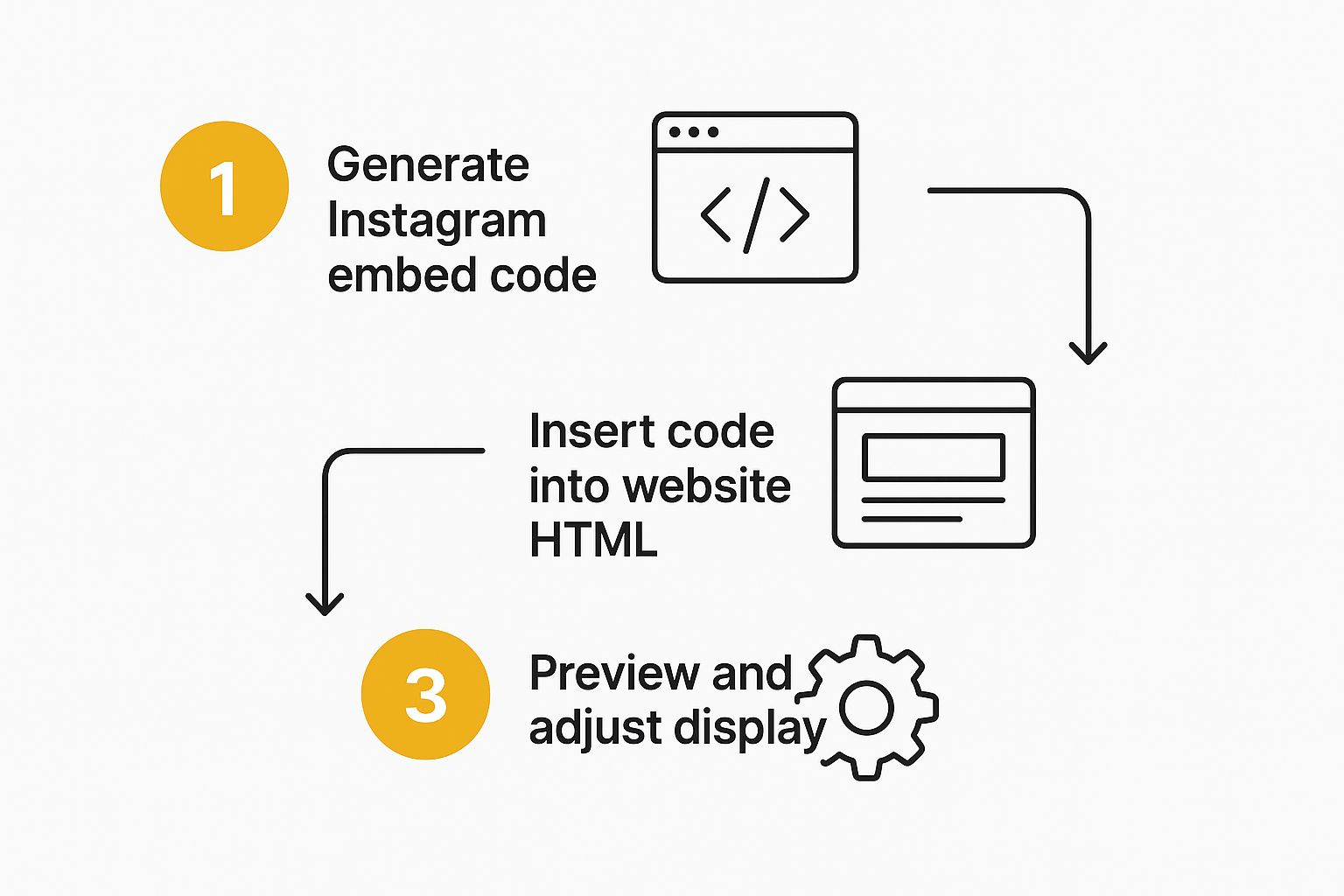
When you select it, a little pop-up window appears with the HTML code snippet you need. You even get a handy checkbox to decide whether you want to include the post's caption. Once you've copied the code, just head over to your webpage editor and paste it where you want the post to show up.
Limitations to Consider
While this native feature is incredibly straightforward, it does come with a few trade-offs you need to be aware of. For starters, you have zero customisation options, other than deciding whether to show the caption. The embedded post will look exactly as it does on Instagram, which might clash with your website’s carefully crafted design.
The biggest drawback, in my experience, is the manual work involved. This method is not built for creating a dynamic, self-updating gallery. If your goal is to display a full, live feed, you'd have to repeat this process for every single post. It’s really best for those strategic, one-off placements where a specific post adds real value.
Embedding a Live Instagram Feed in WordPress
If you're running a WordPress site, using a plugin is hands-down the easiest and most effective way to add a live Instagram feed. While the manual method works for a single post here and there, a good plugin does all the heavy lifting for you. It creates a dynamic, self-updating gallery without you ever having to look at a piece of code.
These tools manage the connection to your Instagram account for you, automatically pulling in your new posts as you publish them. This is a game-changer because it means your website always has fresh, relevant content, giving visitors a real-time glimpse into your brand's latest activity.
Choosing and Setting Up a Plugin
The WordPress plugin directory can feel a bit overwhelming, but a handful of top contenders consistently deliver on features and reliability. My advice is to look for plugins with excellent user ratings, evidence of recent updates (this is crucial for security and compatibility), and responsive developer support.
Once you find one you like, installing and activating it is the standard WordPress process. From there, the plugin will walk you through connecting your Instagram account. This is usually just a secure login to give the plugin permission to access your feed. This authorisation is what allows the automatic updates to happen. For the best results when embedding a live Instagram feed, understanding dynamic image generation is a massive help in keeping your visuals sharp and engaging.
Customising Your Feed's Appearance
This is really where plugins prove their worth. The standard Instagram embed is quite rigid, but a plugin gives you full creative control, allowing you to fine-tune the feed until it perfectly matches your site's aesthetic.
You'll typically find a whole host of settings to play with to get the look just right.
- Layout Options: Pick from a classic grid, a sliding carousel, or even a more modern masonry layout to complement your page's design.
- Column Control: You can usually define the number of columns, ensuring your feed looks just as good on a wide desktop monitor as it does on a mobile phone.
- Post Details: Keep it clean and simple by hiding things like captions, likes, and comments, or show everything to encourage more engagement.
A quick tip from experience: if the plugin offers a 'Load More' button, use it. This feature loads an initial batch of posts and lets users click to see more, which dramatically improves your page load speed. It’s a small tweak that delivers a much better user experience without compromising performance.
Integrating a Shoppable Feed on Your Shopify Store
If you're running a Shopify store, embedding your Instagram feed is about much more than just looking good – it's a direct line to making more sales. By creating a shoppable gallery, you can turn your beautiful product shots and customer photos into an interactive storefront, right on your website.
Forget about fiddling with manual code. Your best bet is to head straight to the Shopify App Store. It’s packed with apps built specifically for this, designed to create stunning, shoppable galleries with minimal fuss. I always recommend looking for apps with plenty of positive, recent reviews; it’s a good sign that they're reliable and work well with modern Shopify themes.
From Inspiration to Purchase
Here's where the magic really happens: tagging your products directly in your Instagram photos. When a potential customer is browsing your site and sees something they love in your embedded feed, they don't have to go hunting for it. One click on the image can take them straight to the product page. Simple.
This is all about removing friction. You’re taking the visual power of Instagram and using it to turn casual browsers into buyers. It's also a fantastic way to use social proof by showcasing real customers using your products, which can do wonders for your conversion rates.
Think of it this way: your Instagram feed becomes an automated, visual sales engine. Every new post featuring a product is another opportunity to capture a customer's interest and drive a sale, all without you having to lift a finger.
Making It Work for You
Once you've chosen and installed an app, connecting your Instagram business account is usually the first step and it’s typically very straightforward. The app will then sync your feed, allowing you to start tagging products from your Shopify catalogue directly onto the relevant posts. Most good apps also give you plenty of customisation options, so you can tweak the look and feel to perfectly match your brand’s aesthetic.
For a deeper dive into making your Instagram a serious revenue driver, check out these strategies for selling on Instagram with Shopify. Combining these tactics with a slick, embedded feed creates a really powerful sales funnel. If you find managing all this a bit much, it might be worth exploring the help of virtual marketing assistants to keep everything running smoothly.
Optimising Your Feed for Performance and Style

Getting your Instagram feed onto your website is just the first step. The real art is making it look like it truly belongs there—a natural extension of your brand—without dragging your site's performance down with it. A clunky, out-of-place feed can do more harm than good for user experience.
Most good plugins come packed with customisation options. Dive in and start adjusting colours, fonts, and layouts to mirror your brand's style guide. If the plugin supports it, don't shy away from a bit of custom CSS. I’ve found that often a small code tweak is all it takes to get that perfectly seamless look.
Keeping Your Website Fast
Looks are one thing, but speed is everything. A heavy, unoptimised Instagram feed can seriously slow down your page load times, which is a sure-fire way to send visitors clicking away.
Luckily, you can avoid this common pitfall. To keep your site running smoothly, make sure your tool has these features:
- Lazy Loading Images: This is a game-changer. It means images only load as a user actually scrolls down to see them, which dramatically reduces the initial load time.
- Caching Feed Data: A good caching system will store your feed data temporarily. This stops your site from having to ask Instagram for the same information every single time someone visits the page.
- Optimising Image Resolution: Look for a plugin that handles responsive images well. It should serve smaller, optimised files to mobile users so they aren't forced to download massive desktop-sized pictures on their phones.
These performance tweaks are absolutely critical. Think about it: Instagram can be a huge source of traffic. In late 2022, its share of social network visits in the UK hit a peak of 18.53%. It's a massive referral channel you can't afford to slow down.
By balancing both style and speed, your embedded feed becomes a powerful asset that looks fantastic and actively supports your wider digital marketing goals.
To really get the most out of your content, you should be making data-driven decisions. A complete guide to Instagram analytics is a great place to start digging into what resonates with your audience.
Got Questions About Embedding Instagram? We've Got Answers
Even with the best tools in hand, embedding an Instagram feed can bring up a few questions. It’s a common part of the process, so let's walk through some of the things people often wonder about.
A classic query is whether you can add a feed without using a plugin. The short answer is yes, but it’s a bit limited. Instagram has a built-in feature to embed a single post, which is great for one-off shares. But if you're after a live, multi-image gallery that updates automatically, you’ll either need a third-party widget or the technical know-how to work directly with the Instagram Basic Display API.
"Will an Embedded Feed Slow Down My Website?"
This is probably the most important question of all, and rightly so. Site speed is everything. An embedded feed can drag your performance down, but only if it's not handled correctly.
Thankfully, most modern plugins and widgets are built specifically to avoid this. They come packed with clever features that keep things running smoothly:
- Lazy Loading: This is a big one. It means images only load when a visitor actually scrolls down to see them.
- Data Caching: The feed's content is stored temporarily, so your site doesn't have to fetch it from Instagram every single time someone visits.
- Responsive Images: The tool intelligently serves smaller, optimised images to users on mobile phones, saving bandwidth.
The trick is to choose a quality tool and be sensible about how many posts you load initially. This way, you get all the visual benefits without the performance headache.
One thing that catches a lot of people out is trying to embed a feed from a private Instagram account. It simply won't work. The account must be public for any embedding tool to access and display its content. Think of it as a core privacy setting on Instagram's end.
Ultimately, picking a well-supported, modern tool is the key. It ensures your Instagram embed not only looks great but also works seamlessly, turning your feed into a genuine asset for your brand without compromising on speed.
Ready to find the perfect tool for your website? At The Digital Marketing Toolbox, we've curated the best widgets and plugins to help you embed your Instagram feed, showcase social proof, and grow your business. Explore our recommendations and get started today at https://grow-your-biz.com.


