

Popping a live Twitter feed onto your website isn't just about making it look busy; it's a savvy move that can seriously boost engagement and build real social proof. When you pull real-time conversations and customer shout-outs directly onto your pages, you're not just filling space. You're keeping your content fresh, building trust, and giving people a reason to stick around longer.
Why Bother Embedding Twitter Content on Your Website?

Before we get into the nuts and bolts of how to do it, let's talk about why it's worth your time. Weaving Twitter content into your site turns it from a static brochure into a living, breathing hub. It closes the gap between your official marketing message and the genuine chatter happening online. Once you grasp the role a website plays in social media engagement, you'll see just how powerful this combination can be.
Let's quickly break down the main advantages.
Key Benefits of Embedding Twitter Content
| Benefit | Impact on Your Website |
|---|---|
| Increased Engagement | Interactive feeds give visitors more to do, encouraging them to stay on your pages for longer. |
| Effortless Fresh Content | Your site automatically updates with the latest tweets, keeping it current without any manual work. |
| Enhanced Social Proof | Real-time testimonials and positive mentions from users build instant credibility and trust. |
| Direct Audience Growth | Visitors can follow, like, and retweet directly from your site, helping to grow your social media presence. |
As you can see, the payoff is a more dynamic, credible, and engaging website that works harder for your brand.
Keep Your Content Fresh and Boost Engagement
Let's be honest, a static website can feel stale pretty quickly. By embedding a Twitter timeline, you get a constant stream of new material without having to lift a finger. Imagine a local news site embedding live reactions to a breaking story—it keeps readers glued to the page. This dynamic flow signals to visitors and search engines that your site is active and relevant.
The knock-on effects are huge:
- Longer Visits: When people have something to interact with, they stick around. This "dwell time" is a great signal for SEO.
- Always Current: Your site reflects the latest conversations and news, making it a go-to resource.
- Seamless Interaction: People can engage with your tweets on the spot, turning website visitors into new followers.
Build Instant Trust with Real Social Proof
Nothing says "we're trustworthy" like authentic praise from real customers. When you embed positive mentions or testimonials straight from Twitter, you're showcasing social proof in its most powerful form. It's so much more convincing than a polished testimonials page because it feels raw, unfiltered, and immediate.
Displaying user-generated content directly from Twitter advocates for your brand's authenticity. It enhances reliability, making your business more credible to potential customers who value peer reviews. This forms a core part of a strong online presence, a key concept explained in our beginner's guide to digital marketing.
With around 22.9 million users in the United Kingdom as of early 2025, X (formerly Twitter) is a goldmine of customer feedback and industry conversation. Tapping into this shows you're transparent and confident in what you offer. You’re not just embedding a snippet of code; you're embedding trust.
Using the Official Twitter Publish Tool
Honestly, the most direct way to embed Twitter on a website is to go straight to the source. Twitter's own Publish tool is your starting point for generating the right code, and it's surprisingly easy to use. I always recommend this method first because it's reliable, totally free, and you don't need to sign up for any third-party services.
All you need is the URL of the tweet or timeline you want to show off. The tool does the heavy lifting, turning that link into a neat little HTML snippet. You can then just copy and paste that code right into your website’s editor. It’s a brilliant, no-fuss solution.
Finding Your Twitter URL
First things first, you need to grab the right link. This might sound simple, but the Publish tool needs a specific type of URL depending on what you want to embed.
- For a Single Tweet: Find the tweet you want to feature. Click the three-dot menu icon (
...) and choose "Copy link to post". - For a Profile Timeline: Just head over to the person's main profile page and copy the URL from your browser's address bar. It should look like
https://twitter.com/YourHandle. - For a Public List: Want to embed a curated list of accounts? Go to that specific list's page and copy its URL.
With the URL in hand, you're all set to make some magic happen.
Generating and Customising Your Code
Now, head over to the Twitter Publish website and pop your URL into the box. The tool instantly recognises it and presents you with a couple of options.
You'll see choices like Timeline (if you used a profile or list URL) or Embedded Post (for a single tweet). Once you've picked one, the code appears. But don't copy it just yet! Look for the "set customisation options" link—this is where you can dial in the appearance.
The real beauty of the official tool is its simplicity. You can quickly change the height and width, flip between a light or dark theme, and even set the display language, all without touching a line of CSS.
These built-in settings are a lifesaver for making the feed blend in with your site's design. For instance, if you run a blog with a dark aesthetic, you can set the Twitter timeline to dark mode for a perfectly seamless look.
Once you’re happy with the tweaks, just hit the "Update" button. The tool will refresh the code, and now you can copy it. That little snippet is ready to be pasted directly into your website’s HTML editor. For most people, this is the quickest and most effective way to get Twitter content live on their site.
Embedding Your Twitter Feed on Popular Website Builders
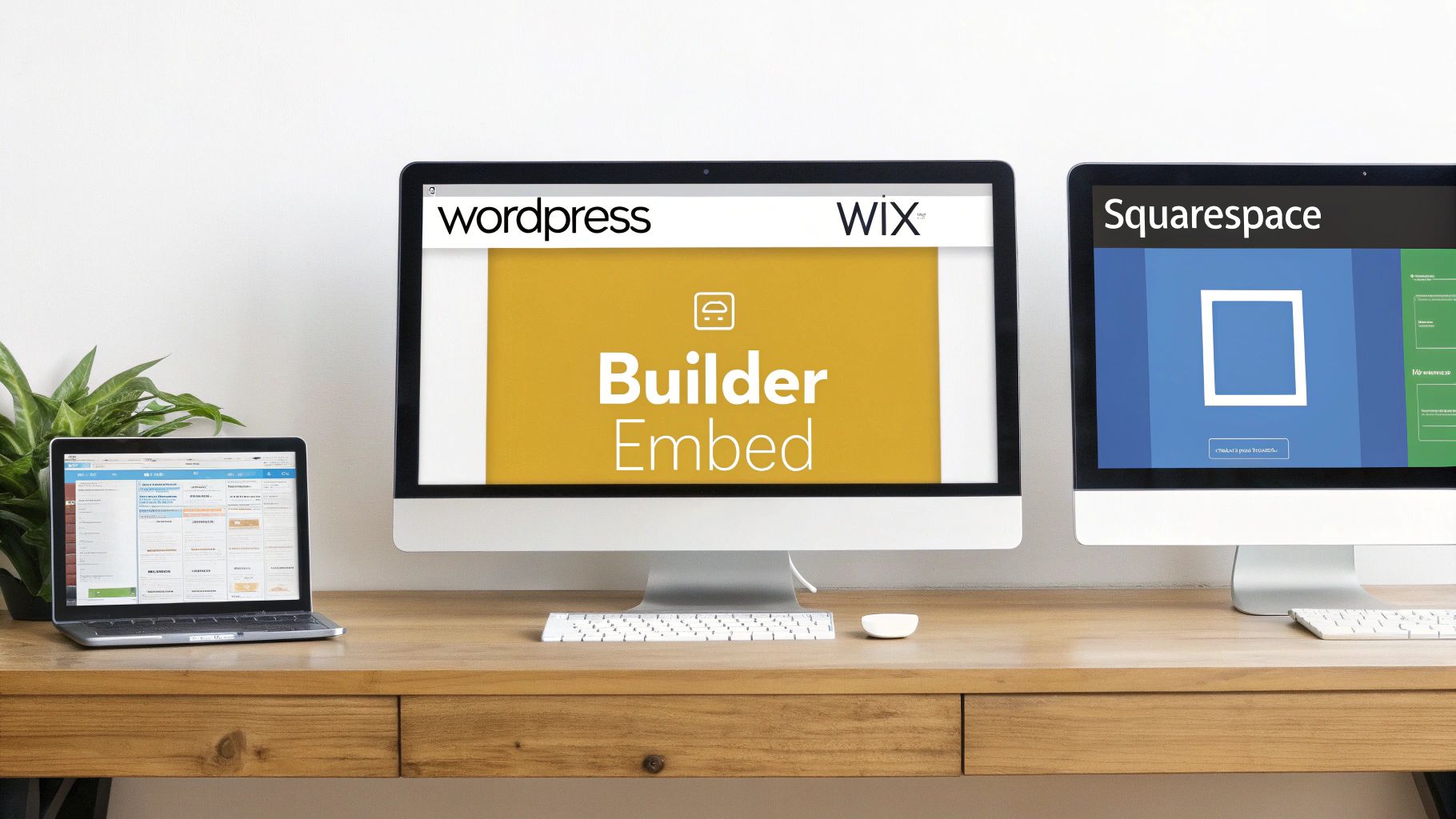
So, you've got the embed code from Twitter's Publish tool. What now? The next step is getting it onto your actual website, and thankfully, most modern website builders make this part surprisingly easy. The exact steps might differ slightly, but the core idea is the same across the board.
Whether you're on WordPress, Wix, or Squarespace, there's a dedicated tool ready for your custom HTML snippet. Let's walk through how to embed a Twitter feed on your website for each of these platforms, so you can get it done confidently, no matter your technical comfort level.
Adding a Twitter Feed to WordPress
When it comes to WordPress, you have a couple of brilliant ways to get Twitter content onto your site, each suited to different needs. The simplest method is so easy it feels like a magic trick.
This first approach uses WordPress’s built-in oEmbed feature. All you have to do is copy the URL of the tweet you want to show, paste it directly into the WordPress editor on its own line, and press enter. WordPress instantly recognises the link and transforms it into a perfectly formatted, embedded tweet.
For more control, especially if you're embedding a full timeline from the Publish tool, you'll want to use the Custom HTML block.
- Head over to the post or page where you want the feed to appear.
- Click the
+icon to add a new block. - In the search bar, type "Custom HTML" and select that block.
- Paste the entire code snippet you generated from Twitter right into this block.
- It's always a good idea to click "Preview" to see how it looks before you hit publish.
This second method is your go-to for timelines and gives you the flexibility to add other custom code down the line if you need to.
Embedding on a Wix Website
Wix is famous for its user-friendly, drag-and-drop interface, and adding a bit of custom code is no different. You’ll be using their HTML element to get your Twitter feed live in minutes.
First, log into your Wix Editor and open the page where you want the feed to go. On the left-hand menu, click the + (Add) button. From the menu that pops up, find "Embed Code," and from there, choose "Embed HTML."
A new box will appear on your page, which you can drag around and resize to get the positioning just right. Click "Enter Code," paste your Twitter embed code into the text area, and click "Update." Just like that, your feed will render inside the box. It’s a completely visual process, giving you total control over its placement.
What I really like about the Wix approach is its visual editor. You can see immediately how the embedded feed interacts with your other page elements, letting you tweak its size and position in real-time until it fits perfectly.
Integrating with a Squarespace Website
If you're a Squarespace user, your tool for this job is the versatile Code Block. This element is designed to handle all sorts of external code snippets, making it the perfect home for your Twitter feed.
Start by editing the page or post where you want the feed to live. Click an insert point (the + icon) and select "Code" from the block menu. This will drop a new Code Block onto your page.
A configuration window will pop up. Make sure the dropdown menu inside is set to "HTML." Now, you can paste the embed code you copied from Twitter into the text field. One crucial last step: uncheck the "Display Source" option to make sure the code renders as a feed, not just a block of text. Click "Apply," and you're all set!
Placing social proof like this on your site is a powerful move, and it's why so many businesses pour resources into their social media. In 2025, the UK's social media advertising spend hit a staggering £9.02 billion, a clear sign of how hard brands are working to connect with their audiences online. Embedding a Twitter feed is a fantastic, free way to bring that social activity directly onto your website. If you're curious about this trend, you can discover more insights about UK social media statistics.
Customising Your Embedded Twitter Feed
Let's be honest, the default Twitter embed can stick out like a sore thumb. It does the job, sure, but the standard colours and fixed sizes often clash with a website's carefully crafted design. It can look less like a seamless part of your site and more like a tacked-on extra.
The good news is you're not stuck with the default look. With a few tweaks, you can transform that generic widget into a polished, professional feature that feels right at home with your branding.
Making Your Embedded Feed Responsive
One of the biggest headaches with the standard embed code is how it behaves on different devices. It might look perfectly fine on a desktop, but switch to a mobile phone, and suddenly it's a mess, forcing users to scroll sideways. That’s a terrible user experience.
The fix is surprisingly simple: a small snippet of CSS. By adding a rule to your website's stylesheet, you can override the fixed width and make the entire feed fluid. This ensures it gracefully adapts to any screen size, giving every visitor a clean, easy-to-read view. If you want to professionally embed a Twitter feed on your website, this step is non-negotiable.
Overriding Default Styles and Colours
Responsiveness is just the start. You can change almost everything about the way your embedded feed looks, from the colour of the links to the background it sits on. Want to get rid of that default border for a minimalist feel? You can do that. Need the hashtags to pop in your primary brand colour? No problem.
When you first generate the code on the Twitter Publish tool, you'll get some basic options for a light or dark theme.
As you can see, you can set a height and width right away. These initial settings are a decent starting point, but the real magic happens when you dive into your own CSS file. By adding a few specific rules, you can target individual elements within the feed and style them to perfection, making it look truly bespoke.
A well-styled, embedded feed shouldn't just display information; it should enhance your brand's story. By aligning colours and styles, you create a cohesive digital experience that reinforces your brand identity and builds trust with your audience.
Protecting Visitor Privacy with Do Not Track
Customisation isn't just about aesthetics; it's also about respecting your visitors' privacy. By default, an embedded Twitter feed can collect data to tailor ads and suggestions for your site visitors across the web. You can, and should, turn this off.
It's as simple as adding a small parameter to the embed code Twitter gives you. Just find the <a> tag in the snippet and add dnt="true". This "Do Not Track" attribute tells Twitter to back off and not use your visitors' data for personalisation. It's a small change, but it's a powerful signal to your audience that you value their privacy. This kind of trust-building is fundamental to good marketing, a principle we explore further in our guide to the advantages of email marketing.
Using Third-Party Tools for Advanced Twitter Embeds
Twitter's own embedding tool is brilliant for simple, no-fuss jobs. But what if you need more? That's when you bring in the heavy hitters: third-party services. These platforms are built for anyone who wants to create a truly customised and dynamic social media feed without touching a single line of code.
Think of services like Elfsight, Tagembed, or Walls.io. They let you move way beyond just showing your own timeline. You can pull in feeds based on specific hashtags, keywords, or even mentions of your brand. It’s perfect for creating a "social wall" that mixes tweets with posts from Instagram or Facebook, giving you a single, unified hub of social proof.
This quick visual guide can help you think through the most important customisation choices from the get-go.
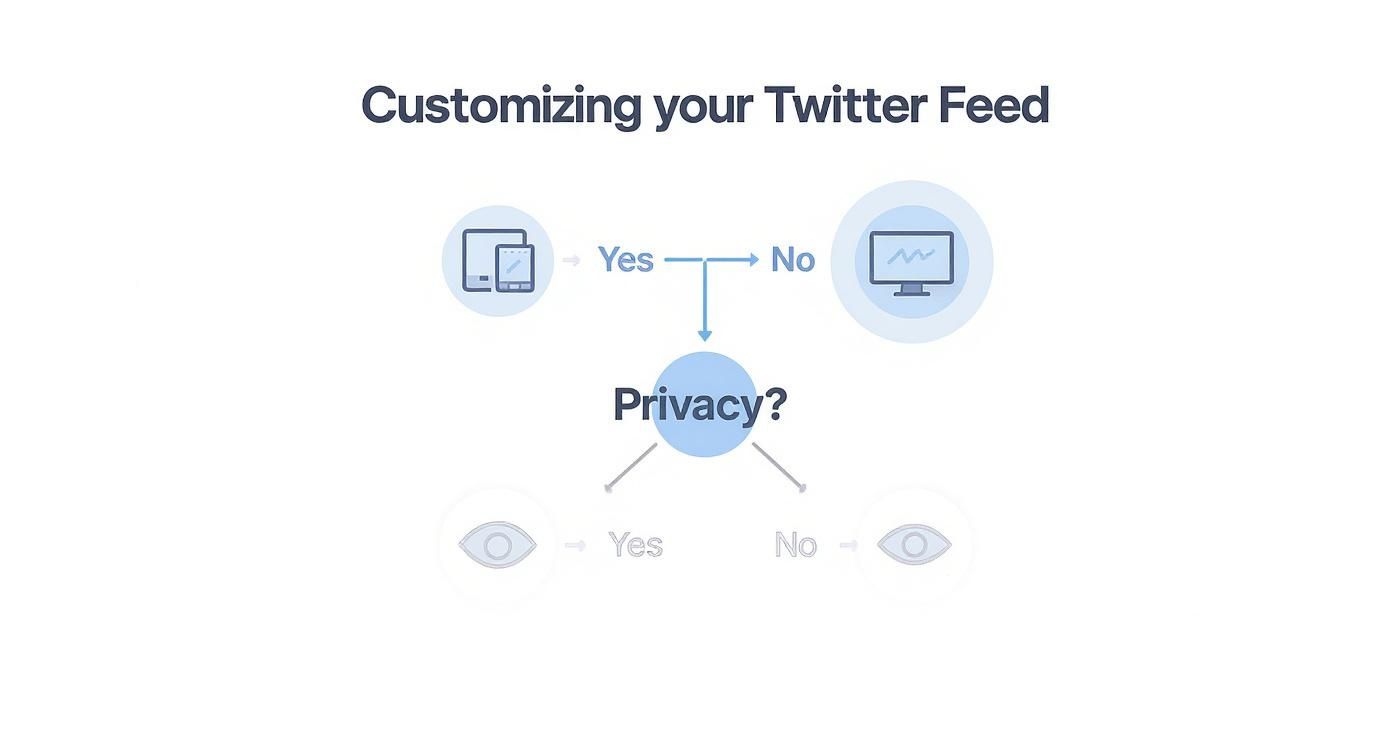
As the graphic shows, getting the basics right—like making sure your feed works on mobile and respects user privacy—is the foundation for any great embed.
Why a Third-Party Tool Might Be a Smart Investment
The real magic of these platforms is the level of customisation and automation they unlock. You get access to slick, professional templates, a moderation panel to filter out any unwanted content, and analytics to see what's actually working. For any brand running a live event or a hashtag campaign, this kind of control is invaluable.
Here's what you gain:
- No-Code Customisation: A visual editor lets you tweak layouts, colours, and fonts until it perfectly matches your brand.
- Content Moderation: You can set up rules to automatically filter posts or manually approve them before they go live on your site.
- Multi-Platform Aggregation: Pull everything together. Combine your Twitter feed with content from other networks for a more complete picture.
- Enhanced Analytics: Finally, get real data. Track views, clicks, and interactions to understand how your audience is engaging.
It’s true that global Twitter engagement rates dipped to a tiny 0.015% in 2025, but that figure doesn't tell the whole story. Niche communities in the UK, especially those around major brands, often see much healthier rates, sometimes as high as 0.08%. A third-party tool lets you curate just these high-value posts, making your social proof far more powerful. Discover more insights about these Twitter statistics.
Of course, there's always a trade-off. These powerful tools usually come with a subscription fee. You're also adding another script to your site, which can sometimes have a small impact on your page load speed. If you're looking for more control without a full-blown aggregation service, a dedicated social sharing plugin like Monarch can also offer some advanced features. It really comes down to balancing your budget against your performance goals and how much creative control you need.
Common Questions About Embedding Twitter Feeds
Whenever you decide to add a Twitter feed to your website, a few practical questions almost always crop up. It's totally normal to wonder about the costs, how it might affect your site's speed, and any potential headaches you might run into. Let's get those common queries answered so you can move forward with confidence.
One of the first things people worry about is whether they need to be a coding whiz to pull this off. Honestly, you don't. With Twitter's own tools and the variety of plugins available today, you can get a feed live on your site without ever touching a line of code.
The whole process is built to be user-friendly. It’s really just a matter of copying a URL, letting a tool generate a snippet of code, and then pasting that snippet into the right spot on your website. Simple as that.
Why Is My Embedded Feed Not Updating?
This one's a classic – and incredibly frustrating. You've followed all the steps, but your shiny new feed is stubbornly displaying old tweets. Nine times out of ten, the culprit is caching. Your website platform or your browser is likely saving an old version of the page to make it load faster.
The fix is usually straightforward. Start by clearing your website's cache. If you're on WordPress and using a plugin like W3 Total Cache or WP Rocket, you'll find an option right in your dashboard to "purge all caches". If that doesn't do the trick, try clearing your browser's cache too. This forces your site to grab the freshest content directly from Twitter.
How Do I Make My Embedded Timeline Responsive?
There's nothing worse than an embedded feed that looks great on a desktop but breaks completely on a phone. A fixed-width timeline is a common pitfall, so making sure it adapts to different screen sizes is essential for a good user experience.
While some third-party tools handle this for you out of the box, you can easily fix the official Twitter embed with a tiny tweak. You don’t need to be a developer; a simple CSS rule added to your site's custom styles can make the widget fluid, allowing it to resize beautifully on any device. We touched on some of these customisation tricks earlier in the guide.
Making your Twitter feed responsive isn't just a design choice; it's a core part of a modern web strategy. A seamless mobile experience keeps visitors on your site longer and tells search engines that your site is high-quality and user-friendly.
Is It Free to Embed Twitter Content?
Yes, absolutely. Using the official methods provided by Twitter to embed public tweets and timelines is completely free. Twitter offers these tools at no cost because it's a great way for them to expand their platform's reach. You get engaging, dynamic content for your site, and they get more eyes on their content. It’s a win-win.
While more advanced third-party tools often come with a subscription for their premium features, the basic function of embedding a tweet or a simple timeline won't cost you a penny. This makes it a brilliant, budget-friendly tactic for any solid marketing strategy for small business looking to boost engagement.
Ready to discover more powerful ways to enhance your website? The Digital Marketing Toolbox provides a curated selection of the best tools for SEO, social media, and customer engagement. Find the perfect solution to grow your online presence at https://grow-your-biz.com.


