

Embedding your Instagram feed on your website isn't just a nifty design trick. It’s a smart, strategic way to inject life, social proof, and fresh content right where your customers are looking. Essentially, you're adding a small piece of code to your site that pulls in live updates from your Instagram, creating a brilliant bridge between your social world and your online home.
Why Your Website Needs an Instagram Feed

Weaving a live Instagram feed into your website is a fantastic way to build trust and stop your site from feeling stale. It's powerful social proof, plain and simple. It shows visitors that your brand is alive and kicking, with a real community of people who appreciate what you do. This one change can transform a static page into a dynamic, constantly evolving space.
Think about a local café. Their website could have the usual static photos, or it could feature an embedded feed showcasing the daily latte art, happy customers sipping flat whites, and behind-the-scenes snaps from the kitchen. It instantly feels more authentic and current, giving new visitors a genuine reason to pop in.
Keep Your Content Fresh Effortlessly
One of the biggest wins here is tapping into user-generated content (UGC). When customers tag your business in their photos, you can pull those authentic moments right onto your website. This keeps your content fresh without you having to manually upload a thing, giving people a reason to come back and see what's new.
This stream of new visuals isn't just for show, either. It has a real impact on how your website performs.
- Increased Time on Page: Interesting, real-time content gets people to stick around longer, which is a big thumbs-up for search engines.
- Boosted Social Following: It’s a direct link. Website visitors can easily click through and follow your Instagram, turning your web traffic into loyal followers.
- Enhanced Authenticity: Genuine photos from real customers build a kind of trust that even the most polished marketing shots can't quite replicate.
Leverage a Highly Engaged Platform
Here in the UK, the argument for embedding Instagram is incredibly strong. Throughout 2023, Instagram consistently held over 17% of the UK's social media web traffic, even hitting a high of 18.53% near the end of 2022. That's a massive audience, and it shows where people are choosing to spend their time online. Tapping into that is a no-brainer.
By pulling your Instagram content onto your website, you're doing more than just decorating a page. You're integrating a live, trusted, and highly active marketing channel directly into your digital storefront. It’s a key part of any modern https://grow-your-biz.com/marketing-strategy-for-small-business/.
It's all part of building a stronger online presence. When you combine an active social feed with a great website, the two work together to amplify your message. It’s also worth looking into how a professional website enhances brand visibility and customer reach, as this strategy complements your social media efforts perfectly.
How to Choose the Right Instagram Embedding Method
So, you want to get your Instagram content onto your website. Brilliant. The first thing to realise is that there isn't just one way to do it; there are several, and picking the right one from the get-go will save you a world of headaches later on.
The path you choose really hinges on what you’re trying to achieve, how comfortable you are with a bit of tech, and how much control you want over the final look. We’re talking about a spectrum of options, from Instagram’s own super-simple embed feature to dedicated plugins and even getting your hands dirty with the API for something truly bespoke.
Let's say you're a food blogger who just wants to feature a single, stunning photo from a reader in your latest recipe post. In that case, the built-in Instagram embed tool is your best friend—it’s quick, easy, and does the job perfectly. But if you’re an online clothing brand aiming to create a dynamic, shoppable gallery filled with customer photos, you’ll need something with a lot more muscle, like a third-party widget.
Assess Your Technical Skills and Design Goals
Be honest with yourself about your comfort level with code. Are you happy to copy and paste a snippet of HTML, or does the thought of an API make you break out in a cold sweat?
At the same time, think about your brand. Do you need the embedded feed to perfectly match your website’s colour scheme, fonts, and overall vibe? Or is the standard Instagram look good enough?
- Low Technical Skill & Basic Needs: Instagram’s single-post embed is the way to go. It’s free, takes seconds, and requires zero coding knowledge.
- Medium Technical Skill & High Customisation: This is the sweet spot for most businesses. Third-party widgets from companies like Elfsight or Curator.io offer a fantastic balance. You get loads of customisation options through a user-friendly dashboard, all without writing a single line of code.
- High Technical Skill & Total Control: If you need a completely unique, deeply integrated solution, then the Instagram API is your playground. This isn’t for the faint-hearted and almost certainly requires a developer, but it gives you ultimate power.
This decision-tree visual can help you map out your needs and land on the best solution for you.
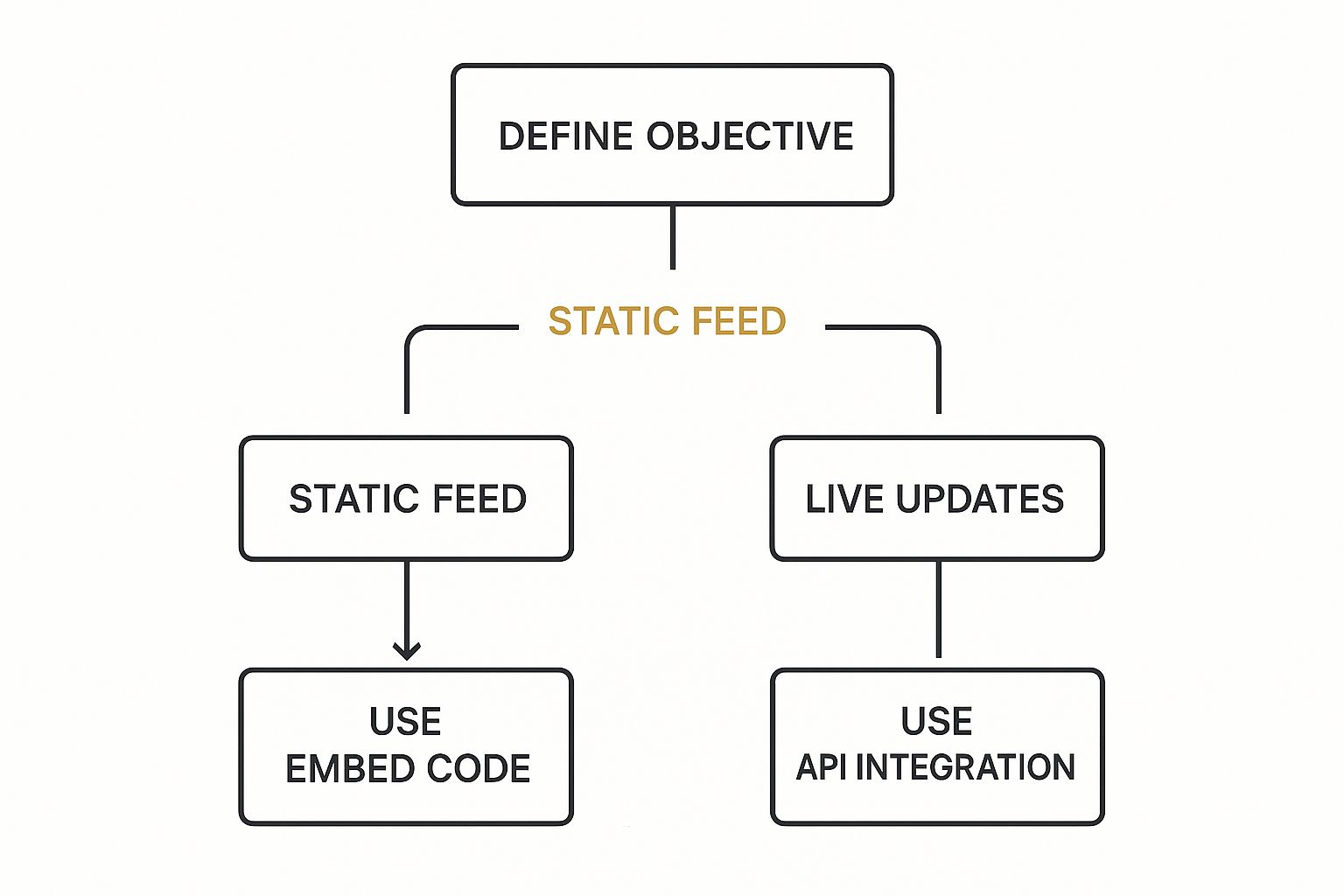
The main thing to remember is that your primary goal—whether it's showing a single static post or a live, interactive feed—is the biggest signpost pointing you toward the right method.
Comparison of Instagram Embedding Methods
To make it even clearer, here’s a quick breakdown of the four main approaches. This table compares them side-by-side, looking at everything from ease of use to cost and customisation potential.
| Method | Ease of Use | Cost | Customisation | Best For |
|---|---|---|---|---|
| Instagram's Native Embed | Very Easy | Free | Very Low | Embedding a single post or Reel quickly into a blog or article. |
| Third-Party Widgets | Easy | Free to Paid | High | Creating customised, branded, and dynamic galleries without code. |
| Platform-Specific Plugins | Easy | Free to Paid | Medium to High | WordPress and Shopify users looking for a seamless, integrated solution. |
| Custom API Integration | Very Difficult | High (Developer Costs) | Total | Enterprise-level brands needing a completely unique, bespoke integration. |
As you can see, each method has its own clear strengths. The choice really comes down to balancing your ambition with your available resources.
Think About Your Platform and Audience
The platform your website is built on also has a big say in this. If you’re running on WordPress or Shopify, you’re in luck. There are countless dedicated plugins and apps designed specifically to make embedding an Instagram feed a breeze. These tools are often built to integrate flawlessly with your site's existing setup, making them an incredibly convenient choice.
It’s also worth considering who you’re trying to reach. Your audience’s demographics can subtly shape your content strategy. For instance, in the UK, women accounted for 55% of Instagram's audience at the start of 2024. Knowing this, a UK-focused brand might lean towards curating content in their feed that resonates more strongly with female interests. You can dig deeper into UK Instagram user demographics on Statista.com.
Ultimately, the best method for embedding Instagram on your website is the one that aligns with your resources, technical ability, and strategic goals. Don’t just pick the easiest option; choose the one that will deliver the most value for your brand.
Embedding Your Feed with Third-Party Widgets
If you're after more than just a single post and want some real creative freedom, third-party widgets are your best bet. Tools like Elfsight or Curator.io act as a brilliant bridge between your Instagram and your website, giving you a ton of customisation options without having to touch a single line of code.
Unlike Instagram's own basic embed feature, a widget lets you showcase a whole dynamic gallery. This means you can create a gorgeous grid, carousel, or slider of your latest posts, turning a plain page into something far more engaging and interactive. The whole thing is usually managed through a really intuitive dashboard, so you don't need to be a tech wizard to get it working.
Connecting and Customising Your Feed
Getting started is surprisingly simple. The first thing you'll do is securely connect your Instagram Business or Creator account to the widget service. Once it's linked up, the tool pulls in your content, and that’s when the real fun begins: making it your own.
This is where these third-party tools really come into their own. You can tweak almost every part of the feed to match your website's branding perfectly. Think about matching the colour scheme to your brand palette or picking a layout that really complements your site's existing design.
Here are some of the customisation options you can expect:
- Layout Choices: Pick from different formats, like a classic grid, a more modern masonry style, or a slick slider.
- Colour Schemes: Adjust the colours for the background, text, and buttons to make sure everything looks seamless.
- Post Details: You get to decide what information shows up. Do you want to display likes, comments, captions, or maybe add a call-to-action button?
- Content Moderation: You can hand-pick exactly which posts appear or set up rules to automatically filter content. This is great for making sure only your best stuff is on display.
This level of control means you can curate an experience that not only looks professional but actually helps you achieve a specific goal, like showing off user-generated content or promoting a new product line.
Generating and Placing the Embed Code
Once you’ve styled your feed just right, the widget will generate a small snippet of code for you. This little piece of HTML is all you need to bring your Instagram gallery to life on your site.
Embedding the code is a piece of cake. You just copy it from the widget's dashboard and paste it into the backend of your website, right where you want the feed to appear. This method works with pretty much any website builder out there, including popular ones like Squarespace and Wix, or even custom-built HTML sites. It’s genuinely a copy-and-paste job.
Connecting your website to your social media is a key part of any solid online strategy, tapping directly into Instagram’s enormous audience. In the UK alone, Instagram has 33.4 million users as of early 2025, which is about 48.2% of the entire population. Embedding a live feed helps you engage that massive audience right on your own turf. You can find more stats on UK social media usage via Sproutsocial.com.
Ultimately, using a third-party widget is a smart move that fits into your wider marketing efforts. To brush up on the basics, have a look at our beginner's guide to digital marketing for some more helpful insights.
Platform-Specific Guides for WordPress and Shopify

If your website is built on WordPress or Shopify, you're in luck. Both platforms have a huge marketplace of plugins and apps designed specifically for embedding Instagram content. This means you can get a polished, professional-looking feed on your site in minutes, with zero coding required.
These tools are built to feel like a natural part of your website's dashboard, taking the guesswork out of the process. You avoid the potential headaches that can sometimes pop up when you try to manually piece things together.
Integrating an Instagram Feed in WordPress
For the millions of sites running on WordPress, plugins are your best friend. An industry favourite is Smash Balloon’s Social Photo Feed, which is incredibly reliable and known for its easy-to-use interface.
Getting it up and running is dead simple. You install the plugin from your WordPress dashboard, connect your Instagram account securely, and you're good to go. The real magic happens with shortcodes. A shortcode is just a small piece of text, something like [instagram-feed], that you can drop into any page, post, or even a sidebar widget. Wherever you put it, your feed appears.
This gives you a fantastic mix of simplicity and power, letting you tweak layouts, colours, and what content shows up, all without ever leaving the familiar WordPress environment.
Embedding a Feed on Your Shopify Store
Shopify store owners have a similar advantage, thanks to the massive Shopify App Store. You'll find plenty of apps designed to add that crucial social proof to your e-commerce site.
The process will feel very familiar if you've ever installed a Shopify app before. Just search the App Store, pick an Instagram feed app with good reviews, and add it to your store with one click. After that, you can start customising where and how the feed appears—on your homepage, next to products, or on a special "Shop Our Instagram" page.
One of the biggest wins for Shopify users is the shoppable feed. Many apps let you tag products right in your Instagram photos. This creates a direct line from a customer seeing something they like to being able to buy it, which can have a massive impact on your conversion rates.
Thinking about how your Instagram feed fits into your overall strategy is smart. It’s worth reading up on the wider topic of social media integration with Shopify to make sure all your channels are working together.
At the end of the day, whether you’re on WordPress or Shopify, these dedicated tools are designed to make embedding Instagram on your website completely painless. They remove the technical hurdles so you can focus on creating great content that connects with your visitors and grows your business.
Want to Manually Embed a Single Instagram Post? Here’s How
Sometimes, you don't need a whole gallery. You just have one perfect post that says it all—a glowing customer review, a big company announcement, or a stunning product shot. For those moments, manually embedding a single Instagram post is your best bet.
This method uses Instagram's own built-in tool, which makes it incredibly quick, easy, and completely free. It’s perfect for dropping a visual right into the middle of a blog post or featuring a customer's photo on a specific product page.
Finding and Copying the Embed Code
Grabbing the code from Instagram is simple, though the option isn't immediately obvious. The first thing to know is that you have to do this from a web browser on your computer; it won’t work from the mobile app.
Head over to the specific Instagram post you want to embed. In the top-right corner of the post, you'll see an icon with three dots (…). Click it.
A menu will pop up. From there, just click the ‘Embed’ option. A new window will appear showing the HTML code snippet for that exact post.
A Quick Tip: Look for a little checkbox that says "Include caption". If the text adds crucial context, leave it ticked. But if you just want the visual, untick it for a cleaner look on your page.
Now, just hit the "Copy Embed Code" button. That’s it! The HTML is now copied to your clipboard, ready to be pasted into your website. This little snippet of code works on pretty much any platform that lets you edit your site's HTML.
Placing the Code on Your Website
With the code copied, it’s time to pop over to your website’s backend or content editor. Where you paste it really depends on what you're trying to do.
- Adding to a Blog Post: Open your blog post editor and switch to the HTML, "Text," or "Code" view. Find the exact spot in your article where you want the post to show up and simply paste the code.
- Placing on a Page: If you’re using a modern block-based editor (like in WordPress or Shopify), you’ll want to add a "Custom HTML" or "Code" block first, then paste the snippet inside.
- Putting it in a Sidebar or Footer: Most website builders have a section for widgets or theme customisation. Look for an option to add a custom HTML widget to your sidebar or footer area and paste your code there.
Once you’ve pasted the code, save or update the page. When you check the live site, you’ll see the Instagram post embedded perfectly, looking just as it does on the app. Embedding Instagram on your website manually is a fantastic way to quickly add a powerful, targeted piece of social proof exactly where you need it.
Don't Let Your Feed Drag Your Site Down: Optimising for Speed and SEO
Let's be honest, embedding your Instagram feed is a brilliant way to keep your site fresh and engaging. But if you’re not careful, it can also be a one-way ticket to a slow, clunky website. Nothing sends visitors running for the 'back' button faster than a page that takes forever to load, and Google absolutely hates it.
The challenge is simple: how do you get all that beautiful, dynamic content onto your site without killing its performance? The main culprits are almost always the heavy images and extra scripts that come with the feed. A big, unoptimised feed can easily add precious seconds to your load time, which is a major blow to both your user experience and your search engine rankings.
Prioritise Lazy Loading and Asynchronous Scripts
If you take away just one thing, let it be this: make sure your feed uses lazy loading. I consider this a non-negotiable feature for any widget or plugin I use.
Lazy loading is a clever technique that stops the browser from loading all your Instagram images at once. Instead, they only load as a visitor actually scrolls down the page and gets close to seeing them. The difference this makes to your initial page speed is massive.
At the same time, you need to check that the script powering your feed loads asynchronously. In simple terms, this tells the browser it can continue building the rest of your page while the Instagram script loads quietly in the background. This prevents the feed from being a bottleneck that freezes everything else.
A fast, responsive site isn't just a nice-to-have technical feature. It's the foundation of a good user experience. When a visitor has a smooth, quick experience, they're far more likely to stick around, engage with your content, and maybe even give you a follow or buy something.
Your Feed Must Be Fully Responsive
This might seem obvious, but you’d be surprised how often it gets overlooked. Your embedded feed has to look and work perfectly on every device, period. With more than half of all website traffic now coming from mobile phones, a feed that breaks on a smaller screen is a huge own goal.
Any decent third-party tool will handle this automatically, neatly reformatting the gallery for desktops, tablets, and smartphones. But you should always check for yourself.
- Test it on real devices: Don't just resize your browser window. Actually pull up the page on an iPhone and an Android phone to see how it feels.
- Check the touch experience: Can you easily tap on posts or links within the feed on a small screen without accidentally hitting something else?
- Keep an eye on performance: Run your page through a tool like Google's PageSpeed Insights. This will show you exactly how the feed is affecting your mobile performance score.
Getting these technical details right is a huge part of the puzzle. But don’t forget the basics of on-page SEO that help people find you in the first place. For instance, knowing how to write effective meta descriptions can dramatically increase how many people click on your site from a Google search. Once you've used your slick, fast website to draw people in, you can think about other ways to connect with them, and it’s worth looking into the advantages of email marketing to build on that new audience.
Questions That Pop Up When Embedding Instagram Feeds
As you get started with adding your Instagram content to your website, a few questions almost always come up. Let's walk through the most common ones so you can get your feed live without any hitches.
Do I Really Need an Instagram Business Account for This?
It depends on what you're trying to do.
If you're looking to display a full, dynamic grid of your latest posts using a third-party widget or plugin, then yes, you'll need an Instagram Business or Creator account. These professional tools tap into Instagram's API for the good stuff, and that access is reserved for business profiles.
But if you just want to embed a single, specific post using Instagram's own built-in embed feature, any public account will do the trick.
Is This Going to Slow My Website Down?
It’s a valid concern, and the answer is: it can, but it doesn't have to. A poorly coded widget can definitely drag down your site speed.
The key is to pick a quality tool that includes ‘lazy loading’ for images. This clever feature means your Instagram pictures only load when a visitor actually scrolls down to them.
Lazy loading makes a massive difference to your initial page load time. It ensures your feed adds to the user experience instead of taking away from it. Also, check that the script loads asynchronously, so it doesn't hold up the rest of your page.
Can I Embed a Feed from a Private Instagram Account?
Simply put, no. You can't embed anything—not a single post, not a full feed—from a private account. Instagram's privacy settings are pretty strict and are designed to keep private content from being shared publicly off the platform.
For any of these embedding methods to work, the account has to be public. No exceptions.
Can I Show My Instagram Reels or Stories on My Website?
Absolutely. Many of the newer third-party widgets and WordPress plugins are built to handle more than just standard posts. They often support embedding Reels and sometimes even Stories.
When you're shopping around for a tool, just double-check its feature list to make sure it can handle the types of content you want to show off. On a related note, Instagram's standard single-post embed feature usually works just fine for both regular posts and Reels.
Ready to find the best tools for the job? The Digital Marketing Toolbox offers a hand-picked catalogue of top-tier widgets and solutions to help you grow. Discover the perfect fit for your website at https://grow-your-biz.com.


