
It’s surprisingly easy to change your LinkedIn email. You just need to pop into your 'Settings & Privacy', head over to the 'Sign in & security' area, and add your new address. The crucial last step is to verify that new email before you can set it as your main point of contact.
Why Your LinkedIn Email Matters More Than You Think
Before we get into the nuts and bolts of it, let’s talk about why this seemingly small update is a bigger deal than most people realise. Your primary LinkedIn email is the main artery to your professional life. It’s where you get job alerts, messages from potential partners, and those all-important security notifications that keep your account safe. An old, forgotten email address could mean a career-changing opportunity passes you by completely.
Think about it: you leave a job and, a few weeks later, your old work email is deactivated. If that’s still your primary address on LinkedIn, you’re suddenly cut off. No password resets, no important updates. It’s a huge security risk and a massive headache waiting to happen.
Secure Your Professional Identity
Here in the UK, keeping your LinkedIn email current is a must for both networking and security. With over 30 million of us using the platform, it’s a core part of our professional world. Some cybersecurity pros even recommend changing your LinkedIn email about once a year to lower the risk of being caught in a data breach. That’s a pretty smart move when you consider that 58% of UK businesses reported a cyber incident last year.
Your primary email isn't just a login detail; it’s the key to your professional network's front door. Keeping it current ensures you're the only one with that key.
The Foundation of Trust and Accessibility
A current email also signals to recruiters and new connections that your profile is active and you're someone who's on the ball. When they land on your page, they have confidence that the information is reliable. And while you can, and should, control who sees your email address, the platform itself needs it to work properly. If you're curious about who's looking at your profile, you can explore our guide on https://grow-your-biz.com/does-linkedin-show-who-viewed-your-profile/ to get a better handle on your privacy settings.
To really get why this matters, it helps to understand what it means to validate an email address and confirm it’s a real, active channel for communication. This one small detail underpins your entire professional presence.
Updating Your Email on Desktop and Mobile
Changing your email on LinkedIn is one of those quick admin tasks you can knock out in a few minutes, whether you're at your desk or on your phone. Maybe you've just started a new job and want to switch from your old work email, or perhaps you're just tidying up your digital life. The good news is, the process is virtually the same everywhere.
You'll need to dive into your account settings first. If you're on a computer, just click the 'Me' icon at the very top right of the page and pick 'Settings & Privacy' from the menu that drops down. On the mobile app, it’s just as easy: tap your little profile picture in the top left, and then tap 'Settings'.
Locating the Right Menu
Once you're in the main settings area, look for the 'Sign in & security' section. This is LinkedIn's hub for all the important stuff that keeps your account safe, like your password, two-step verification, and of course, your email addresses. Go ahead and click on 'Email addresses' to move forward.
This quick visual guide shows you exactly where to go.
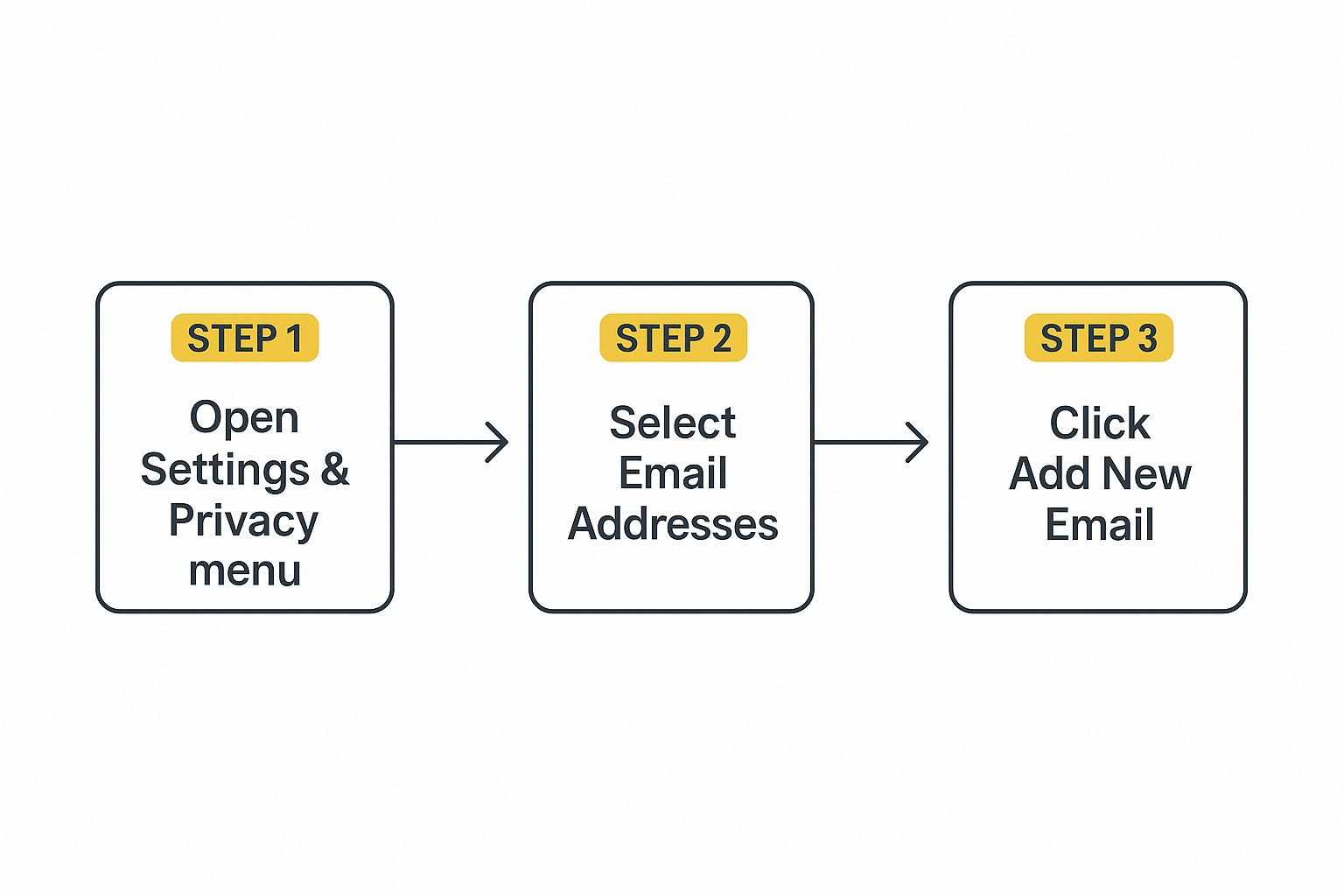
As you can see, it's a simple three-click journey from your profile to the email management screen. LinkedIn has designed it to be pretty direct.
Adding and Verifying Your New Email
You should now be looking at a list of all the email addresses tied to your account. To get started, hit the 'Add email address' button. You’ll be asked to type in your new email and then re-enter your current LinkedIn password, just to prove it’s really you.
After you do that, LinkedIn will immediately fire off a verification email to your new address. This is a crucial security step – you can’t skip it.
Don't forget this part! You absolutely must complete the verification. Until you do, that new email just sits in limbo. You won't be able to make it your primary contact or get rid of your old one.
Pop over to your new email inbox and find the message from LinkedIn. If you don't see it within a minute or two, it's always worth checking the spam or junk folder. Open it up and click the confirmation link inside. That's what tells LinkedIn you own the account, officially adding it to your profile.
Once you click the link, you’ll be zipped right back to the 'Email addresses' page on LinkedIn. You’re now just one step away from finishing the job. Next, we’ll look at how to set this newly verified email as your primary address, which is the final piece of the puzzle.
Managing Multiple Emails and Setting Your Primary Address
Most of us are juggling at least two email addresses—one for work and one for personal life. LinkedIn understands this, and it’s actually a really good idea to link both to your profile. This gives you a fantastic safety net and more control over where different types of notifications land.
For example, you might want your daily updates and connection requests sent to your work email, but keep a personal one on file as your permanent login. Adding that second (or third) address is easy. Just follow the same steps you used for the first one: pop back into the 'Sign in & security' section, click 'Add email address', and run through the quick verification.
Choosing Your Primary Contact Point
Once you have a couple of verified emails on your account, you need to tell LinkedIn which one is the boss. This is your 'primary' address, and it's a more important decision than you might think.
Your primary email is where LinkedIn will send all its most critical messages. It’s essentially your account’s main point of contact for anything serious.
This includes things like:
- Password reset links if you get locked out
- Security alerts for new sign-ins from unrecognised devices
- Official updates about LinkedIn's policies
For this reason, I always advise people to use a permanent, personal email address as their primary. If you use your work email and then leave the company, you could instantly lose access to your entire LinkedIn profile. It happens more often than you'd think.
Expert Tip: My go-to strategy is to set a personal email (like Gmail or Outlook) as the primary for long-term security. Then, add your work email as a secondary address for receiving day-to-day networking notifications. This setup neatly separates your profile ownership from your current job.
Making the change is straightforward. In your list of email addresses, find the one you want to promote and simply click 'Make primary'. LinkedIn will prompt you for your password one last time, just to be sure it’s you.
After that, all high-priority communications will go to your new primary address. It’s a small change that massively boosts your account security and makes sure you’re ready for any future career moves without a hitch. This kind of personal brand management highlights some of the same principles found in professional outreach, so if you're curious, you can discover more about the strategic advantages of email marketing in our detailed guide.
Solving Common Email Change Problems
Even something that seems simple, like updating an email, can occasionally throw a spanner in the works. If you've hit a roadblock trying to change your email on LinkedIn, don’t worry. We’ll walk through the most common hitches and get you sorted.
One of the biggest frustrations is when the verification email seemingly vanishes into thin air. You've added your new address, you're ready to confirm it, but your inbox is completely empty. Before you get too annoyed, take a deep breath and check your spam or junk folder—it’s the most likely culprit.
It's also surprisingly easy to make a small typo when you're in a hurry. Just one wrong letter can derail the whole thing. Carefully check that the email address you entered on LinkedIn is spelt correctly. A simple mistake like jane.doe@gmal.com instead of @gmail.com will stop the process cold.
The Dreaded 'Email Already in Use' Error
Another classic snag is seeing a message that your email is already associated with another LinkedIn account. This often happens if you've accidentally created a duplicate profile in the past or maybe a family member used your email to sign up years ago and forgot about it.
If you can still access that other account, your best bet is to log in and either remove the email address from it or close the duplicate profile entirely. If you can’t get in, you’ll need to contact LinkedIn's support team directly to help you reclaim your email address.
A quick tip from experience: Don't just abandon an old address on your profile, especially if you can't access it anymore. You can’t set a new primary email until the old one is demoted, and you must have at least one verified email on your account before you can remove another.
With LinkedIn's job board listing over 22 million open roles globally, keeping your contact details current is vital. A huge number of these are aimed at UK talent, and with the platform's user growth outpacing even YouTube and Twitter, timely notifications are essential. Making sure your primary email is up to date directly impacts your ability to receive these competitive opportunities. You can learn more about the platform's incredible expansion by exploring these in-depth LinkedIn statistics.
Common Email Change Problems and Solutions
Running into trouble can be frustrating, but most issues have a straightforward fix. I've put together this quick-reference table to help you identify the problem and find the right solution fast.
| Problem | Likely Cause | Recommended Solution |
|---|---|---|
| Verification email never arrives | It's likely in your spam/junk folder. | Check your spam or junk mail. If it's not there, try re-sending the verification link from your LinkedIn settings. |
| Error message: "This email address is already in use" | The email is tied to another (often forgotten) LinkedIn account. | Log into the duplicate account and remove the email. If you can't access it, contact LinkedIn Support for help. |
| I can't make the new email primary | The new email address has not been verified yet. | Find the verification email from LinkedIn and click the confirmation link inside. |
| I can't remove my old email address | It's still set as your primary email, or it's the only one on your account. | First, add and verify your new email. Then, set the new email as your primary. Now you should be able to remove the old one. |
Hopefully, this table gives you a clear path forward. Once you've identified the cause, the solution is usually just a few clicks away.
Go Beyond Email Updates with Proactive Account Security
Knowing how to switch your email on LinkedIn is great, but that's just one piece of the puzzle. Think of it like changing the front door lock on your house – a crucial step, but you wouldn't leave the windows wide open. Protecting your professional reputation requires a bit more vigilance.
It all starts with your password. A strong, unique password for LinkedIn is absolutely non-negotiable. So many people fall into the trap of reusing the same password everywhere, but a data breach on one completely unrelated website could suddenly leave your LinkedIn account vulnerable.
Fortify Your Login Process
If you want a quick, high-impact security win, switch on two-factor authentication (2FA). This clever feature adds a second layer of defence by asking for a verification code, usually sent to your phone, any time a new device tries to log in. It’s a simple setup but a massive headache for anyone who isn't you.
Taking control of your digital security means being proactive. Your LinkedIn profile is a professional asset—protecting it with layers of security like 2FA and regular reviews isn't just smart, it's essential.
Get into the habit of checking your active sessions now and then. LinkedIn keeps a list under "Sign in & security" that shows every single device logged into your account. If you see an old work computer or a location you don’t recognise, you can kick it out with a single click.
Building these habits is key. To get a broader understanding of protecting your digital communications, it's worth exploring these essential email security best practices. These small actions make a huge difference in safeguarding your network and personal data.
Common Questions About Managing Your LinkedIn Email
Even after you’ve updated your details, a few questions might still be floating around. Let's clear up some of the most common queries people have when they're sorting out their email settings on LinkedIn.
A big one is always about privacy. Can everyone see your email address once it's on your profile? The good news is, only if you want them to. Your email is private by default. You have full control and can change your settings to make it visible to your 1st-degree connections, but it's never public unless you explicitly choose that option.
What If I Can't Get Into My Email Account Anymore?
This is a scenario that causes a lot of stress. If you lose access to your primary email and can't log in to LinkedIn, you'll have to use their official account recovery process. This is exactly why having a verified secondary email or phone number is so important—it's your backup plan for proving you are who you say you are.
Without that backup, getting back into your account can be a real headache.
Another point of confusion is whether changing your login email messes with your messages. Put simply, it doesn't. Your direct messages are completely separate from the email address you use for your account. If you want to dive deeper into how messaging works on the platform, it's worth learning what an InMail on LinkedIn is and how it differs from a standard message.
Keeping your contact details up to date is one of the easiest yet most effective security habits you can build. I think of it as a quick annual health check for my professional online presence.
So, how often should you really be looking at your LinkedIn email settings? The best rule of thumb is to update your email immediately after you change jobs or switch to a new email provider. From a security perspective, it’s also a good idea to review your linked emails once a year. Take a moment to remove any that are old, out of use, or that you no longer feel are secure.
Ready to discover more tools to elevate your professional presence? The Digital Marketing Toolbox offers a curated selection of the best software to help you grow. Find your next favourite tool at https://grow-your-biz.com.


