

Tagging someone on LinkedIn is one of those simple actions that pack a massive punch. All you have to do is type the @ symbol in a post or comment, start typing a name, and then pick the right person from the dropdown menu that appears.
That one small step does two things instantly: it sends a notification to the person you’ve mentioned and turns their name into a clickable link straight to their profile, pulling them right into the conversation.
Why Tagging on LinkedIn Is a Networking Superpower

Think of tagging as more than just a way to get someone's attention. It’s a genuine strategic tool. When you tag a colleague in a project update, a client in a celebratory post, or an industry expert whose article you're sharing, you’re doing more than just giving them a digital nudge. You're also putting your content in front of their network, which can dramatically expand your post's reach.
This simple act really is a cornerstone of effective networking on the platform.
Key Benefits of Strategic Tagging
- Boosted Visibility: Tagging someone essentially borrows their audience. Your post gets exposed to a wider, yet still relevant, group of professionals connected to the person you mentioned.
- Giving Credit Where It's Due: It’s the perfect way to publicly acknowledge collaborators, thank a mentor, or cite a source of inspiration. This builds goodwill and shows you value your connections.
- Encouraging Engagement: When you directly invite someone into a discussion, they're far more likely to jump in with a comment or a share. This signals to the LinkedIn algorithm that your post is valuable, boosting its overall performance.
Here in the United Kingdom, this is an incredibly powerful tactic. With a professional audience of roughly 44.6 million users, a single, well-placed tag can set off a huge ripple effect across the platform. You can see more details on the UK's growing LinkedIn user base on Statista.
The real power of a tag lies in its ability to start a conversation. It turns a monologue into a dialogue, inviting valuable input and strengthening professional relationships with every mention.
Of course, knowing who sees your activity is a big part of this. If you want to dive deeper into profile visibility, our guide on whether LinkedIn shows who viewed your profile is a great next step. Once you get the hang of it, tagging stops being just a feature and becomes a deliberate strategy for building your network and professional authority.
Getting the Hang of Tagging on Desktop and Mobile
Tagging someone on LinkedIn is one of those simple actions that delivers a big punch, and thankfully, it works pretty much the same whether you're at your desk or on your phone. The basic idea is identical, but knowing the slight differences in the interface can make it feel a bit smoother.
Let's walk through the most common scenario: tagging someone in a new post. You'll start your post as usual, and when you get to the part where you want to mention a person or company, you just use the @ symbol.
The moment you type @ and start writing a name, LinkedIn will pop up a handy dropdown list. It’s pretty smart, suggesting connections, followers, and companies that match your typing. All you have to do is click the right one, and their name magically turns into a clickable blue link.
Tagging on Your Desktop Browser
When you're using LinkedIn on a computer, the whole process feels very natural. The larger text box gives you plenty of space to craft your message, letting you see the full post as you add your tags.
- Start a post: Just click the "Start a post" box at the top of your homepage feed.
- Write your message: Get your thoughts down and figure out what you want to share.
- Add the tag: When you're ready, type the
@symbol and begin typing the name of the person or company. For example, typing@JohnSmithwill immediately start showing you matching profiles. - Select and post: Choose the correct profile from the list to lock in the tag, finish up your post, and hit "Post".
If you're looking for more tips on crafting great content, this guide on how to post on LinkedIn for maximum impact is a fantastic resource for making sure your tagged posts really stand out.
Tagging From the Mobile App
The mobile app is built for speed, and tagging is just as straightforward. The biggest difference you'll notice is that the dropdown list takes up more of your screen, which is just something to be aware of as you type.
Just open the app, tap the "Post" button in the centre of the bottom navigation bar, and use the same @-mention method. Type @ and a name, and pick from the list that appears. It's perfectly designed for networking when you're out and about.
Remember, tagging isn't just for posts. It’s a game-changer in the comments section. Tagging someone in a comment pulls them right into an ongoing conversation, which is a brilliant way to get their specific input or opinion.
This visual shows just how that simple tag can create a ripple effect.
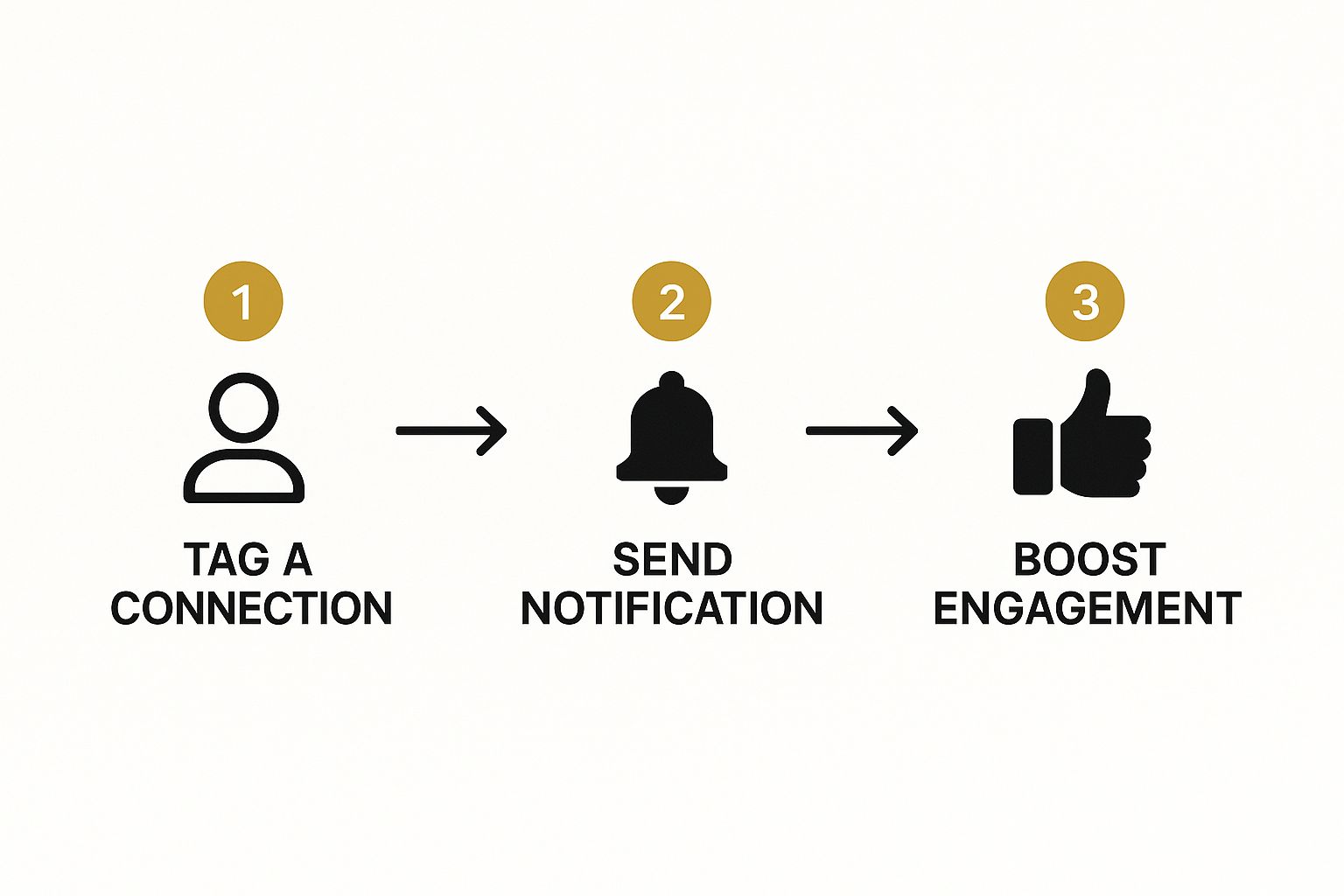
As you can see, the tag sends a notification, drawing that person's attention and often encouraging them (and their network) to engage with your content.
How to Tag Someone in a Photo
Did you know you can also tag people directly in photos? It’s a great touch for event pictures or team shots. Once you've uploaded an image to your post, you'll see a "Tag" icon or button before you publish. Click that, and you can then tap anywhere on the photo to type in the names of the people you want to tag, connecting their profiles directly to the image itself.
The Art of Tagging: Best Practices for Professional Etiquette
Knowing how to tag someone is one thing, but knowing when and why is what really makes a difference. It’s the line between being a savvy networker and coming across as a spammer. Tagging someone without a clear purpose can feel a bit intrusive and, honestly, might even annoy the very people you’re trying to connect with.
The golden rule is pretty straightforward: only tag people who have a genuine connection to what you're sharing.
Before you hit that ‘@’ symbol, ask yourself: would this person genuinely find this post interesting or relevant to their work? Or am I just hoping to get their attention? If you're posting an update on a project, by all means, tag the team who contributed. If you’re referencing a brilliant article, it makes perfect sense to tag the author. Relevance is everything.
Give People a Reason for the Tag
Don't just drop someone's name into a post and leave them wondering why they're there. A tag without context is like a random tap on the shoulder from a stranger. Always take a moment to briefly explain why you’re looping them in.
For example, a simple tweak makes all the difference:
- "Fantastic article on project management! Tagging @JaneDoe because I thought you'd appreciate the insights on agile methodologies we discussed last week."
- "So proud of what our team accomplished on this. A huge shout-out to @JohnSmith for his incredible design work on the campaign."
This small effort transforms the tag from a demand for engagement into a thoughtful, personal invitation.
The best tags add value for everyone involved—the person you tag, your audience, and yourself. It’s not about shouting for attention; it’s about starting a meaningful conversation.
Sidestepping Common Tagging Blunders
It’s easy to get a bit tag-happy, but overdoing it can backfire spectacularly. Flooding a post with dozens of irrelevant tags is one of the fastest ways to get your content completely ignored.
Here are a few pitfalls to avoid:
- Steer clear of mass-tagging. Tagging a huge list of people in a generic post just doesn't work. Be selective. Be intentional.
- Be mindful of seniority. Think twice before tagging a very senior leader or a major influencer unless you have a strong, direct reason. Their notifications are already flooded, so respect their time. For more direct outreach, you might want to understand what is an InMail on LinkedIn: https://grow-your-biz.com/what-is-an-inmail-on-linkedin/
- Strike a balance between tags and hashtags. A solid content strategy needs both. Alongside tagging people, knowing how to effectively use hashtags on LinkedIn will give your content a much wider reach.
The data backs this up. Recent trends show UK engagement rates on LinkedIn peaked at 5.76% in March, a noticeable jump from the previous year's average. Tagged posts are a major driver of these interactions because they send a direct notification, pulling people right into the conversation. When you get the etiquette right, you’re not just using a feature—you’re building credibility and strengthening your professional network.
Using Tags to Hit Your Business and Marketing Goals
For any business on LinkedIn, tagging is more than just a social courtesy—it’s a sharp marketing tool. When you get it right, a simple tag can amplify your message, turning a routine post into a strategic move that delivers real results.
It’s all about tying your activity back to your growth plans. For example, imagine you’ve just wrapped up a fantastic project. You could post a short case study and tag your main contact at the client's company (always ask them first, of course). This does two things: it celebrates your partnership and provides powerful social proof to their entire network. Suddenly, your client is your best brand advocate.
Boost Engagement and Bring in Leads
Tagging is also brilliant for joint announcements. If you're launching a new product with a partner, tagging their company page and a few key people on their team means the news hits both of your audiences at the same time. You’ve just doubled your reach and created a central place for conversation, making it much easier to track interest and spot potential leads.
It works just as well for events. Hosting a webinar? Make sure you tag your speakers in the promo posts. Most are more than happy to share content that puts them in the spotlight, instantly extending your message to their followers—an audience that’s likely a perfect fit for you.
A well-placed tag is a direct invitation to engage. You’re not just throwing content out there and hoping for the best; you're actively pulling the right people and companies into the conversations that matter most.
This approach is especially critical in the UK, where 93% of B2B marketers see LinkedIn as their top platform for organic social marketing. With a visitor-to-lead conversion rate of 2.74%, every tag is a real opportunity to kickstart a valuable business relationship. You can see more on this in an in-depth look at LinkedIn statistics.
Think of tagging as one part of your overall outreach. A strong marketing strategy for small business weaves together multiple tactics, and smart tagging can give your other efforts a serious boost. It's a simple, high-impact technique that directly fuels lead generation, builds brand awareness, and grows the community around your company page.
Troubleshooting Common LinkedIn Tagging Issues
It’s happened to all of us. You’re crafting the perfect post, you type ‘@’ to tag a colleague, and… nothing. The person you’re looking for just doesn’t pop up in the list. It’s a frustrating little glitch, but there's usually a straightforward reason behind it.
Most of the time, the problem is your connection level. LinkedIn's tagging feature is designed primarily for your immediate network, meaning you can generally only tag your 1st-degree connections. If you're not directly connected to the person, their name simply won't appear.
Why Can’t I Find Someone to Tag?
Beyond not being a direct connection, their personal privacy settings could be the culprit. Users have the option to block others from being able to tag them. If they’ve flipped that switch in their settings, you won't be able to mention them, and there’s no way around it.
So, when a tag isn't working, it usually boils down to one of these common issues:
- You're not a 1st-degree connection: The person you're trying to tag needs to be in your direct network.
- Their privacy settings are locked down: They’ve specifically chosen not to be tagged in posts or comments.
- You've been blocked: If another user has blocked you, you won't be able to find their profile or tag them.
Before you go down a rabbit hole of investigation, check the simplest thing first: spelling. One tiny typo in someone’s name is enough to prevent LinkedIn from finding the match.
How to Correct a Tagging Mistake
What if you accidentally tag the wrong Jane Smith or your tag just shows up as plain text instead of a clickable link? No need to panic; it’s an easy fix.
If you’ve mentioned the wrong person, just edit your post or comment. Click the three dots (…) in the corner of your content, choose ‘Edit’, backspace over the incorrect tag, and type the ‘@’ symbol again to find the right person.
When a tag appears as plain text, it means the link to their profile didn't register properly. The fix is the same: edit the content, delete their name, and re-tag them, making sure you click their profile from the dropdown menu this time.
A Few Common Questions About LinkedIn Tagging
Even when you've got the hang of tagging, a few specific questions tend to pop up time and again. Let's tackle some of the most common ones I hear.
How Do I Know if Someone Has Tagged Me?
You bet. LinkedIn makes sure you don't miss a mention. Anytime someone tags you in a post or a comment, you'll get a direct notification.
Just head over to your ‘Notifications’ tab on your LinkedIn homepage. You’ll see a clear alert like, "[Person's Name] mentioned you in a post." A quick click takes you right to where the action is, so you can jump in and respond.
Is There a Limit to How Many People I Can Tag?
This is a great question. While LinkedIn doesn’t publish an official, hard number, there’s definitely a practical limit to keep in mind. From experience, once you start tagging more than 30-50 people, you risk your post being flagged by the algorithm as spam. This can seriously hurt your post's reach.
My advice? Always prioritise relevance over sheer numbers. A thoughtful tag to a few key people who will actually appreciate the content is always more powerful than a scattergun approach that tags dozens.
What’s the Real Difference Between Tagging a Person and a Company?
The main difference really comes down to who sees the notification. When you tag a person, that individual gets a personal alert. Tag a company page, and the notification goes straight to the page's admins.
Think of it this way: tag a person to bring them into a direct conversation. Tag a company when you want to mention a brand, shout out a partner, or reference an organisation as a whole. Both boost visibility, but they’re used for entirely different reasons.
Find the best tools to manage your professional networking and marketing efforts at The Digital Marketing Toolbox. Streamline your strategy today at https://grow-your-biz.com.


