

Carousels. They're one of the most requested—and debated—features in web design. In theory, they're a slick way to showcase multiple pieces of content in a single spot. But in practice, their effectiveness can be a real mixed bag, sometimes hurting user engagement and slowing your site down if you're not careful.
Should Your Website Even Have a Carousel?
Before jumping into the how-to, let's tackle the big question: do you actually need a carousel? It's easy to see the appeal. They look modern and feel like a clever solution for cramming more information "above the fold." The reality, however, is a lot more complicated.
The hard truth is that most users have developed a kind of "banner blindness," where they instinctively ignore anything that resembles an advertisement. This means the carefully crafted content you've placed on slides two, three, and beyond might as well be invisible. If you're building a website with carousel, this is a huge problem, as you're effectively hiding important messages from most of your audience.
The Low Engagement Reality
The data on carousel performance is pretty sobering. Studies have consistently shown that interactive carousels get very little engagement. On average, we're talking about a 1.7% to 2.3% click-through rate.
What’s even more revealing? A massive 84% of those clicks are on the very first slide. The rest of the slides are left fighting for the scraps.
This flowchart can help you think through whether a carousel is the right tool for the job or if a simpler, more direct layout would serve you better.
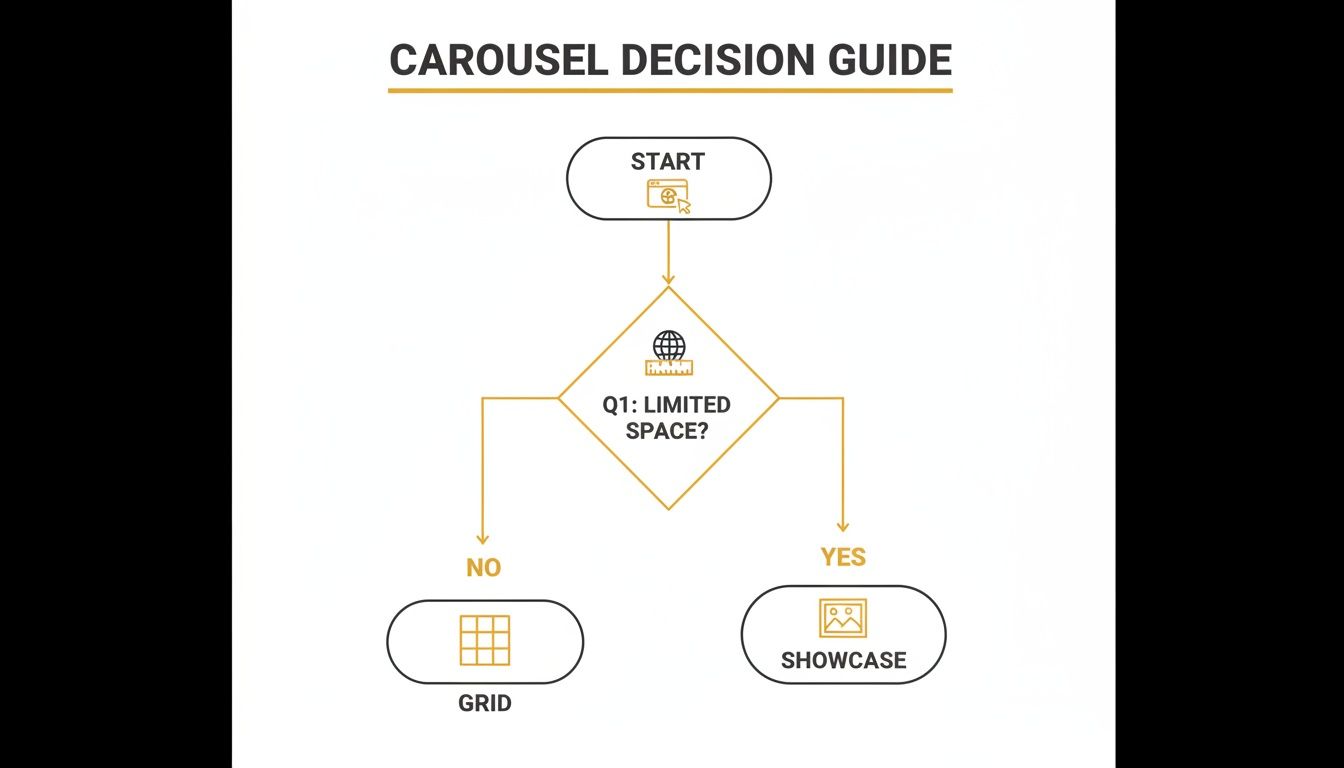
The main takeaway here is that carousels work best for showing off a set of visually related items, especially when you're tight on space. They're not a great fit for cramming in a bunch of unrelated calls to action.
When a Carousel Genuinely Adds Value
Despite all the drawbacks, there are times when a carousel is absolutely the right choice. The trick is to stop thinking of it as a catch-all for your homepage and start seeing it as a specialised tool for specific tasks.
A carousel works best when it presents a collection of homogenous, browsable content that isn't mission-critical. If each slide contains a completely different message, you're better off giving each message its own dedicated space on the page.
Here are a few scenarios where I've seen them work brilliantly:
- Product Galleries: On an ecommerce site, using a carousel to show multiple photos of the same product is a no-brainer. It keeps the page tidy while giving shoppers all the views they need.
- Client Testimonials: A rotating set of short, punchy testimonials—maybe with headshots—is a great way to build social proof without eating up a ton of vertical space.
- Portfolio Showcases: For designers, developers, or creative agencies, a carousel is a sleek, compact way to display a curated selection of recent work.
When a Carousel Makes Sense and When It Doesnt
Use this table to quickly assess if a carousel is the right tool for your content, or if a simpler alternative would be more effective.
| Use Case Scenario | Good Fit for Carousel? | Reasoning and Better Alternatives |
|---|---|---|
| Displaying different views of a single product | Yes | Perfect for letting users browse visually similar content without leaving the page. |
| Showing off multiple, unrelated promotions | No | This hides important information. Give each promotion its own static banner or section on the page for maximum visibility. |
| A gallery of client logos or testimonials | Yes | A great way to show social proof in a compact space. The content is homogenous and doesn't require users to see every single slide to get the point. |
| Displaying critical calls to action (CTAs) | No | Bad idea. You're burying your most important CTAs on hidden slides. A static hero section with a single, clear CTA will almost always perform better. |
| Showcasing a portfolio of similar creative projects | Yes | Works well for visual browsing where the user is in control. It's an efficient way to present a body of work. |
| Presenting a sequence of required steps or info | No | Never hide sequential information. A user might miss a crucial step. Use a static grid, list, or a dedicated “how it works” section instead. |
Ultimately, choosing a carousel should be a deliberate decision within your overall strategy for the best ecommerce website design, not just an afterthought. It's just one of many website widgets you can use to structure information.
My rule of thumb is simple: if the content on slides two through five is genuinely important, it deserves its own dedicated, visible space on the page. Don't hide it in a carousel.
Designing a Carousel for Performance and Accessibility
So, you've decided a carousel is the right tool for the job. Great. Now comes the hard part: building one that doesn't annoy your users or tank your site’s performance. A badly made carousel is worse than no carousel at all. Two things absolutely must be at the top of your list: speed and accessibility. Get these right, and you're on your way to creating something that helps, not hinders.
There's no faster way to wreck your Core Web Vitals than with a heavy, clunky carousel. The usual suspect? Massive, unoptimised images. Every single image, especially those tucked away on slides two, three, and beyond, adds to your initial page load. That lag is felt immediately by your visitors and, you guessed it, by search engines too.
Optimising for Lightning-Fast Performance
The aim here is simple: make your carousel feel instant. You don’t need magic, just a smart approach to loading and compressing your assets.
- Lazy Load Everything but the First Slide: Seriously, only the very first slide's image needs to be there when the page loads. Everything else should be "lazy-loaded," meaning it only downloads right before it's needed. This one trick slashes your initial load time.
- Aggressively Compress Images: Ditch the old-school JPEGs and embrace modern formats like WebP or AVIF. They offer way better compression, letting you shrink file sizes without turning your images into a pixelated mess.
- Prioritise Lightweight Code: Steer clear of those bloated, do-everything plugins. A clean, minimal script that only does what you need will always run faster than a clunky, one-size-fits-all solution loaded with features you'll never use.
Your website's performance is a direct reflection of your respect for the user's time. A fast-loading carousel shows you value their experience, while a slow one tells them they're not a priority.
Making Your Carousel Accessible to All Users
Accessibility isn't a "nice-to-have" feature you tack on at the end. It’s a core part of responsible web design. An inaccessible carousel effectively puts up a "keep out" sign for a huge chunk of your audience, especially people who use screen readers or can't use a mouse. As you build, focus on mastering website accessibility requirements to make sure your content is open to everyone.
When you get it right, every user, regardless of their ability, can understand what’s on screen and interact with it. This means adding specific code and controls that give context to assistive technologies.
Here's a quick checklist of the non-negotiables:
- Clear Navigation Controls: Those little "next" and "previous" arrows need proper labels for screen readers. An
aria-label="Next Slide"is infinitely more useful than a button that just contains a>icon. - Keyboard Navigability: A user should be able to press the 'Tab' key to move between all the interactive parts—buttons, links inside slides—in a logical sequence. The arrow keys should also work to cycle through the slides.
- Pause/Play Functionality: If your carousel moves on its own, you must include an obvious button to stop it. Auto-playing content can be incredibly distracting and makes it hard for some people to read. Give them control.
- Announce Slide Changes to Screen Readers: By using an ARIA live region (
aria-live="polite"), you can tell screen readers when a new slide has appeared. Without this, a visually impaired user would have no idea the content has changed.
Building an inclusive website with carousel features is simply good practice. If you want to dive deeper into the technical side of things, our guide on how to build a carousel on a website has more hands-on examples. By putting performance and accessibility first, you’ll build something that genuinely adds value instead of just getting in the way.
Building a Modern Carousel with Just HTML, CSS, and JS
Alright, let's roll up our sleeves and build a clean, modern, and responsive website with carousel functionality from scratch. We're going to skip the heavy frameworks and bloated plugins, using nothing but the classic trio: HTML, CSS, and vanilla JavaScript. This hands-on approach gives you total control and keeps your final code incredibly lightweight.

We’ll tackle this in three simple parts. First, we'll lay down the structure with HTML. Then, we’ll make it look good with CSS. Finally, we'll bring it all to life with a bit of JavaScript. I'll explain each snippet, so you’ll understand the thinking behind every line of code.
Structuring the Content with Semantic HTML
A great carousel starts with a solid, semantic HTML foundation. This not only makes your content clearer for search engines but also gives our CSS and JavaScript predictable elements to work with.
We need a main container to act as the "viewport," a track to hold the slides, the slides themselves, and of course, some navigation buttons.
Here's how that looks:


You'll notice I'm using a <ul> for the slides. It's a small detail, but it's semantically correct—a carousel is really just a list of items presented in a specific way.
Styling the Carousel with Modern CSS
Now for the fun part: making it actually look like a carousel. We'll lean on modern CSS properties like Flexbox to handle the layout, which makes positioning and alignment a breeze.
The main idea here is to line up all the slides in a horizontal row inside a container that hides the overflow. Then, we'll use JavaScript to shift the entire row left or right to reveal the next slide.
Here’s a breakdown of the CSS roles:
- The Container: This is our "window." We set its position to
relativeand useoverflow: hiddento clip any content that spills out. - The Track: This
<ul>becomes a long, horizontal strip. We'll usedisplay: flexto line up the slides side-by-side and atransitionto get that smooth sliding effect. - The Slides: Each
<li>is set to take up 100% of the container's width. This ensures only one slide is visible at a time.
.carousel-container {
position: relative;
width: 80%;
margin: auto;
overflow: hidden;
}
.carousel-track {
list-style: none;
padding: 0;
margin: 0;
display: flex;
transition: transform 250ms ease-in-out;
}
.carousel-slide {
min-width: 100%;
}
.carousel-slide img {
width: 100%;
display: block;
}
With this CSS in place, we have our visual foundation. The track is now a flexible container holding all our slides, but everything except the first one is sitting just off-screen, waiting for its cue.
Adding Interactivity with JavaScript
This is where the magic happens. We'll write some straightforward JavaScript to manage the slide transitions and update the navigation dots. The first thing we need to do is grab all the elements we'll be working with from the DOM.
The goal of our JavaScript is simple: listen for a user's click and translate that into a visual change. We'll do this by manipulating CSS classes and inline styles to move the track.
We need to position each slide correctly from the get-go. A simple loop can handle this dynamically.
const track = document.querySelector('.carousel-track');
const slides = Array.from(track.children);
const slideWidth = slides[0].getBoundingClientRect().width;
const setSlidePosition = (slide, index) => {
slide.style.left = slideWidth * index + 'px';
};
slides.forEach(setSlidePosition);
With the initial setup complete, our JavaScript is ready to respond to user input. The core of our script will be a function that moves the track. When a user clicks the 'next' button, we calculate how far to shift the track using transform: translateX(). This is a much more performant way to create animations compared to fiddling with the left property.
By keeping the code clean and focused, you can easily build on this foundation. If you're looking to create more complex components, you might want to learn more about how to make widgets that can be easily dropped into any website. For now, this from-scratch carousel gives you a powerful and fast alternative to relying on third-party scripts.
Integrating Carousels on WordPress and Shopify
Let's be realistic: most business owners aren't going to code a carousel from scratch. Thankfully, if you're using a platform like WordPress or Shopify, you have much easier ways to get a high-quality carousel up and running.
The real challenge isn't finding a tool, but wading through the sheer number of options. Picking the wrong one can easily bog down your site, and that's the last thing you want. So, let’s look at the best approaches for each platform to help you find that sweet spot between great features and solid performance.

Adding a Carousel in WordPress
For anyone on WordPress, your decision typically comes down to two paths: installing a dedicated slider plugin or simply using a feature already built into your page builder, like Elementor or Divi.
-
Dedicated Slider Plugins: Tools like Smart Slider 3 or Soliloquy are specialists. They exist purely to create powerful, feature-rich carousels with fancy layers, slick animations, and even dynamic content feeds. The catch? They can be overkill, adding extra code that might slow things down. If you go this route, scrutinise the reviews for any mentions of performance issues and make sure the plugin is accessibility-compliant.
-
Page Builder Blocks: This is often the leanest and cleanest option. Modern page builders almost always include their own carousel or slider block. Because you're using code that's already part of your theme's ecosystem, it’s usually faster and more lightweight. You might miss out on some of the more complex animations, but for a simple, effective website with carousel section, it's often all you need.
My personal advice for WordPress users? Always start with your page builder's native carousel first. Only reach for a separate plugin if you have a very specific need that the built-in block absolutely cannot handle.
Customising Carousels on Shopify
If you're running a Shopify store, the approach is a bit different. It’s less about plugins and more about what your theme can do, or what you can add via the Shopify App Store.
Most modern Shopify themes—including the default Dawn theme—come with ready-made sections for things like homepage image sliders or testimonial carousels. This should always be your first port of call. Customising these directly in the theme editor is by far the most reliable and performance-friendly method.
When your theme just doesn't have what you need, the Shopify App Store is your next stop. You'll find apps for everything from product carousels to logo sliders. Just be discerning. Read recent reviews carefully and look out for any complaints about apps slowing down stores—it's a common issue.
No matter which platform you're on, remember that visitor attention is incredibly scarce. One study found that users spend an average of just 5.94 seconds looking at a homepage carousel, and the vast majority never get past the first slide.
That's why I always recommend keeping it brief. Stick to a maximum of four slides to make sure your most important messages actually get seen. You can dig deeper into how users engage with websites in this fascinating web design study.
Your Pre-Launch Carousel Checklist: The Final Polish
You've built and styled your carousel, and it looks great. It’s so tempting to push it live and move on, but this is where a few extra minutes of testing can make all the difference. Skipping a final quality check is often the difference between a great user experience and a frustrating one.
Think of this as your final pre-flight inspection. Running through these checks ensures your carousel is robust, fast, and genuinely usable for every single visitor. It’s a small investment of time that prevents bigger headaches later on.
Cross-Browser and Device Testing
What looks perfect on your desktop in Chrome might be a broken mess in Safari on an iPhone. You need to be sure the experience holds up everywhere.
- Hit the Major Browsers: Fire up the latest versions of Chrome, Firefox, Safari, and Edge. Click and swipe through everything. Do the arrows work? Do the dots navigate correctly? Are the links on the slides actually clickable?
- Test on Different Screens: The easiest way to do this is with your browser's developer tools. Emulate a whole range of devices, from massive desktop monitors down to the smallest mobile phone screens. Watch how the carousel adapts as you resize the viewport. Does it reflow gracefully, or does text get cut off? Are the navigation buttons big enough to tap with a thumb on a small screen?
Final Accessibility and Performance Audits
This is your last chance to catch any issues that might block users or bog down your site. A beautiful carousel is useless if it’s inaccessible or grinds your page to a halt. These checks are non-negotiable for a good user experience and solid SEO.
A carousel is only successful if it works for every user and doesn't compromise page speed. An inaccessible or slow carousel is ultimately a failed component, no matter how good it looks.
Before you go live, take a moment to double-check everything is in order. This checklist is your safety net, catching common issues before they impact your users.
Carousel Quality Assurance Checklist
| Test Category | Key Action Item | Status |
|---|---|---|
| Functional Testing | Do navigation arrows, dots, and swipe gestures work as expected on all slides? | ☐ |
| Responsive Design | Does the carousel resize correctly on mobile, tablet, and desktop views without breaking? | ☐ |
| Cross-Browser | Is the appearance and functionality consistent across Chrome, Firefox, Safari, and Edge? | ☐ |
| Accessibility | Can the carousel be fully navigated and operated using only a keyboard? | ☐ |
| Accessibility | Do all images have descriptive alt text and are aria- attributes correctly used? | ☐ |
| Performance | Are all images optimised and properly sized to avoid slowing down the page? | ☐ |
| Content | Is all text within the slides legible, with sufficient colour contrast? | ☐ |
| User Experience | Does auto-play pause on hover or focus, and is there a clear pause button? | ☐ |
By methodically working through these final checks, you can launch your new carousel with confidence, knowing it's a genuine improvement to your website and not just another potential problem.
Common Questions About Website Carousels

Even with the best plan in place, a few common questions always seem to come up when you're about to add a carousel. Let's walk through some of the big ones so you can wrap up your design with confidence.
Should My Carousel Auto-Play?
Ah, the classic dilemma. It's tempting to have your carousel automatically rotate – it feels like you're showing off more content without the user having to do anything. But this often backfires. Constant movement can be incredibly distracting, pulling focus away from the rest of your page.
My advice? Steer clear of auto-play most of the time. If you absolutely feel you need it, make sure there’s a crystal-clear pause button. It's also crucial that the rotation stops dead the moment a user hovers their mouse over it. This simple move puts the visitor back in control, which is always a win for user experience.
How Many Slides Should I Use?
When it comes to carousels, less is definitely more. The data on this is pretty stark: engagement plummets after that first slide. Every extra slide you tack on is less likely to be seen and just adds more weight to your page load.
As a rule of thumb, aim for three to five slides at most. If you find yourself with more content than that, it's a strong signal that a carousel isn't the right choice. You'd probably be better off with a simple grid layout.
Can Carousels Hurt My SEO?
They absolutely can, but only if you're careless. The biggest threat to your SEO is performance. Loading a carousel with massive, unoptimised images will wreck your Core Web Vitals, especially your Largest Contentful Paint (LCP) score.
Another common pitfall is embedding important headlines or text within the image files. Search engines can't read text in an image, so that content becomes invisible to them. Always layer real HTML text over your images so everything remains indexable. A fast, accessible, and properly built website with carousel functionality shouldn't cause any SEO headaches.
What Is the Best Content for a Carousel?
The sweet spot is content that's visually appealing and where each slide makes sense on its own. Your message shouldn't depend on the user seeing every single slide in a specific order. Think of it as a quick, browsable gallery.
A few ideas that work really well:
- Customer testimonials: A short quote paired with a photo is perfect.
- Product image galleries: Showing off different angles or features of one item.
- Client logos: A clean, simple way to show who you work with.
What you want to avoid is using a carousel for essential, step-by-step information or trying to cram in several different calls to action.
Finding the right tools to build and manage your website can be a challenge. At The Digital Marketing Toolbox, we bring together top-rated widgets, analytics, and marketing software so you can compare solutions and grow your business more efficiently. Discover your next favourite tool at https://grow-your-biz.com.


