
Embedding your Google Calendar on a website is one of the quickest, most effective ways to share what’s happening with your audience. It takes your static site and turns it into a living, breathing schedule, keeping everyone in the loop without you having to lift a finger for manual updates. It's a brilliant tool for anyone, from a local club posting its next meet-up to a business advertising its training course dates.
Why Add a Google Calendar to Your Website
Putting a calendar on your site isn’t just about listing dates—it's a smart play for keeping people engaged and making your own life easier. When visitors can see your schedule without bouncing to another page, they stick around longer. You’re essentially giving them a single, reliable place for all your important dates.
This simple addition makes your website the go-to resource. Once your audience learns they can find the most up-to-date event info right there, they have a solid reason to keep coming back. It’s a great way to build a connection and establish trust through sheer usefulness.
Boost Transparency and Build Trust
A public calendar is a sign of an open, honest operation. If you run a service business, it can show your booking availability. For clubs and organisations, it lays out every upcoming event for all to see. This kind of openness makes you feel more approachable and trustworthy, which is absolutely vital for building a loyal following.
Slash Administrative Workload
Just think about how much time you spend replying to emails or answering calls about event details. An embedded calendar automates that entire conversation. Update your Google Calendar, and the changes appear on your site instantly. No more double-entry or forgotten updates. It's a massive time-saver, especially for small teams juggling a hundred different tasks.
An embedded calendar isn't just a feature; it's a productivity tool. It centralises your event information, ensuring both your team and your audience are always looking at the most current schedule without any extra effort.
In the UK, using Google Calendar on websites is incredibly common for small businesses and service providers who need to be efficient. The numbers back this up: over 558,000 live websites around the world use Google Calendar widgets, and UK businesses are right there with them, using it to connect better with their customers.
For instance, many use no-code tools to sync appointments in real-time. It’s no surprise that 93% of users report better job performance thanks to this kind of automation. If you're curious, you can dig into more stats about Google Calendar widget usage and see the trend for yourself.
Strategic Benefits of an Embedded Google Calendar
To really grasp the value, it helps to see the direct benefits laid out. An embedded calendar does more than just display dates; it actively works for your business.
| Benefit | Impact on Your Business | Ideal For |
|---|---|---|
| Increased Engagement | Keeps users on your site longer, reducing bounce rates and encouraging interaction. | Blogs, community hubs, educational sites. |
| Operational Efficiency | Automates schedule updates, cutting down on manual data entry and admin time. | Small businesses, consultants, service providers. |
| Enhanced Trust | Provides a transparent view of availability and events, building credibility with your audience. | Non-profits, agencies, client-facing businesses. |
| Improved User Experience | Offers instant access to crucial information without forcing users to leave your site. | Any organisation wanting to provide value to its visitors. |
Ultimately, integrating your calendar is a simple but powerful move that improves how you communicate and operate, making things smoother for both you and your website visitors.
The Direct Google Calendar Embed Method
Let’s start with the most direct route: using Google’s own built-in embed feature. This is hands-down the quickest way to get a live, functioning Google Calendar on websites. It’s essentially a copy-and-paste job where you generate a snippet of HTML code (called an iframe) and pop it straight into your website editor. No third-party tools, no fuss.
But before you dive in, there's one critical step you can't skip: setting your calendar's visibility. For anyone to see your embedded calendar, it has to be public. This means every event detail will be visible to your website visitors. My advice? Create a brand new, dedicated calendar just for your website. It's the safest way to avoid accidentally broadcasting your private appointments to the world.
Finding and Customising the Embed Code
Alright, time to grab the code. You’ll need to do this on a desktop, as the Google Calendar mobile app doesn’t have this feature.
Open your Google Calendar and look for the calendar you want to share in the left-hand menu. Click the three little dots that appear when you hover over it, and then choose 'Settings and sharing'.
This page is your command centre. The very first thing you need to check is under 'Access permissions for events'. Make sure the box for 'Make available to public' is ticked. If it's not, your embedded calendar will just show up as a blank box.
Once that's sorted, scroll down until you see the 'Integrate calendar' section. You'll find the embed code waiting for you. But hold on—don’t just copy it yet. Let's make it look good first.
Google gives you a handy customisation panel with a live preview, so you can see exactly what your calendar will look like as you make changes.
Getting these settings right is what makes the calendar feel like an integrated part of your site, not just a clunky add-on. Here’s what you can tweak:
- Title: You can choose whether to display the calendar's title or not. Hiding it often gives a cleaner look.
- Navigation: Decide if you want to include the navigation arrows and the 'today' button.
- View: Set the default view to Month, Week, or Agenda. From my experience, the Agenda view is usually the best choice for a tidy, list-style display on most websites.
- Time Zone: This is a big one. Lock in the correct time zone to avoid any confusion for your audience.
- Colour and Size: Adjust the background colour, border, and the actual dimensions to seamlessly match your site's aesthetic.
Pro Tip: Always set a specific height and width. If you leave these fields blank, browsers can get confused and your layout might break. A width of 100% and a fixed height, say 600px, is a solid starting point that works well on most responsive sites.
Once you're happy with how everything looks in the preview, the HTML in the 'Embed code' box will have updated automatically. Now you're ready. Copy that code.
The final step is to paste this into your website's HTML editor. The process is very much like when you embed a PowerPoint presentation on your website; it uses the same iframe principle. Just find the custom HTML block or source code editor on your platform, paste the code in, and hit save. You should see your new calendar pop up instantly.
Integrating Your Calendar into WordPress and Other Platforms
Once you have your embed code, the next job is to get it live on your website. How you do this depends on the platform you're using, but thankfully, it's a pretty straightforward task across the board.
Let's start with the most common one: WordPress.
WordPress gives you a couple of great ways to get your Google Calendar on websites. The most direct route is to use the native block editor (often called Gutenberg). Simply add a 'Custom HTML' block where you want the calendar to appear, paste your iframe code right in, and you're done. It’s a clean, no-frills method that works perfectly for a basic display.
But what if you want more control over how it looks and works, without having to wrestle with code? That's where a dedicated plugin becomes your best friend.
Using WordPress Plugins for Advanced Features
Plugins can take the standard, often clunky Google Calendar embed and transform it into a sleek, professional part of your site. They essentially act as a middleman, pulling in your event data and re-styling it to blend seamlessly with your theme.
I've had great success with a couple of reliable options:
- The Events Calendar: This is a powerhouse solution. It can import your Google Calendar events and display them in a beautifully designed, customisable format. It’s perfect if you need more advanced features like event categories, venue maps, and even ticketing.
- Simple Calendar: Just like the name suggests, this plugin prioritises ease of use. You connect your Google Calendar, and it provides a clean, responsive display you can style with just a few clicks. It’s a brilliant choice when you need a professional-looking upgrade, fast.
A huge benefit of using plugins is that they almost always ensure your calendar looks fantastic on mobile phones—a common weak spot when using the direct iframe method.
Embedding on Shopify and Squarespace
The process for other popular platforms like Shopify and Squarespace is just as simple, even if they use slightly different names for their tools. You're always looking for a way to add a custom snippet of code to your page.
If you’re running a Shopify store, you can add your calendar to a product description, a blog post, or a dedicated page. In the page editor, find the 'Show HTML' button (it usually has a <> icon). Clicking this flips the view to the source code, where you can paste your iframe.
On Squarespace, you'll want to use a 'Code Block'. Just add a new block to your page layout, choose 'Code', and drop your Google Calendar iframe snippet into the box. Squarespace handles the rest and will render it for you automatically.
The key takeaway for any platform is to find the feature that lets you insert raw HTML or an iframe. It might be called a 'Code Block', 'HTML Widget', or 'Source' view, but it's almost always there.
This decision tree can help you visualise the best path forward for getting your google calendar on websites.
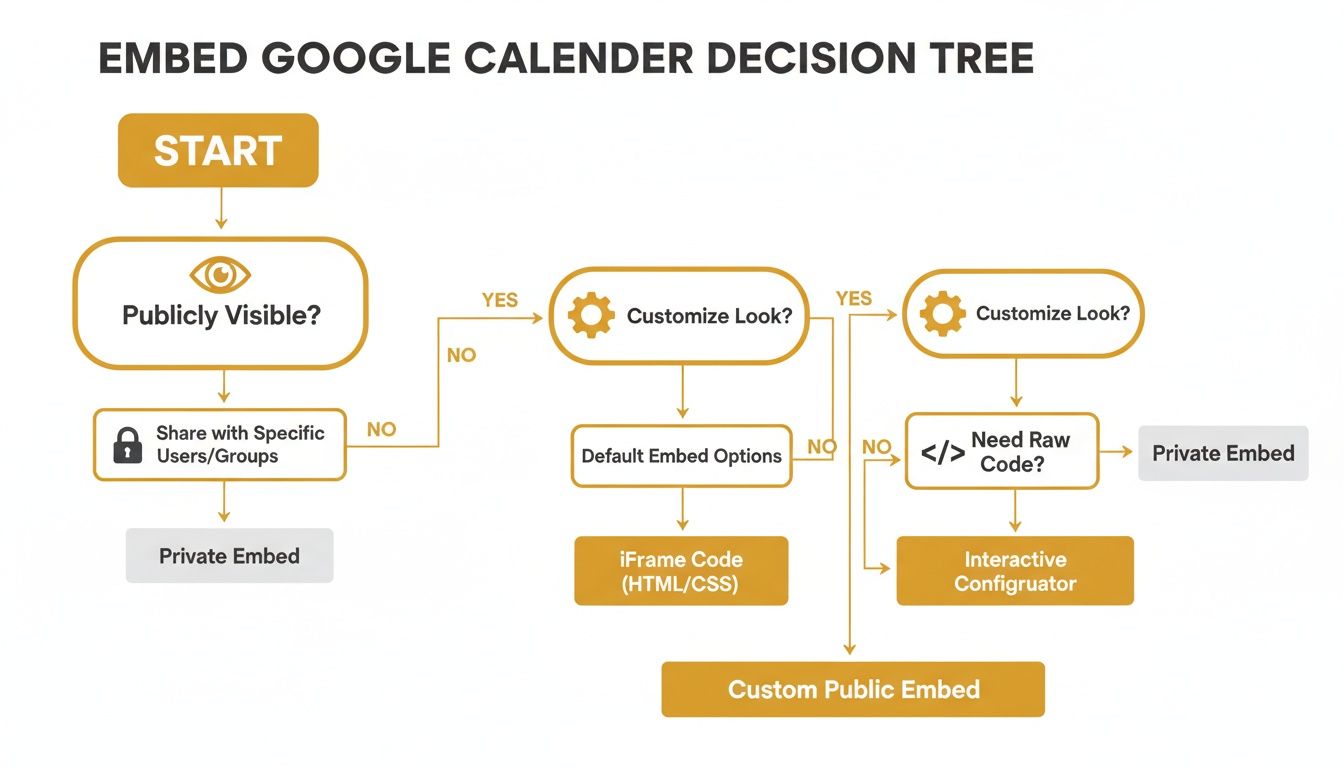
As the graphic shows, your choice really depends on whether your calendar is public, how much customisation you need, and your comfort level with code. For more complex setups involving multiple scripts, a solid Google Tag Manager setup can be a lifesaver. It helps you manage all your third-party code in one place, which is much more organised than just pasting snippets everywhere.
Upgrading Your Calendar with Third-Party Widgets
Let's be honest: while the direct embed method is quick, the standard Google Calendar can look a bit clunky and dated. If you want your calendar to seamlessly blend in with the polished design of your site, third-party widgets are the way to go for putting a Google Calendar on websites.
These tools act as a stylish bridge between your Google account and your website. You get all the functionality of Google Calendar, but with a powerful visual editor that lets you completely overhaul its appearance. We're talking sleek layouts, custom colour schemes that match your branding perfectly, and a responsive design that looks fantastic on any device.
Services like Elfsight and SociableKIT are brilliant at this. They swap out that clunky iframe for a clean, lightweight script, giving you far more control and a much better experience for your visitors.
How Calendar Widgets Work
The best part? You don't need to be a developer to get this working. The whole process is designed to be intuitive and completely code-free.
You’ll start by creating a new widget on your chosen platform and securely connecting it to your Google account. This drops you into a visual dashboard where the fun begins—you can tweak pretty much every aspect of how the calendar looks and feels.
Most platforms will give you a wealth of options to play with:
- Layouts: Ditch the default view for a modern grid, a clean list, or a slick agenda-style layout.
- Colour Palettes: Fine-tune the colours for text, backgrounds, and event highlights to align perfectly with your brand identity.
- Event Details: Choose exactly what information to display. You can show the event location and a full description, or keep it minimal.
- Responsiveness: The widget handles all the heavy lifting, automatically adjusting to look great on mobiles, tablets, and desktops.
Once you’ve dialled in the design, the service gives you a single line of code. You just copy and paste this snippet into your website's HTML wherever you want the calendar to show up. For a more detailed walkthrough, check out our guide on how to add widgets to your website.
This isn't just about looks, either. A well-designed, interactive calendar keeps people on your page. In fact, UK sites that integrate these feeds have seen a 35% uplift in user engagement time. For anyone in marketing, that’s a golden opportunity to capture a visitor's attention and guide them towards a conversion.
Taking It a Step Further with Booking Systems
Why stop at just displaying events? A smart integration can transform your calendar into a fully functional booking tool.
To really get the most out of your embedded calendar and streamline your workflow, think about pairing it with the best appointment scheduling software for small business. These platforms sync directly with your Google Calendar to show real-time availability, allowing clients to book appointments right from your site. It’s a brilliant way to cut down on admin and make life easier for everyone.
Key Takeaway: Third-party widgets bridge the gap between Google Calendar’s raw functionality and the design standards of a professional website. They offer a simple, no-code way to create a beautiful, responsive, and engaging calendar that truly feels like part of your brand.
Getting Your Calendar Looking Just Right (And Fixing It When It Doesn't)
So, you've embedded your calendar. Great first step. But what if it looks a bit off, or worse, doesn't show up at all? These little snags are incredibly common, but the good news is they're usually simple to fix. Let's walk through the most frequent issues and get your calendar integration looking seamless.
The most common panic-inducer is a completely blank or missing calendar. Nine times out of ten, this isn't a complex code issue—it's just a permissions slip-up. Before you start wading through your website's backend, pop back into your Google Calendar settings and make sure that calendar is set to "Make available to public".
Another classic problem is seeing the right events at the wrong times. This almost always points to a time zone mismatch. You need to ensure the time zone is correct in two places: within your main Google Calendar settings and during the embed customisation process. It's a tiny detail that stops your audience from showing up an hour early for your webinar.
Solving Common Display Problems
Even if your calendar is working perfectly, it might not look like it belongs on your site. The default Google embed is functional, but it can feel a bit stark and clash with your brand's carefully curated look. Thankfully, you don't need to be a developer to make it look much better.
A simple trick is to wrap the iframe code you copied in a <div> container. This lets you apply some basic CSS to style it. Adding a soft border or a subtle box shadow, for instance, can make the calendar feel much more integrated with your page design.
Here are a few other common visual quirks and how to handle them:
- The calendar is too wide or too narrow. This usually means the iframe dimensions need a tweak. Inside the iframe tag, try setting the width to 100% and giving it a fixed height (like
height="600px"). This tells it to fill its container nicely. - It looks broken on mobile phones. The standard Google embed isn't responsive out of the box. If a good mobile experience is a must, a third-party widget is your best bet. For a quick fix, though, you can apply a
max-widthproperty to your<div>container using CSS. - The default colours clash with my brand. Direct embeds offer very limited colour customisation. For full control over the palette, you'll need to turn to a third-party tool. If you want to get creative, our guide on how to make widgets for your website is a great place to start.
Fine-Tuning Your Calendar for Peak Performance
Fixing problems is one thing, but optimising your calendar is where you can unlock some serious value. For UK digital marketing professionals, using Google Calendar on websites has proven to be a real productivity booster. One analysis even showed a 22% reduction in non-productive meetings simply by giving teams a clearer view of scheduling.
The most effective embedded calendars are treated as dynamic business tools, not just static displays. They should reduce friction for your customers and save time for your team, offering a clear window into your availability and events.
Some forward-thinking agencies are even connecting their calendars to real-time data, optimising their PPC campaigns around peak availability slots. This simple synergy has led to conversion lifts of around 20%. By looking beyond a basic embed and thinking about how your calendar can serve your business goals, you can turn a simple feature into a surprisingly powerful asset. You can learn more about how calendar analytics improve productivity and what that could mean for your own operations.
Answering Your Google Calendar Questions
Once you’ve got the basics of embedding a Google Calendar down, a few common questions tend to pop up. Sorting these out is key to making sure your calendar looks professional and works seamlessly for your visitors, saving you a lot of fiddling later on.
We’ve pulled together the most common queries we see and answered them directly to get you past any roadblocks. Let's dig in.
Can I Embed a Private Google Calendar on My Website?
The short answer is no. You can't publicly display a Google Calendar that’s set to private. For anyone to see your events on your website, you absolutely must set that calendar’s sharing option to "Make available to public". If you skip this step and try to embed a private calendar, all you’ll get is a big empty space on your webpage.
This isn't a glitch; it's a critical privacy feature. It’s designed to stop you from accidentally broadcasting your personal or confidential appointments to the entire world.
Our Pro Tip: Always create a completely separate public calendar just for your website. Only add the events you intend to share publicly. This method keeps your private schedule safe and sound while presenting a polished, professional calendar to your audience.
How Do I Make My Embedded Google Calendar Responsive?
Here’s something that trips a lot of people up: the standard embed code Google provides isn't responsive out of the box. This can lead to a messy, broken-looking calendar on mobile phones, which is a terrible experience for your visitors. You could try to patch it up with some custom CSS, but those fixes can be flaky and unreliable.
Honestly, the best way to solve this is by using a third-party calendar widget from a service like Elfsight. These tools are built from the ground up to be mobile-friendly and will automatically resize your calendar to look perfect on any screen, big or small. It's a far more dependable and professional approach.
Is It Possible to Show Multiple Calendars in One View?
Absolutely, and Google actually handles this brilliantly. When you're in your Google Calendar settings, head over to the "Integrate calendar" customisation tool. You’ll see a list of all the calendars linked to your account.
To combine multiple calendars into a single view on your site, just follow these steps:
- Find the customisation panel in your settings.
- Tick the checkboxes next to every calendar you want to show.
- Give each calendar its own distinct colour. This is a great way to help users differentiate between event types, like "Company Holidays" in blue and "Live Webinars" in green.
Once you've made your selections, Google generates a single embed code that pulls all your chosen calendars together into one tidy, colour-coded display. This is incredibly useful for organisations needing to show various schedules—say, internal team meetings alongside public workshops—all in one place.
At The Digital Marketing Toolbox, we provide curated recommendations for tools that help you enhance your website and streamline your marketing efforts. Discover the best widgets and platforms to drive measurable results. Find your next growth tool at https://grow-your-biz.com.


