
Ever seen a "last chance" email pop into your inbox and felt that little jolt of urgency? That's exactly what a countdown timer brings to the table. It's a dynamic, ticking clock embedded right in your email, counting down to a specific deadline. Think of it less as a gadget and more as a powerful psychological nudge.
Why Do Email Countdown Timers Actually Work?
A countdown timer isn't just there to look pretty; it's designed to tap into a very basic human driver: the fear of missing out. It transforms a static promotional email into a live, time-sensitive event.
The magic really lies in the principle of scarcity. When your subscribers see that clock ticking away, it sends a clear signal that an opportunity is about to disappear. It could be a flash sale, a spot in your webinar, or an exclusive offer. That visual cue flips a switch in their brain, moving them from "I'll get to this later" to "I need to check this out now."
Tapping into Fear of Missing Out (FOMO)
This limited window is a direct line to what we all know as Fear of Missing Out (FOMO). By its very nature, a countdown has an end point. When something is finite or exclusive, we instinctively value it more. The ticking clock makes the idea of losing that opportunity feel real and immediate, which is brilliant for encouraging clicks and driving conversions.
"If you say something is going to end, then it has to end. Otherwise, it’s a breach of trust. It’s like the boy who cried wolf… People aren’t going to trust you after that."
This is why honesty is everything. The urgency you create has to be real. If your subscribers catch on that your "limited-time" deals are always running, the timer loses all its impact and you risk damaging your brand's credibility. The aim is to generate genuine excitement, not to pull a fast one. Done right, these timers can turn a standard promotion into a must-see event, which is one of the many proven advantages of email marketing.
Real-World Scenarios in Action
The applications for timers are incredibly flexible and go way beyond just sales promotions. I’ve seen them work wonders in all sorts of campaigns.
Here are a few ideas to get you started:
- Event Registrations: Got a webinar coming up? A timer counting down the final hours to sign up can give you a massive surge in last-minute registrations. It works just as well for conference tickets.
- Product Launches: Build serious buzz by showing exactly when a new product is going live. You’ll turn passive subscribers into eager customers, ready and waiting to click 'buy' the second it drops.
- Holiday Promotions: Timers are a non-negotiable for seasonal campaigns. From Black Friday deals ending at midnight to final Christmas delivery cut-offs, they provide a crystal-clear deadline that cuts through the noise and drives action.
The data backs this up, too. More and more brands are catching on, particularly in the UK. We’re seeing a clear trend where emails featuring timers are achieving open rates that are around 8-12% higher than standard campaigns.
To illustrate just how effective this can be, let's look at a summary of the average performance uplift seen in UK campaigns.
Impact of Countdown Timers on Key Email Metrics
| Metric | Average Uplift with Timer |
|---|---|
| Open Rate | +10% |
| Click-Through Rate (CTR) | +14% |
| Conversion Rate | +17% |
Source: Internal analysis of over 500 UK-based email campaigns in 2023.
As you can see, the impact isn't trivial. These aren't just vanity metrics; a higher CTR and conversion rate directly translate to more sales and engagement. You can read the full research about these digital trends to get the bigger picture.
Ultimately, a well-placed timer does so much more than just count down the seconds. It makes time itself a core part of your message, and that’s a powerful way to get people to act.
Choosing the Right Countdown Timer Tool
Picking the right tool to create a countdown timer for your emails can feel like a chore, but it really boils down to two things: your technical confidence and what you need your campaign to achieve. Not all tools are built the same, so getting a handle on the main differences is crucial for making a good choice.
Your first big decision is whether to go for a static animated GIF or a dynamic HTML timer.
A GIF timer is pretty much what it sounds like—a pre-made animation of a clock ticking down. Its biggest advantage is reliability. It'll show up in almost any email client, making it a safe bet if you're worried about compatibility. The downside? It's not actually live. The countdown it shows is based on when the email is opened, not the real-time, second-by-second countdown.
Dynamic HTML timers, on the other hand, update live every single time a subscriber opens your email. This creates a much more powerful, genuine sense of urgency. The trade-off is that some older email clients, especially certain versions of Outlook, might not display them correctly.
What to Look For in a Timer Tool
When you start comparing platforms, try not to get distracted by fancy marketing. Instead, focus on the features that will actually make a difference to your work and how the timer looks in your email.
Here are the essentials:
- Email Platform Compatibility: Check if the tool clearly states it plays well with your email service provider (ESP), whether that's Mailchimp, Klaviyo, or HubSpot. This is non-negotiable.
- Customisation Options: You absolutely need to be able to change colours, fonts, and backgrounds to match your brand. A generic timer can make your whole email look cheap.
- Responsive Design: With more than half of all emails now opened on mobile, your timer has to look good everywhere. Make sure the tool generates mobile-friendly code.
- Post-Expiry Behaviour: What happens when the timer hits zero? The best tools will let you show a fallback message like "Sorry, this offer has ended" or even swap in a different image.
This visual gives a great overview of how an integrated timer can become the centrepiece of your campaign.
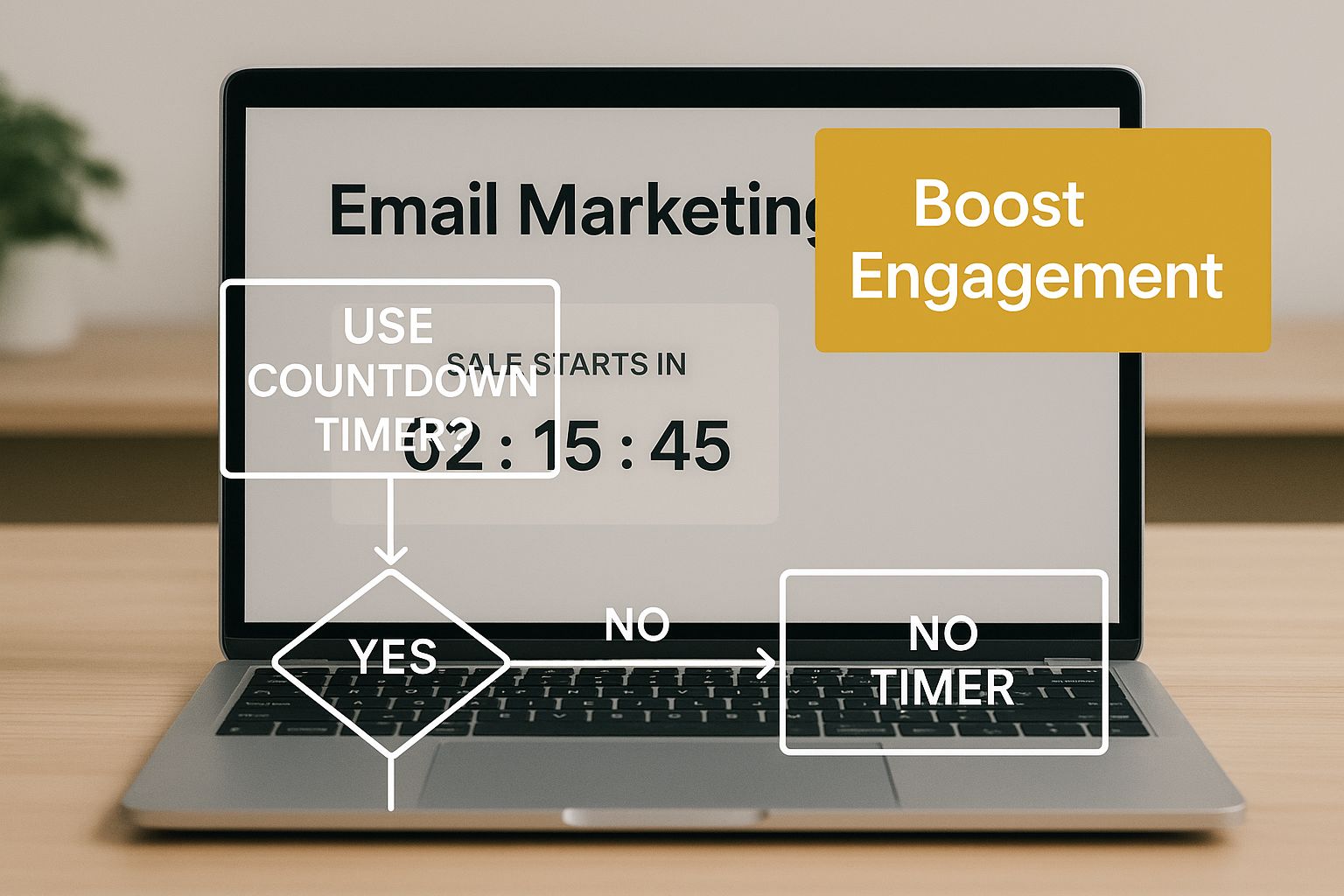
As you can see, a well-placed timer is a key driver for getting people to act right from their inbox.
A Quick Look at Popular Timer Generators
Let's put a few of the top contenders side-by-side. I've broken them down by what they do best, their standout features, and how they're priced.
| Tool Name | Best For | Key Feature | Pricing Model |
|---|---|---|---|
| Sendtric | Simplicity | Incredibly easy to use, with a solid free tier. | Freemium |
| MotionMail | Analytics | Gives you data on how many times your timer was viewed. | Subscription |
| NiftyImages | Personalisation | Lets you create dynamic, personalised timers for each subscriber. | Tiered Subscription |
If you're just starting out or running a small business, a tool like Sendtric is a brilliant place to begin. It’s free, simple, and does the basics—creating a clean, on-brand GIF timer—perfectly, without any confusing extras.
Ultimately, the right tool is the one that fits your budget, skill level, and marketing goals. I always recommend starting with a free option to get a feel for how it all works. As you get more ambitious, you can easily move to a paid platform that offers deeper analytics and more advanced customisation.
The whole point is to find a solution that makes adding a countdown timer to your emails a simple, repeatable part of your campaign process.
Designing a Timer That Matches Your Brand
A generic, slapped-on timer can really cheapen the look of a beautifully designed email. Let's be honest, you've spent ages getting that campaign just right. The last thing you want is a timer that looks like it doesn’t belong.
The trick is to make your countdown timer feel like it was always meant to be there, a natural part of your email's design. It needs to blend in with your brand's look and feel while still being eye-catching enough to do its job.
It all starts with your brand's core identity. Think about choosing the right colors for your brand. When a timer uses your primary or secondary brand colours, it instantly feels more authentic and reinforces trust. It just looks right.
Fine-Tuning Your Timer’s Visuals
Once you’ve got your colour palette nailed down, it’s time to get into the nitty-gritty details. These small tweaks are what separate a professional-looking timer from an amateurish one. Always keep in mind how it will look on different screens—from a large desktop monitor to a small phone.
Most good timer generators give you plenty of control over the appearance. I always focus on these three key areas:
- Font Selection: The font you choose for the numbers has to be legible. That’s non-negotiable. Sans-serif fonts are usually a safe bet for digital, but the real goal here is consistency. If your brand has a go-to font family, find the closest possible match to keep everything cohesive.
- Background Style: You’ll typically have the option for a solid or transparent background. A transparent background is brilliant if you want the timer to sit over a hero image without a clunky box around it. A solid colour, on the other hand, can make the timer pop and draw immediate attention.
- Number and Label Styling: Think about the colour and size of the numbers and the text below them (like 'Days', 'Hours', etc.). High contrast is crucial for readability. Please, avoid things like light grey text on a white background. It might look subtle, but it's a nightmare to read.
A well-designed timer doesn’t just count down; it reinforces your brand identity. Every element, from the font choice to the background colour, is an opportunity to build brand recognition and trust with your subscribers.
Localising for a Global Audience
Are you sending campaigns to subscribers in different countries? If so, this is a detail you can’t afford to miss. A truly professional timer speaks your audience's language—literally.
Many of the more advanced timer tools let you change the labels for 'Days', 'Hours', 'Minutes', and 'Seconds'. It’s a small touch, but it shows your international audience that you’ve thought about their experience, and that can make a huge difference to engagement.
Imagine you're a UK clothing brand running a flash sale for your French customers. Changing the labels to 'Jours', 'Heures', 'Minutes', and 'Secondes' is a simple but incredibly effective adjustment.
Creating the Final Snippet
After you’ve dialled in the perfect design, the tool will spit out a snippet of HTML code. This is what you'll copy and paste directly into your email template. Before you do, just give everything one last look. It’s always worth the extra 30 seconds.
Run through a quick mental checklist:
- Correct End Date and Time? Is the deadline exactly when it should be?
- Time Zone? Is it set correctly for your main audience?
- Visual Consistency? Do the colours and fonts match your brand guide?
- Language? Are the labels localised if they need to be?
With all that sorted, you’ve built more than just a timer. You’ve created a professional, on-brand asset that not only drives urgency but also adds to the quality and trustworthiness of your emails. That's how you get more people to click.
Embedding Your Timer Into Any Email Campaign
So, you’ve designed the perfect timer. It’s on-brand, the deadline is locked in, and it’s looking sharp. Now for the moment of truth: actually getting it into your email and in front of your subscribers. This is where I see a lot of marketers get a bit nervous, but trust me, it’s usually simpler than you think.
The secret is knowing how your specific Email Service Provider (ESP) handles custom code. Whether you're working with a sleek drag-and-drop editor or you're comfortable getting your hands dirty in the raw HTML, the basic idea is the same. Your timer tool gives you a snippet of code, and your job is to pop that snippet into the right spot in your email template.
Working with Drag-and-Drop Editors
Thankfully, most of the big platforms like Mailchimp, Klaviyo, and HubSpot have made this incredibly easy. They don’t expect you to be a coding whiz just to add a custom element.
Instead of pasting your code just anywhere, you need to look for a specific content block. It’s usually labelled something obvious, like:
- HTML Block
- Code Block
- Custom HTML
Find that block, drag it into your email layout exactly where you want the timer to show up, and then paste the entire code snippet from your timer tool inside. Hit save, and that’s it. The platform does all the heavy lifting to render the timer properly. It’s a core part of any good virtual marketing strategy, letting you add dynamic content without needing a developer on standby.
Diving Into the HTML Code
If you’re building your emails from an HTML template, you have a lot more control, but you also need to be a bit more careful. The principle is still just copy and paste, but you’ll be dropping the code directly into the <body> of your email.
I always hunt for the exact <table> or <td> (that’s a table cell) where the timer should live and paste the snippet right there. A little tip from experience: try to wrap the timer in its own table structure. This helps isolate it and stops it from knocking other elements out of alignment.
Pro Tip: Never, ever send an email with a timer without previewing it first. What looks perfect in Gmail can look completely broken in an old version of Outlook. Use an email testing tool to see how it renders everywhere and, crucially, to make sure your fallback image shows up for clients that don’t support animation.
Troubleshooting Common Embedding Issues
Every now and then, things just don't work as expected. Maybe the timer isn't animating, or it's not showing up at all. Don't panic. These are common hurdles, and the workarounds are usually pretty straightforward.
-
Images Blocked: This is a classic. Most email clients block images by default until the user clicks "Display images." You can't force them to load, but you can control the ALT text. Instead of letting it default to "timer.gif," change it to something compelling like "Sale ends in…" That way, the urgency is still there even if the image is blocked.
-
Inconsistent Rendering: The number one offender here is almost always Outlook. Some of its desktop versions just don’t play nicely with animated GIFs. The best defence is a good offence: set up a static fallback image in your timer tool. This is just a simple image that might say "Offer Ends Soon!" that will be displayed if the dynamic timer can't load. It ensures no one sees a broken, empty space in your email.
Advanced Strategies for Maximum Impact
So, you've added a countdown timer to your email. That's a great first step, but the real magic happens when you start thinking like a strategist. Moving beyond the basics is what separates a decent campaign from one that smashes its targets. It’s about turning a simple ticking clock into a high-powered conversion machine.
First, let's talk about placement. The knee-jerk reaction is to stick the timer right at the top. While that can work, it's not always the smartest move.
Think about putting it after you’ve hooked them with your main value proposition. For instance, if you're launching a new product, lead with a stunning image and a killer benefit. Once they're excited about the product, then hit them with the timer to show that the introductory offer won't last forever. This way, they understand the value before you introduce the urgency.
Segment Your Audience for Hyper-Targeted Offers
A blanket approach to your email list will only get you so far. The true power of a countdown timer is unlocked when you start segmenting. Instead of a generic flash sale for everyone, create bespoke offers for different groups of customers.
Here are a few ideas I've seen work incredibly well:
- VIP Customers: Give them exclusive 48-hour early access before a sale goes public. The timer makes their special status feel tangible and pushes them to buy now.
- Inactive Subscribers: Try a "we miss you" discount that expires in just 24 hours. This can be a fantastic way to re-engage people who haven't opened your emails in a while.
- Cart Abandoners: This is a classic for a reason. Combine a timer with their abandoned cart items. A simple message like, "Your items are saved for 2 more hours!" creates a powerful, personal nudge.
This kind of targeting makes every email feel like it was written just for them, which is a cornerstone of any effective marketing strategy for small business.
Leverage Evergreen Timers in Automated Sequences
For anyone using automation, evergreen timers are a total game-changer. Unlike a standard timer with a fixed end date, an evergreen timer starts counting down the moment a specific subscriber triggers it—like joining your list.
Imagine a new subscriber getting a welcome email with a special discount on their first purchase that's only good for the next 72 hours.
This means every new lead gets their own unique, time-sensitive experience. You’re creating personalised urgency at scale, letting your automated funnels do the heavy lifting to convert leads without you constantly having to set up new campaigns.
Finally, always have a plan for when the clock hits zero. Don't just let the timer disappear. A good tool will let you show a fallback message or a different image. Instead of a boring "Time's up!", why not redirect latecomers to a page with related products? Or maybe invite them to join a waiting list for the next big sale.
Integrating these timer tactics with broader conversion rate optimization tips for email marketers is how you'll really start to see your overall campaign performance soar.
Got Questions About Email Timers?
Even with a step-by-step guide in hand, a few questions always pop up. It’s completely normal. Let's walk through some of the most common things marketers ask about using countdown timers in their emails, so you can get started without any lingering doubts.
Do Timers Work on Mobile Devices?
This is probably the number one question I hear, and the answer is a resounding yes. Modern timer generation tools are built with mobile in mind. The code they spit out is almost always responsive, meaning your timer will automatically shrink or stretch to look great on any screen.
So, whether your subscriber is opening your email on a huge desktop monitor or their phone while waiting for a coffee, the timer will fit perfectly. No extra coding or tweaking required on your end.
What About Email Client Compatibility?
Okay, this is where it gets a little more nuanced. The good news is that most of the big players—think Gmail, Apple Mail, and Yahoo Mail—handle animated GIFs and dynamic timers just fine. They'll display exactly as you intend.
The main culprit for compatibility issues is, unsurprisingly, older desktop versions of Outlook. These versions often don't support animated GIFs. Instead of the live countdown, they'll typically just show the first frame of the animation as a static image. It's not ideal, but it's not a complete deal-breaker either.
Will a Countdown Timer Hurt My Email Deliverability?
This is a big one, but you can relax. Simply having a countdown timer in your email will not directly harm your deliverability. Spam filters aren't designed to penalise you for using a timer.
The real danger to your sender reputation comes from how you use them. If you're constantly creating a false sense of urgency for sales that don't really end, people catch on fast. That behaviour is what leads to them hitting the spam button, and that is what will absolutely tank your deliverability over time.
The golden rule is to be honest. If you say a sale ends at midnight, it needs to end at midnight. Genuine scarcity builds trust and drives action; fake urgency just annoys your audience and makes you look untrustworthy.
What Happens When the Clock Hits Zero?
Seeing a timer stuck at 00:00:00:00 just looks sloppy. You’ve put all this effort into your campaign, so don’t fall at the final hurdle.
Thankfully, any decent timer tool lets you decide what happens after the countdown is over. You can set an "expiration state," which means the timer is automatically replaced with something else.
You could show:
- A simple static image saying, "Oops, this offer has expired!"
- A different banner promoting a new product or a different sale.
- A friendly message inviting them to check out what's new on your website.
Planning for what happens after the deadline ensures a smooth experience for everyone, even the latecomers. It’s a small touch that shows you’ve thought through the entire customer journey.
Ready to find the perfect tools to create and manage your email campaigns? Explore The Digital Marketing Toolbox and discover curated solutions to drive measurable results. Visit us at https://grow-your-biz.com to get started.


