
So, you want to get your Instagram content onto your website? You’ve got two main routes. The quick and easy way is to grab the embed code for a single post straight from Instagram itself. It’s simple and gets the job done.
But if you’re looking for more control and want to display a full, dynamic feed, a third-party widget is the way to go. This gives you far more say over the design and keeps the content automatically updated.
Why Embedding Instagram Content Is a Game Changer
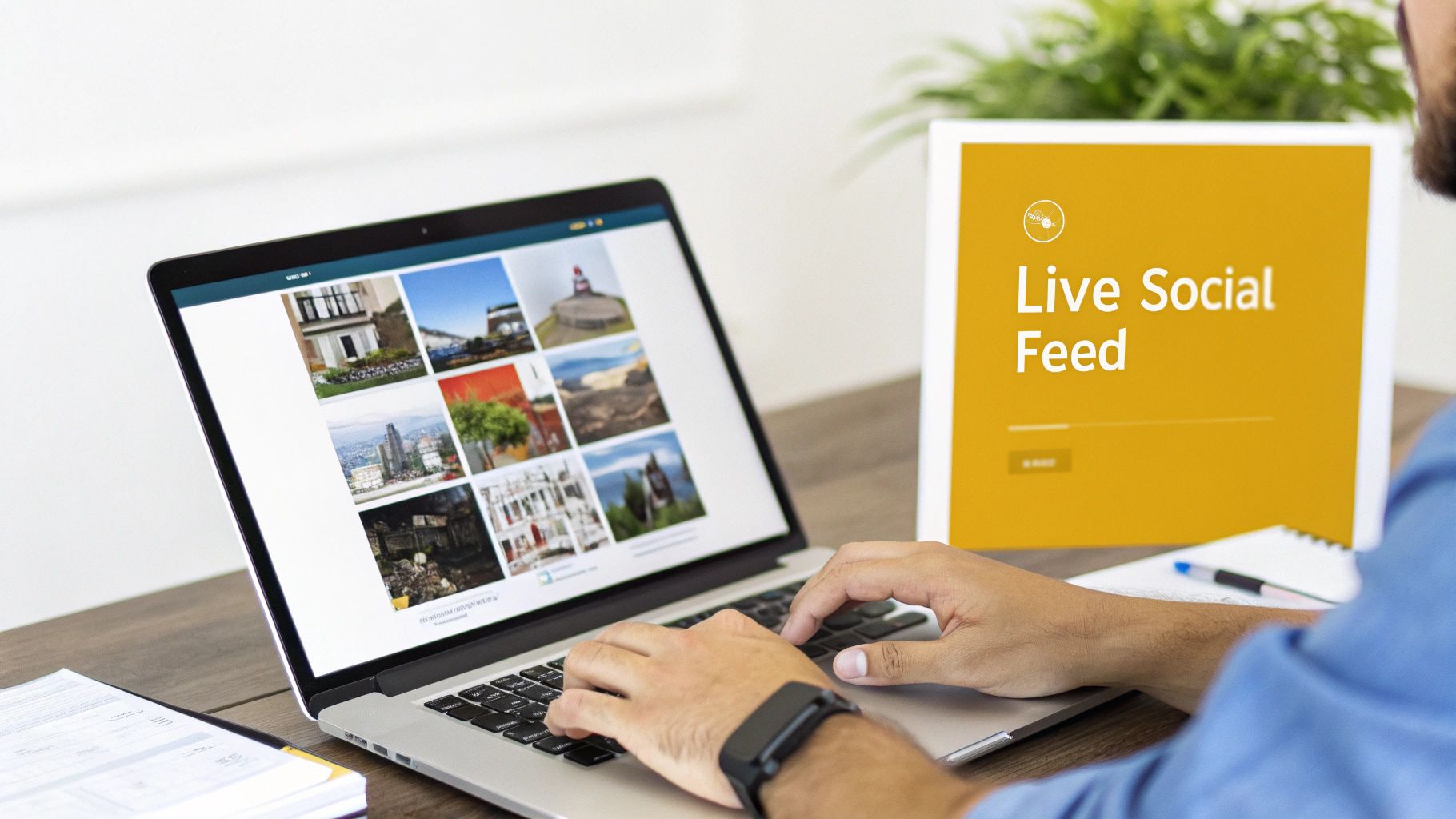
Let’s move past the "how" for a moment and focus on the "why." Think of your website as your digital storefront. Right now, it might be a bit static. Embedding your Instagram posts and Reels breathes life into it, turning it into a vibrant space that shows what your brand is up to right now.
This isn't just about making things look pretty; it's a savvy move for building social proof. When you feature user-generated content or showcase positive comments directly on your site, you’re building instant trust. It’s like having a wall of visual testimonials working for you 24/7.
Boost Engagement and Build Trust
Having live, interactive content on your site is a fantastic way to keep visitors around for longer. It's a tactic UK businesses have really embraced. In fact, websites with embedded Instagram feeds have seen as much as a 30% increase in time on page. It’s no surprise that over 60% of UK e-commerce sites now use live feeds to show off their products and customer reviews. For more on this, check out the latest UK Instagram stats from this report from NapoleonCat.
Another brilliant side effect is that an embedded feed keeps your website looking fresh without you having to constantly update it manually. This constant stream of new content tells both visitors and search engines that your brand is active and relevant, which can give your site’s authority a nice little bump. It’s a simple but effective part of any solid content plan, something we explore more in our beginner's guide to digital marketing.
By bridging the gap between your social media presence and your website, you create a more cohesive and engaging brand experience. It turns passive website visitors into an active, engaged community.
Here’s a breakdown of the key benefits:
- Increased Authenticity: Showing real-time posts from your team or, even better, your customers adds a layer of authenticity that a polished corporate page just can't match.
- Higher Conversion Rates: When potential customers see your products being used in real-world scenarios through embedded posts, it can give them the nudge they need to make a purchase.
- Reduced Bounce Rates: Let's face it, dynamic, visual content is just more interesting. It encourages people to stick around, click through, and explore what else you have to offer.
The Official Way: Embedding a Single Instagram Post
Sometimes, one standout post is all you need. Maybe it’s a glowing customer review, a big product announcement, or a Reel that perfectly captures your brand’s personality. For these moments, Instagram's own built-in embed feature is your most direct and reliable option.
There’s no need for fancy third-party tools here. Instagram gives you a small piece of HTML code that you can simply copy and paste into your website. It’s a clean, official method that pulls your content from your feed directly onto your site.
The best part? It’s incredibly straightforward. You can grab the embed code for any public photo, carousel, or Reel right from your desktop browser.
How to Grab and Use the Embed Code
First, find the Instagram post you want to use on a desktop computer (this won't work on the mobile app). Click the three dots (…) in the top-right corner of the post. A menu will pop up – just select 'Embed'.
From there, Instagram gives you one simple customisation: the choice to include the caption. If you want a minimalist look, you can untick the box. But if the caption contains a brilliant testimonial or important context, you’ll want to leave it checked.
Pro Tip: Think strategically about where you place these embeds. Dropping a Reel of a product in action right next to the 'Add to Cart' button can be incredibly persuasive. Likewise, embedding a customer's rave review on a product page can provide powerful social proof and help boost conversions.
After you click 'Copy Embed Code', the HTML is copied to your clipboard. It's just a block of text that looks a bit like this:
Now for the final step. Head over to your website editor—whether that's WordPress, Shopify, or another platform—and find where you can add custom code. You'll typically look for a 'Custom HTML' block or a similar feature, paste the code in, and that’s it. Your Instagram post will now appear live and interactive on your site for everyone to see.
Choosing the Right Instagram Embedding Tool for Your Needs
Sometimes, embedding a single post just doesn't cut it. To really bring your brand’s Instagram presence to life on your website, you’ll want to look at third-party embedding tools. These widgets are what power those slick, dynamic Instagram grids you see on so many professional sites, turning a simple page into a live gallery.
But let's be honest, the market is flooded with options, and it's easy to get lost. My advice? Don't get distracted by a long list of flashy features. Instead, focus on what your website actually needs. The best tool for a local bakery's website is probably very different from what a multinational e-commerce brand requires.
This quick decision tree should help you figure out if a simple, single-post embed will do the job, or if you need to level up to a full feed widget.
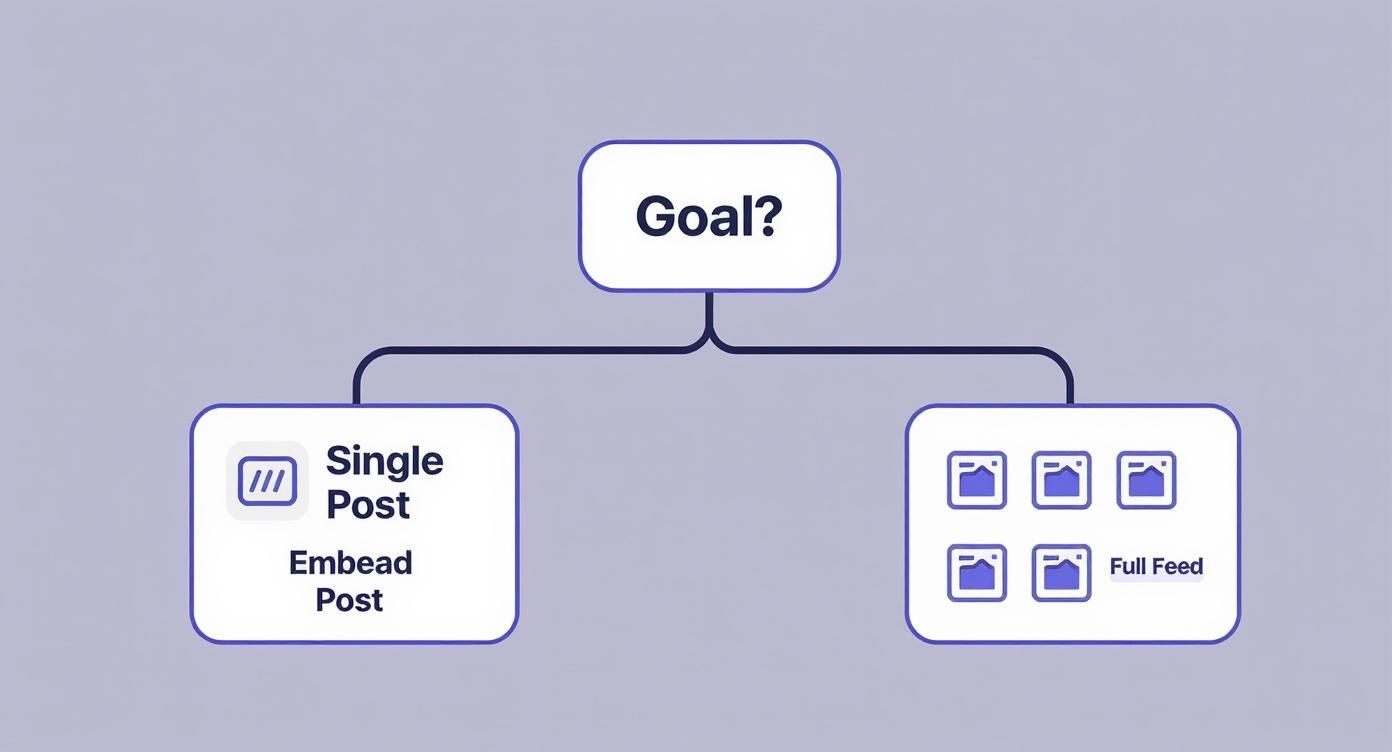
As you can see, the choice to embed on Instagram really boils down to your core objective: are you spotlighting one specific announcement or trying to showcase a constant, evolving stream of content?
Key Features to Compare
As you start browsing everything from free WordPress plugins to premium platforms, keep a checklist of these key factors. They’ll make or break how well the feed actually works with your site and how much control you have over your brand’s image.
- Customisation Options: How much can you tweak the look and feel? A good tool will let you adjust layouts, the number of columns, and even the spacing between posts. The goal is to make it look like a natural part of your website, not a tacked-on extra. Matching your brand’s colours and fonts is a must.
- Content Moderation: You absolutely need to control which posts show up on your site. Look for tools that let you either hand-pick posts or set up automatic filters (like including or excluding certain hashtags). This ensures only your best, most relevant content makes the cut.
- Website Performance: This one is huge. A clunky, poorly coded widget can drag your page loading speed into the mud, which is a killer for both user experience and your SEO rankings. Keep an eye out for features like "lazy loading," a clever trick that only loads images as a visitor scrolls down to them.
A great embedding tool should enhance your website, not hinder it. Prioritise a lightweight, customisable solution that offers robust moderation to maintain full control over your brand's image.
To make the decision clearer, let's break down the two main approaches.
Comparison of Instagram Embedding Methods
This table offers a side-by-side look at using Instagram's built-in embed feature versus a dedicated third-party tool. It should help you quickly see which path aligns best with your goals.
| Feature | Native Instagram Embed | Third-Party Widget |
|---|---|---|
| Content Display | Single post only (photo, video, or Reel) | Multiple posts in a grid, carousel, or slider format. |
| Customisation | Very limited; you can only hide or show the caption. | Extensive options: layouts, colours, fonts, spacing, and more. |
| Content Moderation | Not applicable; you manually choose one post. | Essential feature; lets you approve/reject posts or filter by hashtag. |
| Updates | Manual; you must embed each new post individually. | Automatic; the feed updates in real-time as you post on Instagram. |
| Performance Impact | Minimal for a single post. | Can vary; good tools are optimised for speed (e.g., use lazy loading). |
| Best For | Highlighting a specific announcement, testimonial, or event. | Showcasing brand lifestyle, user-generated content, or a hashtag campaign. |
Ultimately, the choice depends on scale and control. For a one-off mention, the native option is fine. For an integrated, dynamic gallery, a widget is the only way to go.
Free vs Paid Platforms
For many small businesses or personal bloggers, a free plugin might be all you need to get a simple, attractive grid on your site. They’re a fantastic starting point when advanced features aren't a top priority.
However, paid platforms are where you find the really powerful tools. They usually offer far more sophisticated customisation, dedicated customer support, and those all-important performance optimisations. If you're running an e-commerce store and want to create shoppable Instagram feeds, or you're a larger brand managing a major hashtag campaign, investing in a premium tool is almost always worth it for the extra control and reliability you get.
How To Embed Your Full Instagram Feed With A Widget

If you're looking to bring your entire Instagram presence onto your website, a third-party widget is hands-down the best way to go. This method goes way beyond embedding a single post. You're essentially creating a dynamic, self-updating gallery of your latest content—a live reflection of your brand right on your site.
Let’s walk through the process using a typical widget tool. Your first job is always to securely connect your Instagram Business account to the platform. This one-time authentication gives the tool permission to pull in your new posts automatically, keeping your website feed perfectly in sync without you lifting a finger.
With your account linked, you get to the fun part: customisation. This is where a good widget really proves its worth. It lets you craft a feed that looks like it truly belongs on your website, rather than just being a clunky add-on.
Designing Your Perfect Feed
Most solid widget tools give you a ton of design options to match your brand's look and feel. You're definitely not stuck with a standard grid.
You can usually tweak things like:
- Layout: Fancy a classic grid, a swipeable carousel, or a sleek slider? Take your pick.
- Columns & Rows: You get to decide exactly how many posts you want to show at once.
- Colour Scheme: Adjust button colours, backgrounds, and fonts to align perfectly with your site's design.
Once you’ve got it looking just right, the tool gives you a small snippet of code. This is the magic key you'll paste into the back end of your website. The uptake of this strategy in the UK has been huge, with over 70% of UK businesses now integrating their Instagram feeds. It’s also worth noting that sites embedding Reels see a 35% higher engagement rate than those with just static posts, which really speaks to the power of dynamic content. For more on this, check out some fascinating Instagram usage stats from SQ Magazine.
The real aim here is to make the feed feel like an intentional, seamless part of your website. A well-designed widget should blend in with your existing branding, adding to the user experience instead of interrupting it.
You can pop this code almost anywhere you like. A lot of people add it to the footer for site-wide visibility, while others create a dedicated gallery page. This kind of integration is a key part of many modern online strategies, which we dive into in our guide on virtual marketing for growing businesses. The principles are similar for larger projects, too; if you ever need to create a social media wall for events, you'll find the process of pulling in live content feels very familiar.
Taking Your Instagram Embeds to the Next Level
Once you’ve got the basics down, a few extra touches can elevate a simple Instagram feed from just a nice feature to a genuinely powerful tool for your website. It's not just about getting the grid on your page; it's about making it work for you, enhancing your visitor's experience, and hitting your business goals.
First things first, let's talk about performance. A grid packed with high-quality images can be a real drag on your website's speed, which is bad news for both your visitors and your SEO. The key here is lazy loading. This smart little feature makes sure images only load when a user actually scrolls down to see them, keeping your initial page load time nice and speedy. Any decent third-party widget will have this built-in, so make sure it's switched on.
Match Your Feed to Your Page
Don't just dump your entire Instagram feed onto every page. The real magic happens when you curate the content to fit the context.
Imagine you're on a product page. Instead of a generic feed, you could display a hand-picked selection of posts featuring user-generated content where customers have tagged that specific product. That's powerful social proof, right where someone is thinking about buying.
Or, say you have a page for an upcoming event. You could pull in a live feed using your event's unique hashtag, creating a dynamic, real-time gallery that builds buzz and a sense of community.
A curated feed doesn't just look better—it strategically aligns your social content with your website's goals, turning every embedded post into a tiny salesperson for your brand.
Of course, a professional-looking embed needs professional-looking content. It all starts back on Instagram. To make sure your embedded posts really pop, you need to ensure they're getting maximum engagement in the first place. A big part of that is figuring out the best times to post on Instagram to get those initial views and likes. This kind of strategic approach is a fundamental piece of any good marketing strategy for small business.
Got Questions About Instagram Embeds?
When you start looking into embedding Instagram content, a few key questions always seem to crop up. Let's walk through the most common ones I hear from clients to get you started on the right foot.
Can I Embed a Post from a Private Account?
This is easily the number one question, and the answer is a firm no. For an embedded post to show up on your website, both the Instagram account and the specific post itself have to be public. It's a simple visibility thing – if the public can't see it on Instagram, they can't see it on your site either.
What if the account goes private after you've embedded the post? The embed will simply break, and your visitors will see an error instead of the content. So, stick to public posts you know will stay that way.
Do Embedded Posts Update Automatically?
Great news here: yes, they do. Instagram embeds are dynamic, which is a huge time-saver. If you go back and tweak the caption, or as new comments roll in on the original post, those changes will automatically reflect on your website.
There's absolutely no need to go back and fiddle with the code snippet every time something changes. You just set it and forget it.
Will This Slow Down My Website?
It’s a valid concern. A single, official Instagram embed has a negligible impact on your page speed. The code is surprisingly light.
However, if you're embedding an entire feed using a third-party widget, performance can become an issue. That's a lot more content to load. To avoid bogging down your site, make sure you choose a widget that offers 'lazy loading'. This feature cleverly waits to load images until a visitor actually scrolls down to them, which is a lifesaver for your Core Web Vitals.
What About Permissions and Legal Stuff?
Now for the important legal bit. Is it okay to just embed anyone's post? According to Instagram's own terms, using their official embed feature for public posts is generally permitted. The platform is designed for sharing.
My Advice: Even though the terms allow it, it's always best practice to ask for permission, especially if you're using the content for commercial purposes. A quick direct message not only covers you legally but also helps build good relationships with creators in your niche. Better safe than sorry.
At The Digital Marketing Toolbox, we help you find the best tools to grow your business without the guesswork. Discover solutions for SEO, social media, and more at https://grow-your-biz.com.


