
Knowing how to delete widgets isn't just about tidying up your website – it's a smart move that can seriously improve how your site performs and how users interact with it. Whether you're dealing with a standard WordPress element or a bit of code from a third-party tool, getting rid of widgets you don't need cleans up the clutter and can give your loading speeds a noticeable boost.
Why You Should Audit and Remove Old Widgets
Before you start clicking 'delete', it helps to understand why a minimalist approach to widgets is so important. Those unused or outdated widgets aren't just taking up space; they can genuinely hurt your website's health. Every single widget, particularly ones that fetch data from elsewhere (like a social media feed), adds extra code that has to be loaded by your visitor's browser.
All that extra code adds up and directly hits your site's performance. A slow website is a massive turn-off for visitors and a definite red flag for search engines like Google. Put it this way: if your homepage takes more than three seconds to appear because it's struggling to load five different widgets, you're going to lose a lot of potential customers before they even see what you offer.
Keeping things fast and clean is a cornerstone of any good marketing strategy for a small business, because your website is often the very first impression you make.
The Impact on User Experience and Conversions
It's not just about speed. A cluttered layout is distracting and pulls focus from what you actually want people to do—your main call-to-action. If your sidebar is a jumble of a calendar, a tag cloud, and an ancient Twitter feed, it can easily draw a user's eye away from your "Buy Now" or "Contact Us" buttons. This visual noise makes for a confusing and frustrating journey for your visitors.
Using a website wireframe can help you map out your layout and decide which elements are truly essential.

This wireframe is a great example of a clean, structured layout where everything has a clear purpose – exactly what you should aim for with a widget audit.
A quick audit helps you pinpoint which widgets are actually useful to your audience and which are just chewing up valuable space and resources. Think of it as a digital spring clean; it's a fundamental step toward creating a more focused and effective website.
Of course, improving website speed is a big topic. Once you've sorted your widgets, you might want to explore broader website performance optimization techniques to make sure your site is as fast as it can be. But honestly, taking a few minutes to remove unnecessary widgets is one of the simplest yet most powerful things you can do to improve both performance and user engagement.
Right then, let’s talk about getting rid of widgets on your WordPress site. Millions of websites run on WordPress, so this is a task you’ll likely face sooner or later. How you go about it, though, really depends on the type of theme you’re using. Your site will either have a classic theme with a dedicated "Widgets" screen, or a newer block-based theme where everything happens in the Site Editor.
For anyone running a more traditional theme, the process is pretty direct. Head into your WordPress dashboard and find your way to Appearance > Widgets. You'll see a layout showing all the spots where you can place widgets—like your sidebar or footer—with the active ones neatly listed under each.
To get rid of one, just click on it. The settings will expand, and at the bottom, you'll see a red "Delete" link. A quick click on that, and the widget is gone from your site. Simple as that.
A More Visual Approach: The Customizer and Site Editor
Some people prefer a more visual way of working. If that’s you, you can use the Customizer. Go to Appearance > Customize, and from there, click into the "Widgets" panel. This is great because it gives you a live preview of your site as you make changes. Just click on the widget area you want to tweak, select the widget itself, and you'll find the option to remove it.
Now, if you're working with a modern block theme, you'll need to forget the old ways. It’s all handled inside the Site Editor now. You’ll find this at Appearance > Editor. In this environment, your whole site is constructed from blocks, and widgets are simply another block in the system.
Here’s the drill for block themes:
- First, navigate to the part of your site you want to edit. This might be a "template part" like your sidebar.
- Once you're there, click on the specific widget you want to zap (it will behave just like any other block).
- Look for the three-dot menu icon that appears. Give that a click and select "Remove [Block Name]" from the dropdown menu.
This block-based method feels much more integrated and gives you a direct, visual handle on your site’s layout. If you're looking for more practical tips on managing your website, you can find plenty on our https://grow-your-biz.com/blogs/ for small businesses.
Since widgets are so tied into a site's overall look, knowing how to customize WordPress themes is a massive help. Your theme determines where widgets can go and sometimes even adds its own custom ones you might want to remove or change. It's interesting—while deleting widgets is something we all do, hard data on how often is tough to find. Most UK digital reports tend to focus on the big picture, like overall internet usage, rather than these specific day-to-day actions. You can discover more insights about UK digital trends from Datareportal to see what I mean.
Removing Third-Party and Embedded Widgets
Not all widgets are baked into your platform. Many of the most useful ones come from third-party services like Elfsight and are added using a bit of embedded code. Taking these off your site means you'll need to roll up your sleeves and hunt down that specific code snippet in your site's backend.
Don't worry, this sounds more daunting than it actually is. The code is almost always right where you left it. Just think back to how you installed the widget in the first place. Did you drop it into a custom HTML block on a specific page? Or perhaps you pasted it into your theme’s header or footer files so it would appear everywhere? Those are the prime spots to start your search.
When you find the code, you'll usually see a comment that gives it away, something like <!-- Elfsight widget -->. All you have to do is delete that entire block of code, hit save, and you’re done with that part.
This handy infographic breaks down the process for a typical WordPress site, but the core idea of finding and removing an element is pretty universal.
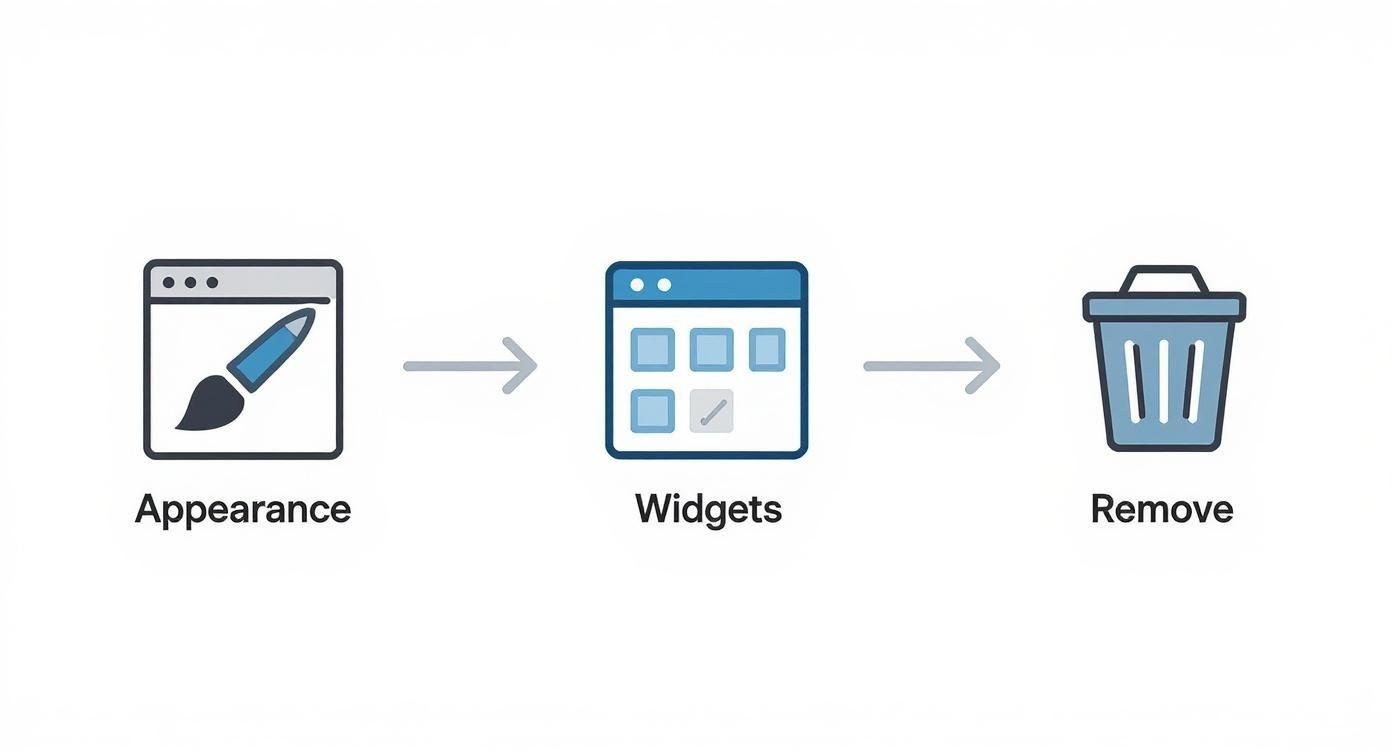
The main takeaway is that removing a widget is a direct action. You're either doing it through a user-friendly dashboard like WordPress or by directly editing your site's code.
Finalising the Removal Process
Just deleting the code from your site isn't the final step. You also need to pop over to the third-party service itself. Log in to their platform and make sure you deactivate or delete the widget from their end. This is a crucial bit of housekeeping that stops the service from trying to send data to a widget that no longer exists and helps you avoid any surprise billing issues.
Pro Tip: Once the code is gone, always clear your website's cache. Then, open the page in an incognito or private browser window to double-check. This makes sure you're seeing the live version of your site, not a stored old copy, and confirms the widget has well and truly vanished.
It's interesting to note that while managing digital tools is part of the daily grind for us, the specifics of tasks like widget removal don't really get tracked in the big digital reports. We know that over 92% of the UK population were smartphone users in 2025, spending a huge chunk of their day online, but the data doesn't go deep into this level of site management.
If you're curious, you can read the full research about UK digital habits to see the broader trends. The lack of specific data on this just shows that managing your site's widgets is one of those practical, hands-on skills you pick up along the way, rather than a headline-grabbing trend.
Deleting Elements on Popular Website Builders
Unlike digging through the backend of WordPress, modern website builders like Wix, Squarespace, and Shopify give you a much more hands-on, visual experience. Removing a widget or any other element is usually as simple as pointing and clicking, right on the page you're editing.
When you're in your site's editor, just move your mouse over the element you want to get rid of—whether it’s a text box, a video, or an embedded contact form. A small toolbar or set of controls will almost always pop up. From there, just look for the universal symbol for deletion: the trash can icon. Sometimes it might be a small 'X', but a single click is typically all it takes.
This direct, intuitive approach is one of the biggest draws of these platforms, making site updates feel less like a technical chore and more like rearranging your living room.
Navigating Different Builder Interfaces
While the core idea is the same everywhere, the exact names and layouts can differ slightly from one builder to the next. What Squarespace calls 'blocks' inside of 'sections', Shopify might call an 'app block'. The trick is to not get bogged down by the terminology. Just select what you want gone and look for its unique menu.
To give you a better idea:
- Wix: Simply click the element you want to remove. A small action bar will appear with a clear delete icon. Even easier, you can often just click it and hit the delete key on your keyboard.
- Squarespace: Hover over the block, click to select it, and then look for the trash can icon that shows up in its dedicated toolbar. It’s a very straightforward process.
- Shopify: In the theme editor, you can click on any section or block in the left-hand menu. This reveals its settings, and right at the bottom, you'll find a "Remove block" or "Remove section" link.
The unifying principle here is direct manipulation. If you can see it on the page, you can almost always click on it to find the option to remove it. No more hunting through menus.
For a quick at-a-glance reference, here's how the most common builders handle deletion.
Widget Deletion Guide for Popular Website Builders
| Website Builder | Element Name | Typical Removal Action |
|---|---|---|
| Wix | Element, Strip | Select the element and click the trash can icon, or press the delete key. |
| Squarespace | Block, Section | Hover over the element, then click the trash can icon in the pop-up toolbar. |
| Shopify | Section, App Block | Click the element in the left sidebar and select "Remove section/block" at the bottom. |
| GoDaddy | Section | Click on the section, then the three-dot menu, and choose Delete Section. |
| Webflow | Element | Select the element from the Navigator panel on the left and press the delete key. |
This table should help you quickly find what you're looking for, no matter which platform you're working with.
Common Mistakes to Avoid When Removing Widgets
Learning to remove a widget seems simple enough, but a few common slip-ups can quickly turn a two-minute job into a full-blown headache. I've seen it happen countless times. The most obvious danger is simply deleting the wrong thing, which can easily wreck your page layout or accidentally axe a critical feature.
Before you even think about hitting that delete button, please, make sure you have a recent, reliable backup of your website. Seriously.
A solid backup is your ultimate safety net. If you accidentally get rid of your main navigation menu or that all-important lead capture form, being able to restore the site in a few clicks will save you a world of stress and lost business.

Uncovering Hidden "Ghost Code"
One of the trickiest problems you can run into is what I call "ghost code". This happens when you remove a widget from your site—say, from a third-party app—but its code scripts get left behind, buried in your website’s HTML.
These leftover bits of code are sneaky. They can keep making calls to external servers, quietly slowing down your page load times for absolutely no good reason. You think the widget is gone, but its ghost is still dragging your site's performance down.
A quick way to check for this is to use your browser's developer tools. After you think you've removed a widget, load the page, right-click, and hit "Inspect". Head over to the "Network" tab and reload. If you see it still trying to connect to the widget's original domain, you’ve found some ghost code.
The single best practice to avoid disasters on a live site is to test any big changes on a staging site first. A staging site is just a private clone of your website where you can experiment without any of your visitors seeing the mess.
Using a staging environment lets you confirm that removing a widget doesn't cause any bizarre layout shifts, break other functions, or hurt performance. It’s a simple, professional precaution. Trust me, it’s far better to make changes on a copy first than to be frantically trying to fix a broken live site while the clock is ticking.
Your Top Widget Questions, Answered
When it comes to tidying up your website, a few common questions always pop up about deleting widgets. I've heard them all over the years, so let's clear up some of the confusion and get you managing your site with more confidence.
Will Removing a Widget Delete All My Data?
This is probably the most common worry I hear, and the answer really depends on where the widget came from.
If you're using a built-in widget on a platform like WordPress, 'deleting' it usually just shuffles it over to an 'Inactive Widgets' section. This is quite handy, as it keeps all your settings saved just in case you change your mind later and want to reactivate it.
On the other hand, if you're using a widget from a third-party service (like an Elfsight review feed), simply removing the code from your site does not get rid of your account or data with that company. To do that, you'll need to log into their platform directly to close your account or cancel any subscriptions.
How Do I Find Out Which Widgets Are Slowing Down My Website?
Figuring out the performance hogs on your site is all about testing. The most reliable method is to use a tool like Google PageSpeed Insights. First, run a test with the suspected widget active on your page.
Then, take the widget off and run the exact same test again. If you see a noticeable jump in your site's speed or a drop in the number of HTTP requests, you've found your culprit.
From my experience, the widgets that are constantly pulling in data from elsewhere are the usual suspects. Think live social media feeds, dynamic maps, or flashy review carousels. When you're hunting for what's slowing you down, start with those.
Is It Better to Just Hide a Widget Instead of Deleting It?
Hiding a widget with a bit of CSS code (like display: none;) can feel like a quick and easy solution, and it's fine for something temporary, like a banner for a weekend sale.
The catch is that even though the widget is invisible, its code is still loading behind the scenes. This means it's still using up resources and can drag down your page load time.
For any real, lasting improvement to your site's performance and security, it's always better to delete the widget entirely. This completely removes its code, making your site cleaner and faster for everyone who visits. This kind of practical clean-up is a fundamental part of a solid online strategy, which you can learn more about in our beginner's guide to digital marketing.
Ready to find the perfect tools to replace your old, slow widgets? Explore The Digital Marketing Toolbox and discover top-rated solutions to boost your site’s performance and engagement. Find your next great tool at https://grow-your-biz.com.


