

Think of your Shopify sitemap as a map you give directly to Google, making sure it can find every nook and cranny of your online shop. Shopify handily creates this XML roadmap for you, which is a massive head start for getting your products and blog posts indexed and seen by customers. It's a foundational piece of the SEO puzzle for driving more organic traffic.
Why Your Shopify Sitemap Is an SEO Game Changer
A site map shopify file is so much more than a bit of technical backend fluff; it's your direct line to search engines like Google. It essentially tells them, "Here are all my important pages, don't miss a single one." This simple list includes everything from your homepage to your product pages, collections, and blog posts.
Without it, search engine crawlers are left to their own devices. They might miss new products you've just added or overlook important updates, meaning potential customers can't find what you're selling. If you want to get into the nitty-gritty, understanding What is an XML sitemap and its role is a great starting point.
Boosting Discoverability in a Competitive Market
In the packed world of e-commerce, getting your products in front of people quickly gives you a real edge. Just look at the UK market—Shopify powers a whopping 238,331 active stores here. With that kind of competition, you need every advantage you can get to make sure your products don't just blend into the background.
A well-structured sitemap helps search engines make sense of your shop and prioritise your content. Here’s how it works:
- Flags New Content: Add a new product or publish a blog post? Shopify updates your sitemap automatically. This signals to Google that there’s fresh content to crawl right away.
- Improves Crawl Efficiency: Search engine bots have a limited "crawl budget." Your sitemap guides them to the most valuable pages, so they don't waste time on less important parts of your site.
- Shows Your Store's Structure: It presents a clear hierarchy, helping search engines understand how your pages relate to one another—for instance, which products belong to which collections.
This focused approach is key to managing your store’s online presence effectively.

At the end of the day, getting to grips with your sitemap is a core part of building a successful shop from the ground up, a topic we dive into in our guide on how to build a Shopify website.
Finding and Submitting Your Sitemap to Google
One of the great things about running a store on Shopify is how it handles a lot of the technical SEO grunt work for you. Finding your auto-generated site map shopify file, for example, is incredibly straightforward—no need to go digging around in code.
It's as simple as this: just add /sitemap.xml to the end of your shop's primary domain. So, if your store's address is www.mystylishukstore.co.uk, you'll find your sitemap at www.mystylishukstore.co.uk/sitemap.xml.
Don't be alarmed by what you see when you visit that URL. It won't be a polished, user-friendly page. What you'll find is a plain text file that acts as an index, pointing to all the other specific sitemaps Shopify creates for the different sections of your store.
Understanding the Sitemap Index File
Think of your main sitemap.xml file as a table of contents for Google. It doesn’t list every single page itself; instead, it directs search engine crawlers to separate, neatly organised sitemaps for each type of content on your site. This structure is fantastic for keeping things efficient, especially as your store gets bigger.
To give you a clearer picture, this quick reference table breaks down the different sitemap files Shopify generates for you.
Shopify Sitemap URL Structure
| Sitemap File | URL Structure | Content Included |
|---|---|---|
| Products Sitemap | sitemap_products_1.xml | Contains all your individual product pages. |
| Pages Sitemap | sitemap_pages_1.xml | Lists your standard web pages like "About Us" and "Contact." |
| Collections Sitemap | sitemap_collections_1.xml | Includes all of your product collection pages. |
| Blogs Sitemap | sitemap_blogs_1.xml | Points to your blog posts and articles. |
This segmented approach means that if you add a new product, only the relevant product sitemap needs to be updated. It's a much cleaner and faster process for Google's crawlers to digest.
How to Submit Your Sitemap to Google
Just having a sitemap isn't enough—you need to let Google know where it is. The best place to do this is inside Google Search Console (GSC), a free and essential tool for monitoring your site's health and performance in search results.
Assuming you've already set up and verified your domain with GSC, submitting your sitemap is a breeze.
- First, log in to your Google Search Console account.
- Choose your store's property from the dropdown menu at the top-left.
- Look for the "Indexing" section in the left-hand navigation and click on Sitemaps.
- Under the "Add a new sitemap" section, you'll see your domain already filled in. Just type sitemap.xml into the box.
- Finally, click the Submit button.
And that's it! Google will queue your sitemap for crawling. You can check back on this page later to see its status. A "Success" message means Google has processed it without any problems. If you see "Couldn't fetch," it's a sign there might be an issue that needs a closer look.
Getting your sitemap submitted is a foundational part of any solid SEO strategy. You can learn more about the broader process in our complete guide to web submission to search engines.
Pro Tip: There's no need to manually resubmit your sitemap every time you add a new product or blog post. Shopify automatically updates the file for you, and Google will recrawl it on its own schedule. Getting that initial submission done is the most important part.
Crafting an HTML Sitemap for Your Customers
Your XML sitemap is for search engines, a technical roadmap hidden from view. But an HTML sitemap? That’s for your customers. It’s a dedicated page on your site that acts like a table of contents, neatly laying out the structure of your entire store. Think of it as a clear, organised list of everything from your main product collections to your About Us and delivery information pages.
Imagine it like the detailed index you’d find in a textbook. If a visitor is having trouble finding a specific product category through your main menu, the HTML sitemap gives them a complete, bird's-eye view. This simple addition can seriously improve the shopping experience.
This isn't just a minor tweak, especially for stores with huge product catalogues. A confused shopper is a lost sale. A well-structured HTML sitemap helps them find what they're looking for fast, which can directly lower your bounce rate and keep people browsing for longer.
How to Build It: Go Manual or Use an App?
When it comes to actually creating your HTML sitemap, you’ve got two main options. The best path for you really boils down to how comfortable you are poking around in Shopify’s theme code versus your budget for a simple app.
-
The DIY Route (For the Code-Confident): This means creating a new page template inside your Shopify theme. You'll need to add a snippet of Liquid code that automatically fetches and lists all your collections, products, pages, and blog posts. It takes a bit of technical confidence to get it right, but the major upside is you have full control over the look and feel, and it's a one-and-done setup.
-
The App Route (For an Easy Life): The Shopify App Store is full of apps built specifically to generate an HTML sitemap with a few clicks. If editing theme files sounds like a nightmare, this is definitely the way to go. These apps usually let you customise what's included and they keep the sitemap updated automatically as your store grows.
An HTML sitemap is a fantastic example of something that serves both people and search engines. Its main job is to help human visitors, but as a bonus, it gives crawlers another clean, interconnected map of your site's pages, reinforcing your internal linking structure.
App Solutions That Just Work
For most Shopify store owners, an app is the most sensible way to get this done. It takes the technical stress out of the equation and ensures the page is always up-to-date without you having to lift a finger.
So, what do these apps actually do?
- Automatic Creation: The app will crawl your store and build the sitemap page for you.
- Easy Customisation: You can typically pick and choose what gets included. Don't want a specific collection showing up? Just untick a box.
- Style Matching: Many apps give you design controls so the page's colours and fonts match the rest of your brand.
- No Code Needed: Everything is handled through a straightforward dashboard, no coding required.
In the end, it doesn’t matter if you roll up your sleeves and code it yourself or install an app. Adding an HTML sitemap is a savvy move. It shows you care about your customers' experience and provides a genuinely useful resource that helps both shoppers and your site’s SEO.
Advanced Sitemap Strategies for Large Stores
When your Shopify store grows from a handful of products to thousands, your auto-generated sitemap balloons right along with it. On the surface, that sounds great for discoverability. The problem is, search engines might start wasting their limited crawl budget on low-value pages, which dilutes the SEO authority of the pages that actually make you money.
For stores with large inventories, managing what search engines see becomes a crucial part of your SEO strategy. You need to take control by selectively hiding certain pages from Google using 'noindex' tags and your robots.txt file. This isn't about hiding content from customers; it's a powerful technique to conserve crawl budget and focus it squarely on your most profitable pages.
Mastering Your Store's Indexability
Let’s think about a real-world example. Imagine a UK-based fashion retailer with thousands of products. Their site likely has filtered collection pages that create endless URL variations, like /collections/dresses?sort_by=price-ascending&filter.v.option.size=12. These are fantastic for shoppers, but to a search engine, they offer very little unique value and can even look like duplicate content.
They might also want to keep last season's collection live on the site for customers to reference, but they certainly don't want it appearing in search results and competing with new arrivals. Hiding these pages is a smart, proactive SEO move.
By telling Google which pages to ignore, you're not just tidying up; you're actively directing its attention. You're ensuring that when Google visits, it spends its time indexing your core product pages, new collections, and high-value blog content, not endless filtered views.
For large e-commerce operations, this level of strategic control is non-negotiable. Shopify commands a huge slice of the UK e-commerce market, with thousands of Plus stores handling massive inventories. For these enterprise-level businesses, a scalable and carefully managed sitemap strategy is essential for growth. You can dig into more stats about the Shopify market in the UK on charle.co.uk.
This decision tree gives you a great visual guide for deciding whether to code a custom HTML sitemap yourself or lean on an app.
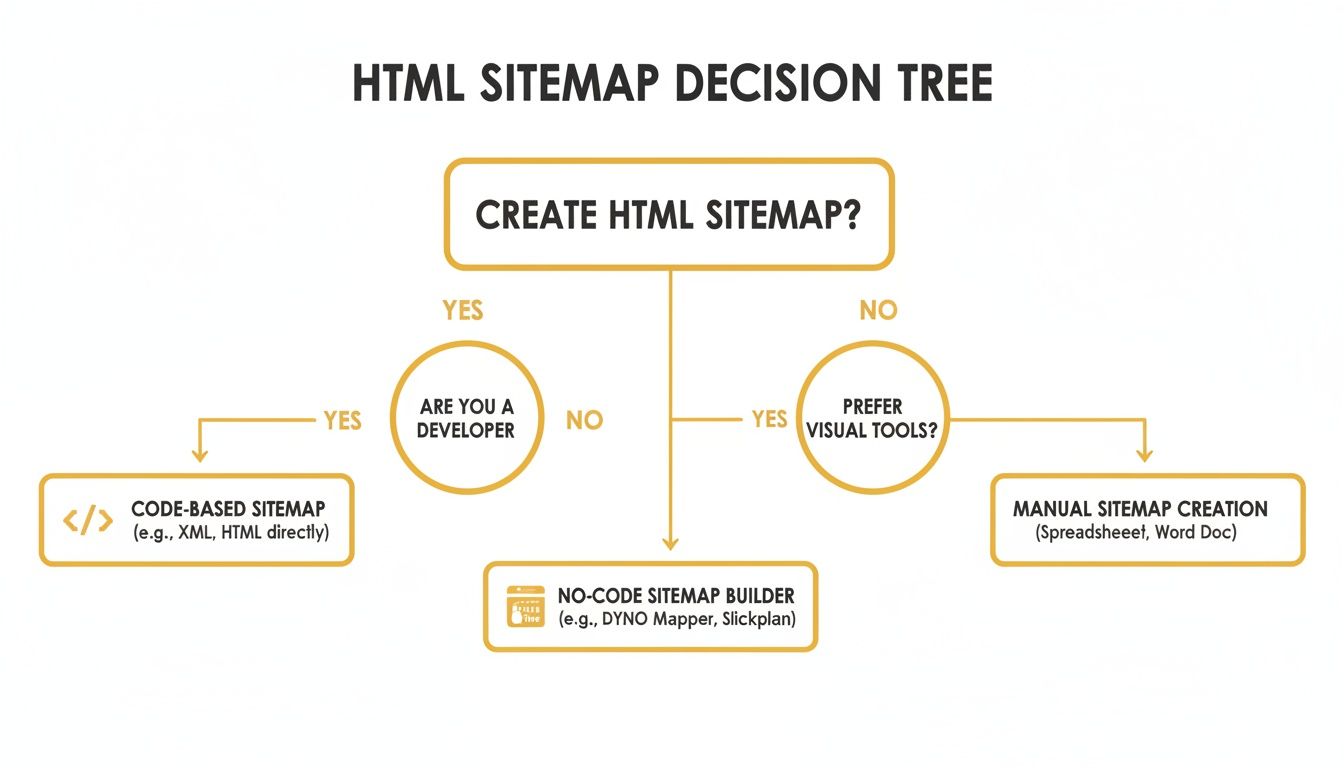
As the visual shows, the right method really just comes down to your technical confidence and the resources you have available.
Practical Steps to Hide Low-Value Pages
So, how do you actually take control of your store's indexability? It comes down to a couple of key tactics. You don’t need to be a developer to pull these off, but you do need to be careful.
- Using 'noindex' for Specific Pages: For individual pages you want to hide, you can add a 'noindex' meta tag directly into the page's code or its template. This is a direct command telling search engines not to include that page in their index. It’s perfect for things like old promotional landing pages or post-purchase "thank you" pages that have no business being in search results.
- Editing robots.txt: When you need to set broader rules, like blocking all those filtered collection URLs we talked about, your
robots.txt.liquidfile is the place to do it. By adding aDisallow:rule, you can prevent crawlers from even visiting these URLs in the first place. For instance, a rule likeDisallow: /collections/*?sort_by=*would block Google from crawling any sorted versions of your collection pages.
By implementing these strategies, you ensure your Shopify sitemap remains a clean, powerful tool. It helps direct search engines to the pages that actually drive revenue, improving your indexing efficiency and, ultimately, boosting the visibility of what truly matters on your large-scale store.
Troubleshooting Common Sitemap Errors
Seeing a red error message next to your sitemap submission in Google Search Console can be disheartening, but don’t worry. Most of these issues are common and often have surprisingly simple fixes. Think of this as your go-to guide for figuring out what’s wrong and getting it sorted.
These errors aren't failures; they're just Google's way of pointing out what needs a little attention. A methodical approach is all it takes to get things back on track and ensure search engines are crawling your store without a hitch.
Decoding the 'Submitted URL Marked Noindex' Error
One of the most common flags you'll probably see is the 'Submitted URL marked noindex' error. It sounds technical, but it’s straightforward: a page you’ve listed in your sitemap is simultaneously telling Google, "Don't index me." This contradiction is confusing for search engine crawlers, so they flag it for you to resolve.
Where does this usually come from? I’ve seen it happen in a couple of ways:
- Accidental Theme Settings: It's easy to unintentionally set a page or product to be hidden from search engines right within your Shopify admin. This is done with a
noindextag, a small bit of code that does exactly what its name suggests. - Third-Party App Conflicts: Some apps, particularly those for SEO or product management, can add
noindextags to pages without you even realising it. For instance, an app might automatically hide out-of-stock products from search results by default.
To fix this, go straight to the URL Google flagged. Check its settings in the Shopify admin under the "Search engine listing preview" to make sure it isn't hidden. If everything looks okay there, take a peek at the settings of any apps you've installed recently.
Pro Tip: A classic culprit for
noindexerrors is a password-protected store. If you've got your storefront hidden behind a password page (common during development), Google can't crawl it. Make sure your store is fully live before submitting your sitemap.
When New Products Are Missing
Another common headache is when your brand-new products don't show up in your sitemap, even after a few days. While Shopify is usually quick to update the sitemap, delays can happen. But more often than not, this is an indexing issue, not a sitemap problem.
Before you start digging for complex solutions, do a quick check: is the product actually published and available on your "Online Store" sales channel? A product saved as a draft or not assigned to an active channel won't make it into the sitemap. It’s a simple mistake, but it catches people out all the time.
If you feel like something bigger might be wrong with your site's setup, a general health check can be really revealing. You can get a much clearer picture of your store’s overall SEO performance by running through a structured process. Our comprehensive website SEO audit free checklist is a great place to start and can help you spot issues that go beyond just your sitemap.
Shopify Sitemap Questions Answered
When you're trying to get a handle on your Shopify sitemap, a few questions always seem to come up. It's completely normal. Let's walk through some of the most common ones I hear from store owners, so you can get back to business feeling confident about your SEO.
How Often Does Shopify Update My Sitemap?
First off, timing. People often worry they need to manually update their sitemap after adding a new product or publishing a blog post. The good news? You don't.
Shopify handles this for you automatically. The moment you add a new product, page, or post, Shopify regenerates your sitemap file pretty much instantly. This is a huge advantage, as it means search engines can find your latest content right away without you lifting a finger.
Can I Edit the Shopify XML Sitemap Directly?
This brings us to another big question: can you just go in and edit the sitemap.xml file yourself? The short answer here is no. Shopify keeps this file locked down.
While that might sound restrictive, it’s actually a good thing. It prevents accidental mistakes that could seriously damage your site’s visibility. But don't worry, you're not powerless. You can still guide search engines by using 'noindex' tags on pages you want to hide or by setting specific rules in your robots.txt file. Think of it as influencing the sitemap, rather than editing it directly.
Even if you only have a handful of products, submitting a sitemap is a non-negotiable SEO best practice. It signals to Google that you're serious about your online presence and guarantees every one of your pages gets discovered efficiently from day one.
What About Small Stores or Weird-Looking URLs?
"Do I really need a sitemap if I only have 10 products?" Yes, absolutely. It doesn't matter if your store is big or small; a sitemap is a foundational piece of technical SEO that helps you build a solid relationship with search engines from the very beginning.
And what about those funny-looking URLs with random numbers and characters you sometimes see? That's just how Shopify's URL structure works, and it’s nothing to worry about. Shopify automatically uses canonical tags behind the scenes to point search engines to the one true version of a page, which neatly sidesteps any potential duplicate content problems.
Ready to discover the best tools to grow your business? The Digital Marketing Toolbox offers a curated selection of top-tier software for SEO, email marketing, social media, and more. Find your perfect solution and start growing today at https://grow-your-biz.com.


