
A Pinterest widget is essentially a small snippet of code that creates a direct link between your website and the Pinterest platform. It’s a clever little tool that lets visitors save your images, follow your profile, or even browse your boards without ever having to leave your page.
This simple integration turns your website’s content into a powerful, shareable asset.
Why Your Website Needs a Pinterest Widget
It's easy to lump Pinterest in with other social networks, but that misses the point. Think of it as a visual search engine where people are actively hunting for ideas, products, and inspiration. A Pinterest widget builds a bridge straight from your website to these millions of users who are ready to discover and buy.
I've seen it happen time and again: a food blogger watches a recipe go viral, or an e-commerce shop gets a steady stream of traffic, all because someone pinned an image directly from their site. That's the power of making it easy for your audience.
This small addition can quickly become one of your most effective, low-effort marketing tools. It’s not just about adding another button; it’s about making your content work smarter. The benefits are tangible:
- Boosts Referral Traffic: By making it ridiculously easy for people to save your content, you're creating countless new pathways for visitors to find your website from Pinterest.
- Extends Your Content's Lifespan: A typical social media post is forgotten in hours. A Pin, on the other hand, can continue to drive traffic for months, sometimes even years.
- Improves User Engagement: Interactive elements, like an embedded board widget, can keep visitors on your site for longer as they explore content you've already curated for them. If you're curious about other interactive features, it's worth exploring the different types of website widgets available.
As this screenshot of Pinterest's official tool shows, generating the code for a Save button is incredibly simple. You can even tweak the button's look and feel before you grab the code to add to your site.
Beyond just traffic, a Pinterest widget taps into the power of social proof. Displaying your follower count or popular pins builds trust and encourages new visitors to engage with your brand.
For businesses based in the UK, the opportunity here is massive. Pinterest has 15.5 million active UK users, and recent data shows that a whopping 61% of Pinners make a purchase after seeing branded content on the platform. This really highlights how a simple widget can directly impact your sales.
Choosing the Right Pinterest Widget for Your Goals
Picking the right Pinterest widget for your website isn't just a technical task; it's a strategic one. The widget you choose can be the difference between simply having a nice-looking button and actually building a new, powerful stream of traffic to your site. It all comes down to what you want to achieve.
You've got four main types of widgets to play with, and each one has a very different job to do. Getting to grips with what makes each one tick is the first step to making a smart decision for your website.
Matching Widgets to Your Website Goals
Before you even look at a line of code, ask yourself: what’s the main goal here? Are you trying to get your blog posts shared more widely? Or are you hoping to show off a new product collection to get people excited and ready to buy? The answer will point you straight to the right widget.
Think about it this way. A food blogger’s primary goal is getting people to save and try their recipes. For them, the Save button is essential. It sits right on their images, making it ridiculously easy for a reader to add a delicious-looking meal to their "Weeknight Dinners" board with a single click.
Now, consider a boutique hotel. They’re selling an entire experience, not just a room. Embedding a beautifully curated Board widget on their homepage—perhaps one showing off "Local Attractions" or "Guest Experiences"—tells a visual story and builds credibility in a way a simple button never could.
If you're a visual person, this decision tree can help you figure out which widget makes the most sense for you.
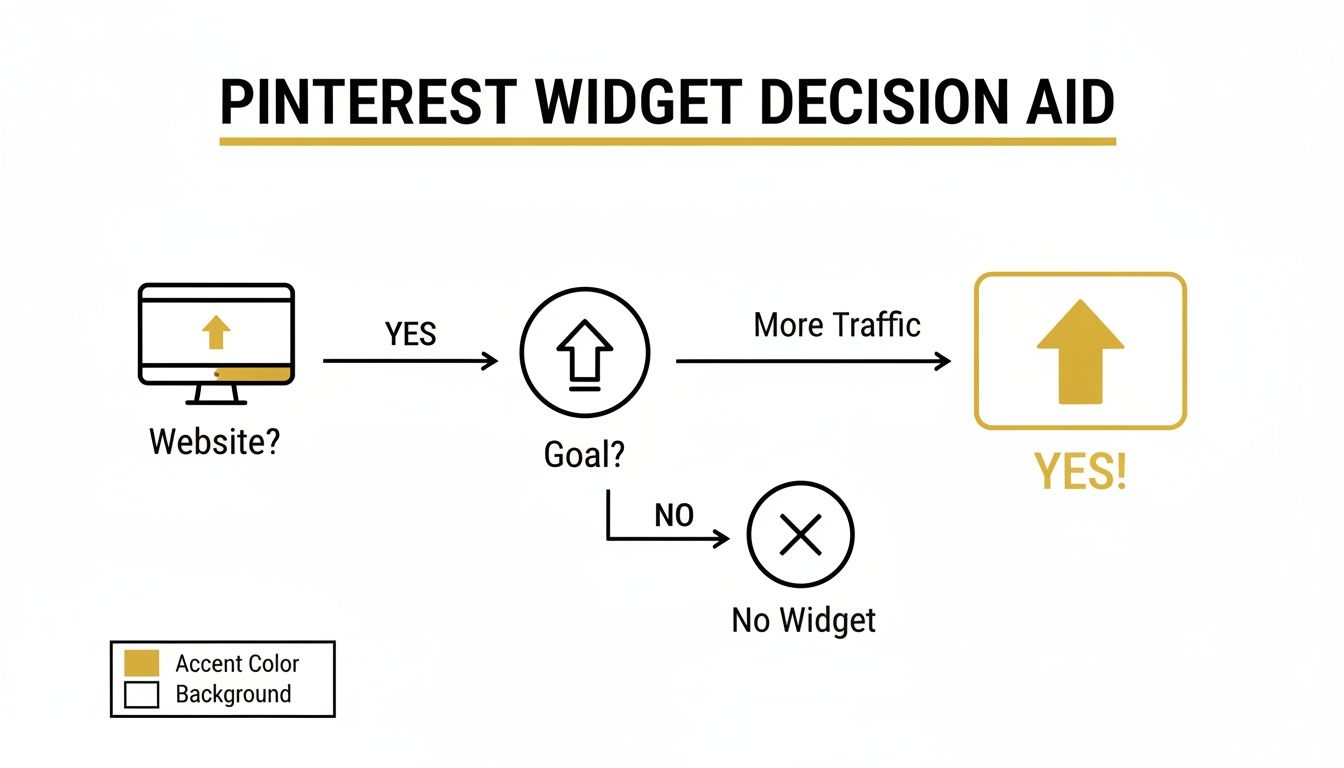
As you can see, it all starts with having a website and a clear objective, like driving more traffic. Once you have that, choosing the right tool becomes much clearer.
A Look at Real-World Uses for Each Widget
To help you decide, let's explore some of the most common and effective ways I've seen each widget used.
Pinterest Widget Types Compared
Before we dive into the specifics, here's a quick comparison table to give you a bird's-eye view of your options. It's a great way to quickly see which widget aligns with what you're trying to accomplish on your site.
| Widget Type | Primary Goal | Best For | Example Use-Case |
|---|---|---|---|
| Save Button | Encourage Content Sharing | Bloggers, e-commerce product pages, recipe sites, portfolios | Placing it over a featured image on a DIY tutorial blog post. |
| Pin Widget | Highlight a Single Pin | Landing pages, featured content sections, specific tutorials | Embedding a top-performing infographic directly into a related article. |
| Profile Widget | Grow Your Following | Website footers, "About Us" pages, contact pages | A design agency showing their latest inspiration on their "About" page. |
| Board Widget | Showcase a Collection | E-commerce category pages, travel blogs, portfolio pages | A fashion brand embedding their "Autumn Lookbook" board on the new arrivals page. |
This table should make it easier to pinpoint the best tool for the job. Now, let's get into the nitty-gritty of how they work in practice.
-
The Save Button: This is the absolute workhorse for anyone creating content. You should have this on every single blog post, recipe, and product image. Its one job is to make sharing your stuff effortless, giving your content a much longer lifespan on Pinterest.
-
The Pin Widget: This one's perfect when you want to put a single, high-impact piece of content in the spotlight. You could use it in a blog post to feature the "hero" image from a tutorial or pop it on a landing page to highlight a customer's favourite product.
-
The Profile Widget: Think of this as your brand's calling card. It works best in your website's footer or on your "About" page. The goal here is to build your follower count and show off the breadth of your Pinterest presence, establishing you as an authority.
-
The Board Widget: For e-commerce, this can be a total game-changer. Imagine a clothing brand embedding their "Summer Collection" board right onto a category page. Suddenly, you have a dynamic, shoppable lookbook that feels fresh and inspiring.
Don't feel like you have to choose just one widget. The most effective strategies often mix and match them across a site. For example, you might have the Save button on all your product pages while using a Profile widget in the footer to build your following. By putting the right tool on the right page, you create a seamless experience for your visitors. If you want a deeper dive into the setup, our guide on how to make widgets for different platforms is a great next step.
Getting Your Widget Installed with Pinterest's Official Builder
The thought of digging into your website’s code might sound a bit daunting, but honestly, getting a Pinterest widget up and running is surprisingly simple. The best way to do it is with Pinterest’s own Widget Builder tool.
Using the official tool is a no-brainer. It's built by Pinterest, so you know it’s secure, reliable, and always up-to-date with their latest features. You won’t have to worry about compatibility issues down the line.
The Widget Builder itself is basically a simple online form. You just pick the widget you want—whether it’s a Save button for your images or a full-blown board embed—and then you can play around with the settings to get it looking just right for your site’s design. This way, it feels like a native part of your page, not something just slapped on top.
After you've got it looking perfect, the builder will spit out two little bits of code. This is the part that sometimes makes people a bit nervous, but I promise, there’s a straightforward logic to where everything needs to go.
Generating and Placing Your Code
Pinterest has made this a simple copy-and-paste job. You'll get one line of code for the widget itself and a second line for the script that powers it.
Let's look at exactly where to pop these code snippets for the best results.
- The Widget Code: This bit goes exactly where you want the widget to show up. If you're embedding a Pinterest board into a blog post, for example, you’d paste this code directly into the HTML of that post, right in the spot you want the board to appear.
- The Pinterest Script: This is the engine that makes it all work. Best practice is to place this script just once on any given page, right before the closing
</body>tag. Putting it at the very bottom of your HTML ensures it loads last, so it doesn't slow down the rest of your content from loading first.
It’s a clever setup, really. The main script only needs to load once per page, keeping things efficient. Meanwhile, you can sprinkle as many individual widget codes as you like across your site without bogging it down.
Customising Your Widget's Appearance
Before you grab that code, spend a minute in the customisation options. These small tweaks make a big difference in making the widget blend seamlessly with your website's branding and layout.
If you’re embedding a board, for instance, you can define the exact pixel dimensions to make sure it fits perfectly within your content column. For the ever-important Save button, you've got a few handy options:
- Size: Go for a small, subtle button or a larger, more eye-catching one.
- Shape: Choose between a classic rectangular shape or a modern, circular design.
- Language: Make sure the button text matches your website’s primary language.
These settings give you just enough control to match your brand’s aesthetic without having to write a single line of custom CSS.
Key Takeaway: Stick with Pinterest's official Widget Builder. It takes all the guesswork out of the equation and keeps everything secure. The golden rule is simple: put the main script at the bottom of your page (just before
</body>), and then place the specific widget code exactly where you want it to appear. This keeps your site fast and the installation clean.
Seamless Pinterest Integration for WordPress and Shopify
While Pinterest's own widget builder is a solid all-rounder, the real magic happens when you use a tool designed specifically for your website's platform. For the millions of sites running on WordPress and Shopify, adding a Pinterest widget doesn't mean you have to get your hands dirty with code. Thanks to dedicated plugins and clever theme features, it’s usually a much simpler job.
This approach not only saves a huge amount of time but also sidesteps the classic "oops, I pasted the code in the wrong place" problem. It's all about working smarter to get these powerful visual tools live on your site. Let's walk through how to get it done on both platforms.
WordPress Pinterest Widgets Made Easy
If you're running a WordPress site, the most straightforward path is almost always a plugin. The WordPress plugin directory is packed with options, but one I’ve seen work well for many people is the "Pinterest Pin It Button On Image Hover and Post" plugin. It’s popular for a reason—it just works.
Instead of manually tinkering with code, you just install and activate the plugin. From there, you can hop into its settings right from your WordPress dashboard to control exactly how and where your Save buttons show up. You’ll typically find options for:
- Display Rules: Decide if you want the button to appear when someone hovers over an image or if it should always be visible.
- Content Types: Choose which parts of your site should have the buttons, like blog posts, pages, or even custom post types.
- Button Style: Pick the size, shape, and colour that fits your website's aesthetic.
This plugin method is perfect for bloggers and content creators who want a "set it and forget it" solution that automatically adds Save buttons to every image, old and new. It’s a similar idea to what you can do for other platforms, like we cover in our guide to embedding an Instagram feed on your website.
Boosting Sales on Shopify with Pinterest
For anyone running a Shopify store, the goal is usually much more direct: drive sales. Embedding a Pinterest widget on your product pages or collections can be the spark of inspiration a shopper needs to click "add to cart". Just imagine a beautifully curated "Shop the Look" board embedded right there on your homepage.
Before you even start looking for apps, dive into your theme's customisation settings. A lot of modern Shopify themes have built-in social media sections where you can simply paste the URL of your Pinterest profile or a specific board.
If your theme doesn't offer that, you'll need to edit the theme code. It sounds more intimidating than it is! In most cases, it’s a simple copy-and-paste. You’d use the Pinterest Widget Builder to create the code for your board, then pop it into the right Liquid template file, like product.liquid or a custom section on your homepage.
Pro Tip: Always, and I mean always, work on a duplicate of your Shopify theme when adding code. This gives you a safe space to test everything without any risk to your live store. Once you've confirmed it all looks and works perfectly, you can publish the duplicate.
Don't underestimate the impact of this. In the UK alone, 15.5 million people were on Pinterest as of January 2025. Adding a simple widget connects your products to this massive audience, which helps explain the 19% growth in referral traffic that e-commerce stores have seen from the platform. You can find more details on Pinterest's growing influence on e-commerce. That direct link from your storefront to a customer's inspiration board is a seriously powerful tool in modern retail.
Turning Your Website into a Pinnable Powerhouse
Popping a Pinterest widget onto your website is a great start, but it’s only the first piece of the puzzle. The real magic happens when you start optimising your content to be irresistibly pinnable. This is how you transform a simple button into a powerful engine for driving traffic and getting your brand discovered.
It’s all about shifting your mindset to think like a Pinner from the very beginning of your content creation process. When your website becomes a go-to source for high-quality, desirable Pins, the performance of your widget doesn't just improve—it skyrockets.
Crafting Content Designed for Pinterest
First things first: your visuals need to be on point. Pinterest is, and always has been, a visual-first platform. This means vertical images are king. An aspect ratio of 2:3 (think 1000 x 1500 pixels) is the sweet spot, as it commands more screen real estate in the mobile feed and naturally grabs more attention.
Make it a habit to create at least one dedicated, high-quality vertical image for every blog post or product page. This could be a slick infographic, a photo collage showing a step-by-step process, or a stunning product shot with a clear text overlay. This simple practice ensures that when a visitor uses your pinterest widget for websites, they're saving an image that's primed for success.
Activating Rich Pins for Deeper Context
Your next essential move is to enable Rich Pins. Honestly, if you're serious about growth on Pinterest, this is non-negotiable. Rich Pins automatically pull extra data from your website's metadata and display it directly on the Pin, making your content far more useful and tempting to click.
There are a few different types, each with a specific job:
- Product Pins: These are a must for e-commerce, showing real-time pricing, stock availability, and a direct link to buy.
- Recipe Pins: Perfect for food bloggers, they display ingredients, cooking times, and serving sizes right on the Pin.
- Article Pins: These pull in the headline, author, and a short description of the story, giving users a preview.
When a visitor saves content from your site, Rich Pins make sure all that valuable context travels with it. The result? A massive boost in engagement and click-through rates back to your website.
The Hidden Power of Alt Text and Descriptions
Did you know your image's alt text does double duty? Its main job is accessibility, but it also gives Pinterest's search algorithm vital clues about your content. You need to write descriptive, keyword-rich alt text for every single image you upload.
Put yourself in your audience's shoes. What would they search for? Instead of a generic "image of cake," get specific: "easy chocolate fudge cake recipe with dark chocolate ganache." When someone pins that image, Pinterest uses this text to understand and categorise it, helping it surface in the right searches.
A quick tip: don't be afraid to add a gentle nudge directly in your content. A simple line like, "Love this idea? Pin it for later using the button below!" can make a surprising difference in how many saves you get.
Of course, to truly become a pinnable powerhouse, it’s not just about what you post, but when. Understanding the best times to post on Pinterest ensures your beautifully optimised content hits the platform when your audience is most active.
This whole ecosystem—optimised images, rich data, and clever descriptions—works in harmony with your widget. With the platform expecting to hit 15.5 million UK users in 2025, these optimisations are your key to capturing a piece of that attention. We've already seen that widgets like the "Pin" button can boost referral traffic by up to 19% for some sites, driven by users who save an average of 6.7 Pins per visit.
Got Questions About Your Pinterest Widget? We've Got Answers
So, you’ve got the Pinterest widget code onto your site. That's the first hurdle cleared. But now, the real-world questions start cropping up. Is it actually working? Is it slowing things down? How do I even know if it's doing anything useful?
Let's walk through some of the most common queries that pop up after installation.
Will a Pinterest Widget Slow Down My Website?
This is probably the number one concern, and it's a fair one. The good news is, it really shouldn't. The official scripts from Pinterest are built to load asynchronously. In simple terms, this means your website content—your text, images, and other crucial elements—loads first, and the widget loads in the background without holding everything else up.
Where people usually run into trouble is when they start piling on multiple widgets or use a third-party plugin that isn't well-optimised. To keep your pages zipping along:
- Use the Official Code: Always grab your scripts directly from the Pinterest Widget Builder. Don't be tempted by unofficial shortcuts.
- Pop It in the Right Place: As we mentioned earlier, the main
<script>tag belongs right before the closing</body>tag of your site. This is standard best practice for a reason. - Check Your Speed: Run a quick test with a tool like Google PageSpeed Insights before and after you add the widget. You'll likely see little to no difference.
Sticking to these guidelines ensures any performance impact is practically non-existent. A single, properly installed widget is designed to be lightweight and efficient, giving you all the pinning power without the drag.
Can I Change How the Pinterest Save Button Looks?
Absolutely. While Pinterest understandably wants to keep its core branding intact (so no, you can't make it bright pink with sparkles), you still have a decent amount of control to make it feel at home on your site.
The Widget Builder lets you tweak a few key things right out of the box:
- Size: You can go for a small, subtle button or a larger one that's harder to miss.
- Shape: Choose between a classic rectangular button or a more modern circular one.
- Language: Make sure the text on the button speaks the same language as your audience.
If you're embedding a board or profile widget, you can also specify the exact dimensions in pixels. This is perfect for making sure it fits neatly into your sidebar or footer without messing up your site's layout.
How Do I Know If My Widget is Sending Me Traffic?
Knowing your numbers is everything. The easiest way to see the impact of your widget is to jump into your Google Analytics 4 account. Head over to the 'Traffic acquisition' report.
What you're looking for is traffic where the 'Session source / medium' is listed as pinterest.com / referral. This is the clearest signal that people are clicking through from Pinterest to your website.
For a more granular view, your Pinterest Business account analytics are a goldmine. It'll show you precisely which of your pages are getting the most saves, giving you fantastic insight into what content is really hitting the mark with your audience.
At The Digital Marketing Toolbox, we curate the best tools to help you manage and grow your online presence, from social media to SEO. Find the right solutions to achieve real, measurable results. Discover more at https://grow-your-biz.com.


