
Got a new certificate you’re proud of? Getting it onto your LinkedIn profile is a breeze. Just head to your profile, find the 'Add profile section' button, choose 'Licenses & Certifications', and then simply fill in the details. In just a few clicks, your profile goes from being a static CV to a living, breathing portfolio of your proven skills.
Why Adding Certificates to LinkedIn Matters
Think of your LinkedIn profile as your professional shop window, especially in the buzzing UK job market. When you add a certificate, you’re putting instant, verifiable proof of your skills on display for every recruiter who scrolls past. It’s not just about ticking a box; it's about building trust and showing you're serious about staying at the top of your game.
First impressions count for everything on LinkedIn, and a shiny new certification can be the very thing that makes a hiring manager stop and take a closer look. For example, a digital marketing manager with a fresh Google Ads certification immediately looks more relevant than someone without. Likewise, a project manager showcasing their PRINCE2 certificate gives instant reassurance that they know their stuff.
Boost Your Visibility and Credibility
Adding your credentials does more than just pad out your profile—it actively helps you get found. With over 25 million users in the UK alone, standing out from the crowd is essential. It turns out, profiles that feature certifications get up to 17% more views and are 20% more likely to get a message from a recruiter. This isn't just a coincidence; LinkedIn has been deliberately putting more emphasis on the 'Licenses & Certifications' section to highlight real, tangible skills.
Your certifications are your digital handshake. They validate your skills in a single glance and tell recruiters you’re a proactive professional who’s ready for the next challenge.
This extra visibility is a huge advantage. Recruiters often search for specific certification names as keywords. When you add a certificate to LinkedIn correctly, you're basically optimising your profile to pop up in their searches. It also gives a clear signal about who is viewing your updated profile. If you're curious about this, you can learn more by asking, "https://grow-your-biz.com/does-linkedin-show-who-viewed-your-profile/"
Create a Complete Professional Narrative
Certificates are a crucial piece of your professional story, but they're still just one piece of the puzzle. Adding them is a fantastic start, but to build a truly magnetic online presence, you'll want to optimize your entire LinkedIn profile. This big-picture approach makes sure every part of your profile—from your headline right down to your experience section—works together to tell a compelling and consistent story about who you are and what you can do.
Adding Your Certificate to Your LinkedIn Profile
Alright, you understand why it’s a smart move to show off your qualifications. Now for the practical part: getting that new certificate onto your LinkedIn profile. It’s actually quite a simple process once you know where to look, and I'll guide you through every click.
Let's imagine you've just passed your Google Analytics certification – a common one many of us have. We'll use that as our example.
First things first, head over to your own LinkedIn profile page. Just below your name and headline, you’ll see a blue or grey button that says “Add profile section”. Give that a click.
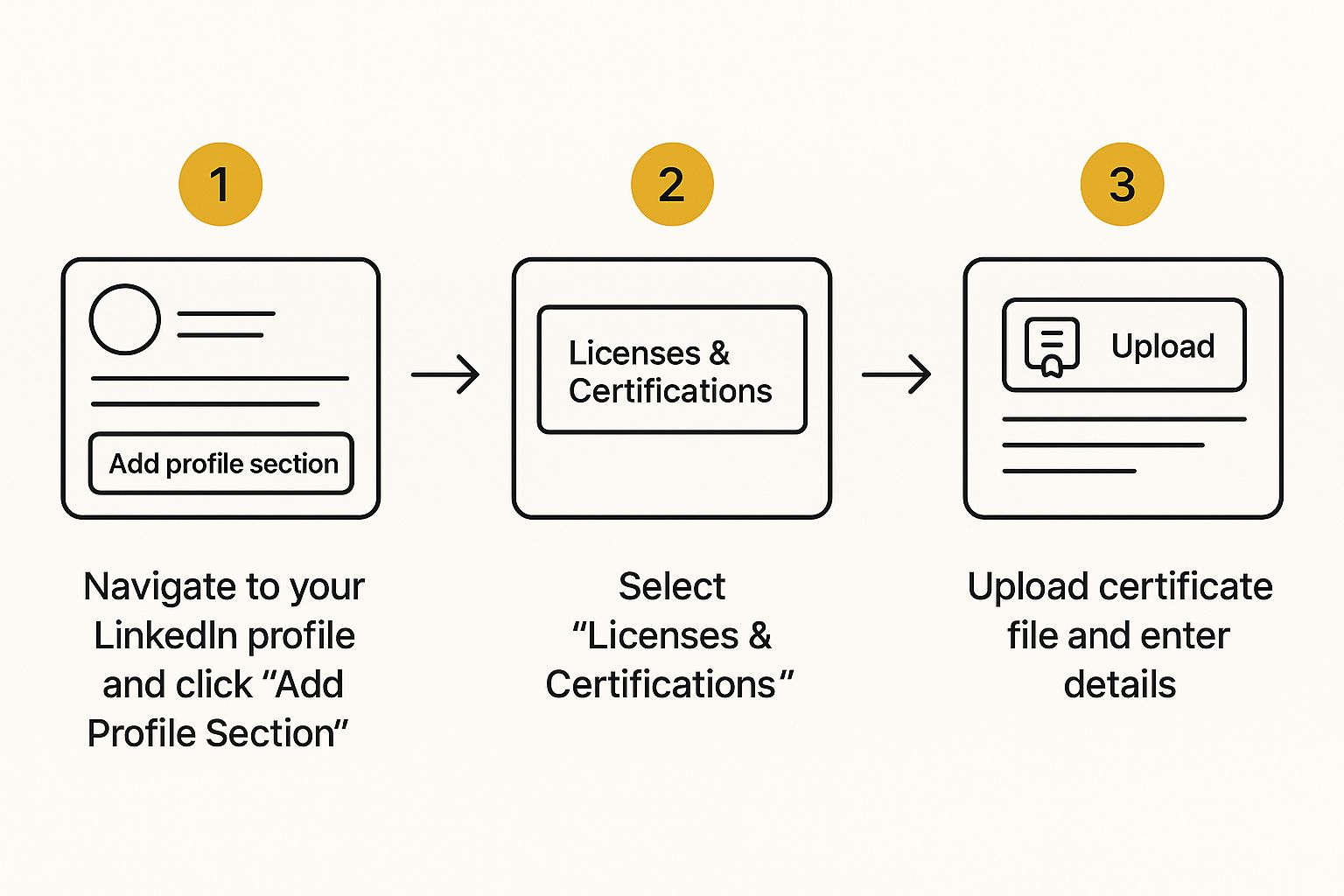
This button is your gateway to adding pretty much anything to your profile, from new jobs to volunteer experience.
Finding the Right Section
When you click "Add profile section," a dropdown menu appears. You'll want to look under the "Recommended" heading and then choose "Add licenses & certifications".
This is the spot LinkedIn has specifically designed for these credentials. Putting your certificate here ensures it’s displayed properly and looks professional to anyone viewing your profile, especially recruiters.
Entering Your Certificate Details
Selecting "Add licenses & certifications" will bring up a pop-up window. This is the form where you'll input all the key details about your achievement. It’s important to get this right to make your new qualification look credible.
Before you start, it’s a good idea to have all the necessary information handy.
Quick Guide to Certificate Information
Here's the key information you'll need from your certificate provider before you start adding it to your LinkedIn profile.
| LinkedIn Field | What You Need | Where to Find It |
|---|---|---|
| Name | The full, official title of the certificate. | On the digital or physical certificate itself. |
| Issuing Organisation | The company or institution that awarded it. | Also on the certificate; often their logo is present. |
| Issue Date | The month and year you officially passed or received it. | Clearly stated on the certificate or in your confirmation email. |
| Expiration Date | The month and year it expires (if applicable). | Found on the certificate, often near the issue date. |
| Credential ID | A unique code that verifies your achievement. | Typically found on the digital certificate or in the email you received. |
| Credential URL | A direct, shareable link to your certificate online. | Provided by the issuer; look for a "share" or "verify" link. |
Having these details ready makes the process much smoother and ensures you don't have to go digging for them halfway through.
Now, let's fill out that form field by field using our Google Analytics example:
- Name: Be specific. Instead of just "Google Analytics," type out the full name: "Google Analytics Individual Qualification".
- Issuing Organisation: As you start typing "Google," LinkedIn will suggest official company pages. Make sure you select the correct one – it adds their logo to your entry, which looks much sharper.
- Issue & Expiration Date: Add the month and year you earned it. Many tech certs expire, so if yours does, tick the box and add the expiration date. This shows you're keeping your skills current.
- Credential ID & URL: This is where the magic happens. The Credential ID is your unique identifier, and the Credential URL is a direct link to the certificate itself.
I can't stress this enough: always fill in the Credential ID and Credential URL. These fields are what allow a recruiter or potential client to verify your qualification with a single click. It’s the difference between just saying you have a skill and proving it.
Once you’ve filled everything in, give it a quick once-over for any typos. When you're happy, hit "Save." Just like that, your new certificate will appear in the "Licenses & Certifications" section of your profile for your whole network to see. Job done.
Making Your Certificate Entry Stand Out
Okay, so you've added your certificate. Job done? Not quite. Just listing a credential is only half the battle; the real trick is making it grab a recruiter's attention. Your new qualification needs to work for you, and a few small tweaks can make a world of difference.
First things first, treat the certificate's name like a keyword. Think about what a recruiter would actually type into their search bar.
Instead of a generic acronym like "CAPM," spell it out in full: "Certified Associate in Project Management (CAPM)." This simple change dramatically increases the chances of your profile showing up when someone is looking for that exact skill.
Build Trust with Verifiable Details
This next bit is crucial: always include the Credential ID and URL. These details are your proof. They offer one-click verification for anyone viewing your profile, instantly building trust and showing that your qualification is legitimate.
Leaving these fields blank can look a bit suspicious, almost like a red flag suggesting the entry might not be entirely accurate. It only takes a minute to add them, so don't skip it.
This isn't just a hunch, either. Recent data shows that in the UK, a whopping 62% of recruiters now give preference to candidates who have verified certifications on LinkedIn. It makes their job easier and reduces the risk of hiring someone based on false claims.
An unverified certificate is just a claim. A verified one is a fact. Make it easy for recruiters to see the difference by always including your credential ID and URL.
Announce Your Achievement
Don't just quietly add your new certificate and hope someone notices. Shout about it! A quick post announcing your achievement gets it in front of your entire network. It's a fantastic way to get some congratulations, spark a few conversations, and subtly remind everyone of your commitment to professional growth.
When you're writing your post, it’s a nice touch to mention the organisation or people who helped you get there. If you’re not sure how to do that effectively, our guide on how to tag someone on LinkedIn can walk you through it.
Finally, think about the order of your certifications. Put your most impressive and relevant ones at the top. To really make sure your new qualification gets the visibility it deserves, it's worth exploring some other strategies to get more views on LinkedIn.
Curating Your Certifications for Career Goals
It's easy to fall into the trap of thinking more is always better, but when it comes to your LinkedIn profile, that’s not quite right. A cluttered certifications section can actually dilute your professional story and confuse recruiters.
Think of it this way: your profile is an exhibition, not a storage locker. You want to showcase your best, most relevant work, not just everything you've ever done.
A powerful profile tells a clear, focused story. If you're targeting a project management role here in the UK, your PRINCE2 and Agile certifications should be pride of place. That certificate from a weekend photography course you took five years ago? Unless you’re gunning for a creative role, it’s probably just noise.
Aligning Credentials with UK Market Demands
The value of a certificate really comes down to its relevance. You need to focus on qualifications that are known and respected within your industry in the UK. This shows you’ve not only got the skills, but you also understand the local professional landscape.
A focused, relevant list of certifications sends a powerful message to recruiters: you understand what the job requires, and you have the specific, validated skills to meet those requirements.
Showcasing credentials isn't a new trend, but its importance has skyrocketed. When LinkedIn first launched the ‘Licenses & Certifications’ feature back in 2014, adoption was steady. Fast forward to 2022, and we saw a 28% year-over-year jump in UK profiles featuring certificates. This tells you just how vital this section has become. For a deeper dive into these trends, you can find some great data on LinkedIn's demographic shifts in the UK on sprinklr.com.
A Simple Pruning Checklist
I always recommend giving your profile a quick audit every few months to keep it sharp. For each certification you have listed, ask yourself a few simple questions:
- Does this qualification still line up with my current career goals?
- Is the issuing organisation well-known and respected in my field?
- Is it less than five years old, or is it a foundational credential that doesn't expire?
Running through this quick check helps ensure your profile is a current, compelling snapshot of what you bring to the table. A well-curated list often catches the eye of hiring managers, which can lead to them reaching out directly. If you want to get your head around how those messages work, our article on what an InMail is on LinkedIn is a great place to start.
Watch Out for These Common LinkedIn Certificate Mistakes

It’s one thing to earn a certification, but how you display it on your LinkedIn profile can make all the difference. You'd be surprised how easily a small slip-up can take the shine off your accomplishment. Let’s walk through a few common traps so you can steer clear of them.
First up, the classic typo. It happens to the best of us, but misspelling the name of the certificate or the issuing body just looks sloppy. Before you click that save button, give it one last read-through. A quick check can save you from looking unprofessional.
Another easy-to-make mistake is glossing over the verification details.
Don't Skip the Credential ID
That Credential ID or Credential URL field isn't just for show. Leaving it blank is a huge missed opportunity to prove your claim. These details are the digital handshake that confirms your certification is legitimate. Without them, a recruiter has to take your word for it, which can plant a tiny seed of doubt.
Think about it from a hiring manager's perspective: you’re making their life easier by giving them everything they need to verify your skills. That always works in your favour.
A profile with verified credentials signals that you’re transparent, organised, and authentic. It builds trust before you’ve even had a conversation.
Lastly, keep a close eye on your dates. An expired certificate on your profile can send the wrong signal, suggesting your knowledge might be a bit rusty. Make a habit of removing or updating any certifications that are no longer current. This shows you’re actively keeping your skills sharp and relevant.
Got Questions? We’ve Got Answers
You're not the first person to run into a few tricky spots when adding certifications to LinkedIn. Let's tackle some of the most common questions that pop up, so you can get your profile looking just right.
What If My Certificate Has No Credential ID?
This happens all the time, especially with older qualifications or internal training programmes. Don't worry, you can absolutely still add it. Simply leave the Credential ID and Credential URL fields empty.
Just be aware that without these, your certificate won't have that handy "Show credential" button. This means it's presented as a claim you're making, rather than a one-click verified fact. A good workaround? If there's a public webpage describing the course, pop that link into the URL field. It gives recruiters a bit more context.
How Do I Reorder My Certifications?
So you've earned a bunch of great qualifications, but your most recent or impressive one is stuck at the bottom of the list. Thankfully, LinkedIn makes this an easy fix.
- Head to the Licenses & Certifications section on your profile.
- Click the little pencil icon to open the editing view.
- You'll see a symbol with three horizontal lines next to each certification – that's your drag handle.
- Just click and drag your entries into the order you want.
I always tell people to put their most relevant and impressive certifications right at the top. A recruiter's time is short; you want them to see your most valuable skills first. It makes an immediate, powerful impression.
Should I Add Certificates Outside My Main Career Path?
You're a marketing pro, but you've just finished a coding bootcamp. Should you add it? My answer is usually yes, as long as you can tell a good story with it. A certificate in a complementary skill shows you're versatile and curious.
Think about it: a marketer who understands basic Python can pull and analyse data in ways their colleagues can't. You can frame this as a unique strength that gives you an edge. The trick is to make sure it enhances your professional brand, not confuses it. It shows you're a proactive, well-rounded talent.
Ready to discover the tools that will help you earn your next certification? The Digital Marketing Toolbox offers a curated selection of resources to help you master new skills and grow your career. Find your next growth opportunity at https://grow-your-biz.com.


