
Updating your contact information on LinkedIn is a simple but vital piece of housekeeping you can do right from your account settings. It’s a quick process: add and verify a new email, make it your primary one, and then you can decide whether to remove the old address. This keeps your professional profile secure and, most importantly, ensures you don't miss a thing.
Why Your LinkedIn Email Is So Important
Before we jump into the 'how-to', let's talk about the 'why'. It's easy to dismiss your LinkedIn email as just another login detail, but it's far more than that. Think of it as the central nervous system for your professional life on the platform. Every message, every job alert, every connection request—it all flows through that one email address.
It’s your digital handshake.
An old email address you barely check can mean missed opportunities. I've heard stories of people missing out on interview requests from dream companies simply because the notification was sitting in an old university email inbox, unopened for months. By the time they saw it, the role was long gone.
Maximising Opportunities and Security
Keeping your primary email up-to-date means you get the right notifications at the right time. Specifically, you'll stay on top of:
- Job Opportunities: Instant alerts for jobs that match your profile and, crucially, messages from recruiters.
- Network Updates: Know when your connections start new jobs, celebrate work anniversaries, or share important posts.
- Direct Messages: Never leave a potential client, collaborator, or mentor waiting for a reply.
But it's not just about what you might miss out on; there’s a serious security aspect to consider. An old, inactive email account linked to your profile can become a weak link. If that account gets compromised, it could be used as a backdoor to your LinkedIn profile, putting your professional reputation on the line.
This isn't a minor concern. In the UK alone, LinkedIn had around 44.6 million users as of January 2025, a figure that's grown by 13.3% since late 2023. With so many professionals active on the platform, making sure your account is locked down is just common sense.
It all ties back to the overall importance of your LinkedIn profile. A current, secure email address is a foundational part of managing your professional brand and online security.
Ultimately, spending a few minutes to update your email is one of the smartest things you can do for your career management. You’ve worked hard to build your profile and your network; don't let an outdated email address be the thing that undermines it all. This is just one part of actively managing your presence; you can also get more strategic by learning about things like this: https://grow-your-biz.com/does-linkedin-show-who-viewed-your-profile/.
Adding and Verifying a New Email Address
Before you can set a new email as your primary one on LinkedIn, you’ve got to add it to your account and prove it’s actually yours. This is a simple but vital security check. It confirms your identity, stops anyone else from making unauthorised changes, and makes sure your notifications are landing in the right inbox from day one.
First things first, head to your account settings. Just click the "Me" icon in the top navigation bar, choose "Settings & Privacy," and then find the "Sign-in & security" section. From there, you'll spot the "Email addresses" option – this is where the magic happens.
You’ll see your current email addresses listed out, along with a clear "+ Add email address" button. Give that a click, and LinkedIn will ask for the new email address and your account password for security.
Completing the Verification Process
As soon as you add the new address, LinkedIn will fire off a verification email to that inbox. This isn’t just a formality. It’s the crucial step that activates the email on your account, and you won’t be able to make it your primary until you’ve done it.
This kind of verification is standard practice, and understanding why it's used can be helpful. For a deeper dive, check out a complete guide to email address verification.
A Quick Tip from Experience: That verification email doesn’t always show up instantly. If you don't see it in your inbox after a few minutes, have a look in your spam or junk folder before you try resending the link. It often ends up there.
Once the email arrives, just click the confirmation link inside. That's it. Your new email address will now be listed as "Verified" in your LinkedIn settings. Now you’re all set to make it your primary point of contact for all your professional networking.
Right, you've added and verified your new email address on LinkedIn. Good stuff. But don't stop there—the next move is to make it your new primary contact.
This isn't just a bit of digital housekeeping. Your primary email is LinkedIn's go-to for everything important: password resets, security alerts, and—crucially—messages from recruiters and potential clients. I've seen people miss out on great opportunities simply because they forgot this final step and all the important notifications were going to an old, unused inbox.
Making the Switch to Primary
Luckily, this part is dead simple. Head back to your email settings page. You'll see a list of all the email addresses you've added to your account.
Just find the new one you just verified and click the "Make primary" button sitting right next to it. As a quick security measure, LinkedIn will probably ask for your password again, just to make sure it's really you authorising the change. It’s a small hoop to jump through for peace of mind.
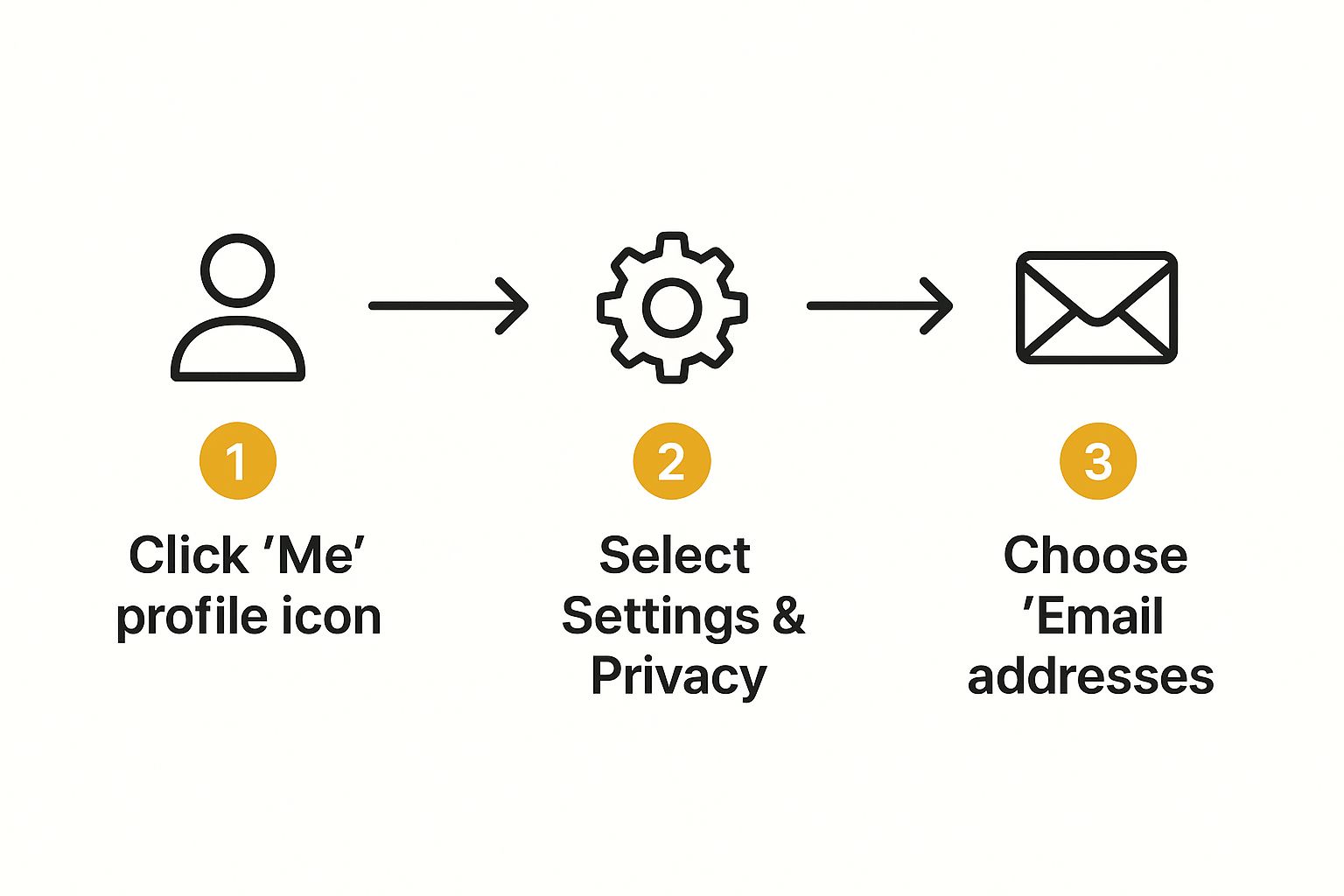
As you can see, getting to your email settings is just a few clicks away, so you can get this sorted in less than a minute.
Why This Little Click Matters So Much
Making sure your primary email is current keeps you in the loop and responsive. The pace on LinkedIn, especially in the UK, can be fast. Consider that the platform’s engagement rate by impressions hit a peak of 5.76% in March 2025. That kind of activity means you need your notifications to be timely if you want to jump on networking opportunities as they happen.
Think about it: with 43% of returning traffic coming from notifications and digests, having the right email address is your direct line to staying active and visible.
Key Takeaway: Your primary email is your main line of communication with your professional network. Setting the correct address ensures you never miss a message from a recruiter or a crucial update from a connection.
This simple switch helps bring your LinkedIn account in line with where you are in your career now. It's also a great chance to think about how you manage all your professional communications. Understanding the advantages of email marketing can even give you some fresh ideas for managing your inboxes more effectively.
Removing an Old or Unused Email Address
With your new primary email in place, it’s a good idea to do a bit of digital housekeeping. Leaving an old, unused email attached to your LinkedIn profile can be more than just clutter; it's a potential security weak spot. I always think of it as leaving an old key to your house under the doormat – it's an unnecessary risk.
Removing that outdated address is a crucial final step. It effectively closes off an old entry point to your account, which is especially important if that old email account were ever to be compromised.
The One Golden Rule of Removal
Before you hit delete, there’s one non-negotiable rule you need to know: you cannot remove your primary email address. This is a safety measure LinkedIn has in place, and for good reason – it stops you from accidentally locking yourself out of your own account.
So, you absolutely must add a new email and set it as your primary first. Once that's done, LinkedIn will allow you to get rid of the old one. There's no way around this sequence.
When your new email is confirmed as the primary, head back to the "Email addresses" section under "Sign-in & security". Beside your old, now secondary email, you’ll see the "Remove" option has appeared.
Clicking "Remove" is the final action. To make sure it's really you, LinkedIn will prompt you for your password one last time. It’s a final security check before making a permanent change to your account details.
Once you’ve re-entered your password and confirmed, the old email is gone for good. This simple clean-up tightens your account's security and ensures all important notifications are sent to an inbox you actually use.
Right, so you’ve tried to update your email on LinkedIn, but something’s gone wrong. Don’t panic. Even simple tasks can hit a bump in the road, and most of these problems have straightforward fixes. Let’s get you sorted.
Dealing With Common Email Change Problems
The classic issue is the verification email seemingly vanishing into thin air. Nine times out of ten, it’s hiding in your spam or junk folder. Your email provider’s filters can be a bit overzealous and sometimes tuck away legitimate automated messages from sites like LinkedIn. Have a quick look there first.
If you’ve checked your spam and there’s still nothing, head back to your LinkedIn settings and hit the ‘resend verification’ button. Sometimes the digital postman just needs a second nudge.
What if You Can’t Access Your Old Email Anymore?
Losing access to the email address you used to sign up feels like a big deal, but it’s a situation LinkedIn has prepared for.
If you can still remember your password and log in, you’re golden. Just go into your settings, add your new email address, and set that one as your primary. You won’t need to access the old inbox at all.
However, if you’re completely locked out—no access to the old email and you’ve forgotten your password—you’ll have to verify your identity. This means submitting some ID to LinkedIn to prove you’re the genuine owner of the account. It’s an essential security measure to stop anyone else from hijacking your professional profile.
Getting back into your account this way can feel a bit frustrating, but stick with it. LinkedIn's security is there to protect you, so have your ID ready and follow their steps to the letter.
With LinkedIn on track to hit 1.09 billion users globally by mid-2025, and with 70% of that activity happening on mobile devices, being able to resolve these issues quickly is crucial. Especially here in the UK, we expect to be able to manage our accounts on the go.
Keeping your contact details current means you won't miss out on the 12 billion interactions that happen on the platform every month. For more on how mobile trends are shaping professional networking, check out the insights over at SQ Magazine.
Still Have Questions About Your LinkedIn Emails?
Even with the best instructions, a few things can still feel a bit fuzzy when you're updating your LinkedIn email. Let's tackle some of the most common questions I hear from people, just to make sure you're all set.
So, Does This Change My Login?
This is the big one. When you switch your primary email, you are also changing the username you use to log in to LinkedIn.
From that moment on, you'll need to sign in with that new primary email address. Your password, however, stays exactly the same.
How Many Emails Can I Actually Add?
LinkedIn is pretty flexible here. You can add several different email addresses to a single profile, but you can only have one primary email at a time. This is actually a fantastic feature for managing your professional life.
- A Safety Net: Always keep a personal email as a secondary contact. If you get locked out of your work email (say, you change jobs), you’ll still be able to get back into your account. It’s a lifesaver.
- Smarter Connections: Adding a work email helps LinkedIn find and suggest people you might know from your company, making networking a bit easier.
- Keeping Things Tidy: It lets you funnel professional messages to one inbox while having a secure backup on another.
Here’s a pro tip from years of experience: regularly clean out old, inactive email addresses from your account. While having a backup is smart, every email linked is another potential way in for someone else. Keeping it tidy is just good security hygiene.
What Happens to My Messages and Connections?
Worried you'll lose your conversations? Don't be. Changing your primary or secondary emails has zero effect on your messages, connection requests, or existing network.
All your conversation history, including any InMail you’ve sent or received, will remain untouched. Speaking of which, if you're not making the most of LinkedIn's messaging, learning what an InMail on LinkedIn is can seriously boost your outreach efforts.
At The Digital Marketing Toolbox, we provide curated recommendations for tools that drive real marketing results, helping you optimise campaigns and enhance customer engagement. Discover the best solutions for sustainable growth at https://grow-your-biz.com.


