

Putting your Instagram feed on your website isn't just about making things look pretty. It's a savvy move that can seriously boost engagement and build social proof, turning your site from a static brochure into a lively, constantly updated space.
Why Bother Embedding Your Instagram Feed?

When you pull your Instagram content directly onto your website, you're showing visitors that there’s a real, active community behind your brand. This isn't just another corporate website; it's a window into your world, packed with authentic visuals that build trust far more effectively than a block of text or a generic stock photo ever could.
This fresh stream of content also gives people a reason to stick around longer. Every new post, customer photo, or behind-the-scenes video keeps your pages feeling current without you having to lift a finger to manually update them. Longer visit times can help reduce your bounce rate, which is a great signal to send to search engines.
Turn Website Visitors Into Followers and Customers
For any online shop, an embedded Instagram feed is like a dynamic, user-driven extension of your product catalogue. Seeing real people using your products in their everyday lives—often called user-generated content (UGC)—is incredibly persuasive. It helps potential buyers visualise themselves with your products, making the decision to purchase feel natural and trustworthy.
Of course, for this to work well, you need an active and interesting feed in the first place. Learning how to get more engagement on Instagram is the first step to creating content worth showcasing.
By bridging the gap between your social media and your website, you craft a seamless brand journey. Visitors get the full picture without ever having to leave your site, keeping them one step closer to making a purchase or signing up.
Two Main Ways To Do It
You generally have two choices when it comes to adding Instagram content to your website:
- Embed a Single Post: This is perfect when you want to spotlight a specific announcement, a glowing customer review, or a key product feature right inside a blog post or on a product page.
- Embed a Dynamic Feed: This approach is ideal for displaying your entire Instagram profile in a grid or gallery. You can put it on your homepage to add some life, or create a dedicated community page showcasing a specific hashtag campaign.
This isn't just a niche tactic; it’s a way to connect with a massive audience. As of early 2025, Instagram's advertising reach in the United Kingdom alone was 33.4 million users—that’s nearly half of all internet users in the country. Embedding your feed lets you bring a piece of that vibrant community directly to your digital doorstep.
Thinking about how this fits into your wider strategy is crucial. We cover more on this in our guide on https://grow-your-biz.com/blog/how-to-improve-social-media-engagement.
Embedding Methods At A Glance
Before you dive in, it helps to have a quick overview of your options. This table breaks down the main approaches to help you decide which one is the right fit for your website and your technical comfort level.
| Method | Best For | Technical Skill | Customization |
|---|---|---|---|
| Official Embed | Single posts, simple and quick. | Beginner | Low (basic resizing) |
| CMS Plugins | WordPress/Shopify users wanting easy feed galleries. | Beginner | Medium |
| Third-Party Widgets | Highly customisable, feature-rich feeds. | Beginner to Intermediate | High |
| API/Custom Code | Complete control for developers. | Advanced | Very High |
Whether you're after a quick copy-paste solution or a fully bespoke gallery, there’s a method that works for you. The key is to pick the one that aligns with your goals for your website.
Let's start with the most direct route: embedding a single post using Instagram's own built-in feature. This is hands-down the best option when you want to shine a spotlight on one specific piece of content.
Think of it like this. If you're a travel blogger writing about a recent trip to the Scottish Highlands, you could drop a stunning landscape photo right into the middle of your article to make your story pop. Or, if you’re running an e-commerce shop, embedding a Reel of your new product in action on its sales page is a fantastic way to add some dynamic social proof.
It’s simple, effective, and you don’t need any extra tools. All it takes is finding the post, grabbing the code, and pasting it where you want it to appear on your site.
Finding and Using the Embed Code
Instagram has made this process pretty straightforward. Just open up any public post on your desktop browser and look for the three little dots in the top-right corner. Give those a click, and you'll see a menu pop up with an "Embed" option.
A small window will then appear with the HTML code snippet you need. You even get the choice to include the post's caption or leave it out. Copy that code, head over to your website editor—whether that's WordPress, Wix, or Squarespace—and paste it into a custom HTML block. Simple as that.
One quick heads-up: Meta has changed how its oEmbed protocol works. You now have to be logged into a Facebook or Instagram account in the same browser to generate the embed code. It’s a security step on their end to clamp down on unauthorised scraping.
Limitations to Consider
While this official method is brilliantly simple, it’s not without its drawbacks. For starters, it's a completely manual, one-at-a-time process. The content you embed is static. So, when you post something new and amazing on Instagram, you'll need to go through the whole copy-and-paste routine all over again to get it on your site. This makes it a non-starter if you're trying to create a live, automatically updating gallery.
You also get very little say in how the embed looks, aside from some basic resizing. Forget about any advanced customisation, filtering options, or creating shoppable links—those features just aren't part of the deal with this basic method.
Ultimately, this approach is perfect for highlighting individual posts but just doesn't work if you want to showcase a continuous stream of your content. It’s a big reason why so many businesses opt for more powerful third-party solutions, especially when you consider that business accounts on Instagram are projected to grow to over 350 million globally in 2025. For more on the platform's incredible scale, you can dig into some essential Instagram stats on DataReportal.
Embedding A Full Instagram Feed With Widgets
While popping a single Instagram post onto your site is great for highlighting a specific moment, the real magic happens when you display your entire live feed. This is where third-party widgets come into play, turning a static webpage into a dynamic, constantly updated gallery of your latest content. Honestly, they're the best way to create an engaging Instagram website embed that runs on autopilot.
Forget manually grabbing embed codes every time you post. A widget links directly to your Instagram account. Once you set it up, it automatically pulls in your new photos, Reels, and videos. This "set it and forget it" approach is a huge time-saver for any busy business owner or marketing team.
Why Widgets Are A Game-Changer
The biggest win with a widget is the level of customisation and control you get. You're no longer stuck with Instagram's default look and feel.
With a good widget, you can:
- Tailor the layout to fit your website's design, with options like grids, carousels, or sliders.
- Customise colours and fonts so the feed feels like a seamless part of your brand.
- Filter your content by specific hashtags, mentions, or even hide posts with certain words.
Think about it: a local restaurant could create a feed showing only posts with their unique hashtag, like #TheCornerBistroEats. Suddenly, their website becomes a live gallery of happy customers. Or a marketing agency could pull in posts tagged with client accounts, creating an instant portfolio of their latest work. This is the kind of social proof that builds real trust. You can dive deeper into how these tools work in our guide on what are website widgets.
The real value of a widget is its ability to automate authenticity. It continuously injects fresh, user-generated content and brand activity onto your site, building trust and keeping your audience engaged with minimal ongoing work.
Setting Up Your Instagram Feed Widget
Getting a widget up and running is surprisingly simple. Most popular tools follow a similar, user-friendly process. Beyond single posts, a powerful way to keep your content fresh is by using a dedicated Instagram Widget for displaying Insta Feed. You’ll typically just need to connect your Instagram Business account, choose what content to show (your profile, a hashtag, etc.), and then start playing with the design options.
While widgets automate the process for a full feed, this infographic shows the basic steps for embedding a single post manually.
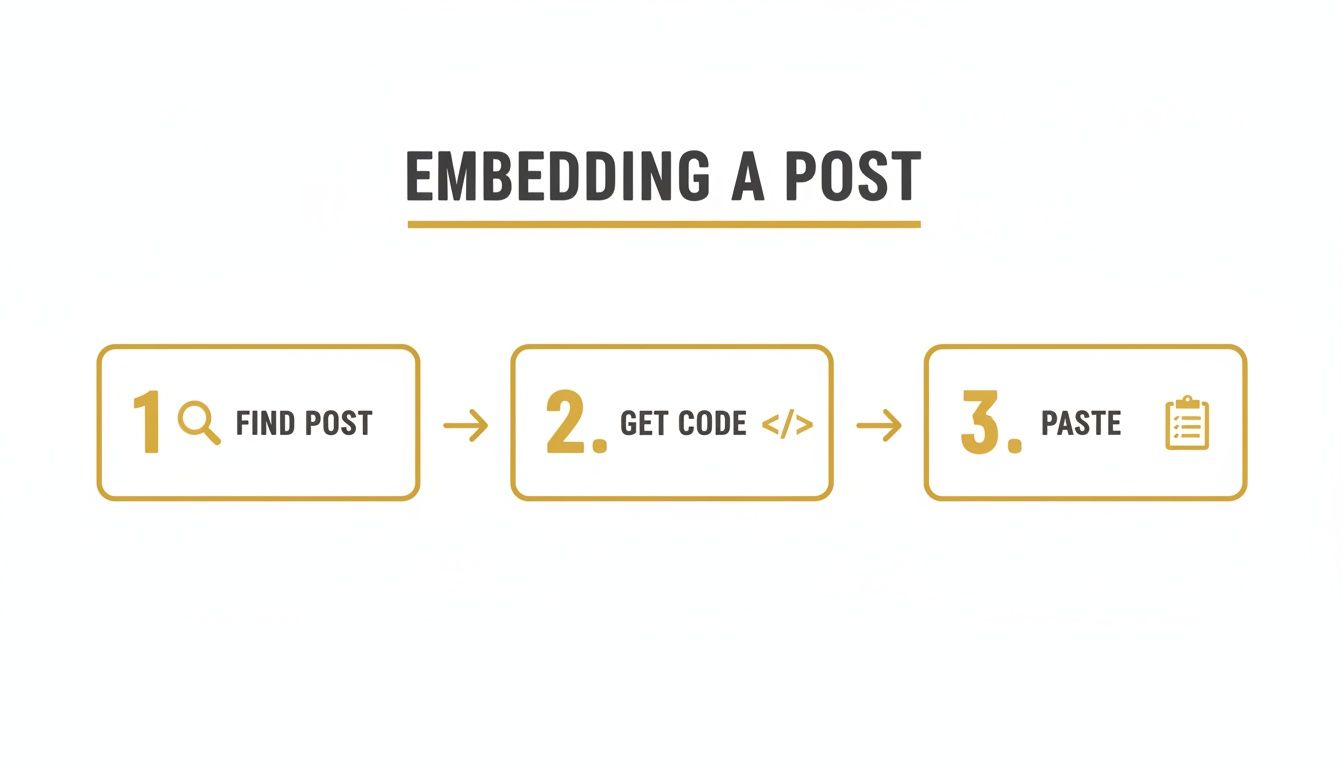
As you can see, it’s a simple find, copy, and paste job—a task that a widget handles automatically for your entire feed, saving you a ton of time.
Native Embed Vs Third-Party Widget
So, when should you use Instagram's own embed feature versus a more powerful third-party widget? It really depends on what you're trying to achieve. Here's a quick breakdown to help you decide.
| Feature | Native Instagram Embed | Third-Party Widget (e.g., Elfsight) |
|---|---|---|
| Content Source | Single post only | Full profile, hashtags, tagged posts, mentions |
| Customisation | Very limited (just the post itself) | Extensive (layouts, colours, fonts, spacing, pop-ups) |
| Content Filtering | Not available | Yes (by hashtag, mention, or manual moderation) |
| Setup Complexity | Simple (copy-paste for each post) | Easy (one-time setup, then automated) |
| Updates | Manual (must embed each new post) | Automatic (syncs with your Instagram in real-time) |
| Shoppable Posts | Not supported | Often available (link posts to product pages) |
Ultimately, the native embed is fine for a one-off mention, but for creating a truly integrated and dynamic social gallery on your site, a dedicated widget is the clear winner.
More advanced widgets even come with moderation tools, allowing you to approve or hide posts before they show up on your site. Some even let you build "shoppable" feeds by tagging products in your photos, creating a direct path for visitors to buy from your e-commerce store. This is a huge deal when you think about how much time people spend on the platform.
Recent research shows that UK Instagram users are projected to spend an average of 33 minutes per day on the app in 2025. With Reels taking up 39% of that time, embedding this kind of dynamic content lets you capture that engagement on your own turf, turning casual browsers into loyal customers.
Getting Your Feed Live on WordPress, Wix, and Squarespace
You’ve got your widget’s embed code in hand, which means the hard part is over. Now for the final step: getting it live on your website.
How you do this will change slightly depending on your platform, but the core idea is always the same. You just need to find the spot where you can add a custom HTML or code block and paste in the code. Thankfully, modern website builders like WordPress, Wix, and Squarespace have made this process incredibly straightforward—no need to start digging into your site's theme files or wrestling with complex code.
Embedding an Instagram Feed in WordPress
As the world's most popular content management system, WordPress gives you a couple of simple ways to get your Instagram feed up and running. By far the most common and flexible approach is using the block editor.
Just open up the page or post where you want the feed to appear. Click the + icon to add a new block, then search for “Custom HTML”. Once you select it, a new block will pop up, ready for you to paste in the code snippet from your widget provider.
Another route is to use a dedicated WordPress plugin that comes with some Instagram feed widgets. In that scenario, you'd install the plugin, connect your account through its settings in your WordPress dashboard, and then use a special block or a shortcode from the plugin to place the feed. This can be a tidy option if you prefer keeping everything managed directly within WordPress.
For most people, I'd recommend sticking with the Custom HTML block. It's the quickest and most reliable method, works with pretty much any third-party widget, and saves you from installing yet another plugin.
Adding Your Feed to a Wix Website
Wix is famous for its drag-and-drop editor, and adding custom code is just as intuitive. It's a fantastic choice for anyone who wants a great-looking feed without any technical stress.
Here’s how to get it done:
- Head to the page you want to edit.
- Click the
+button (Add Elements) on the left-hand menu. - Find the "Embed Code" section.
- Choose the "Embed HTML" element.
This will drop an HTML box onto your page. You can drag this box around to position your Instagram feed exactly where you want it. Just click "Enter Code," paste your widget’s code into the text field, hit "Update," and you’re good to go. From there, you can easily resize the box until your feed looks perfect.
How to Embed on Squarespace
Squarespace also makes it incredibly easy to add custom code snippets, which is perfect for integrating a dynamic Instagram feed. The platform uses a block-based system that will feel familiar if you've ever used WordPress.
First, find the section on your page where the feed should go. Click an insert point (the + icon) and look for the "Code" block in the menu. This adds a new block to your page with a text area.
Make sure the dropdown menu inside the block is set to "HTML". Now, all you have to do is paste your widget’s embed code into the text field and click "Apply". Squarespace renders the feed right there in the editor, so you can see exactly how it will look to your visitors before you even save the page.
Optimising Your Instagram Embed for SEO and Speed
Adding an Instagram website embed is a fantastic way to keep your site feeling fresh and alive, but it can't come at the cost of performance. Nothing sends visitors clicking the 'back' button faster than a slow-loading website, and it can seriously dent your search engine rankings. It's all about striking the right balance between showcasing your social content and maintaining a snappy user experience.
The good news is that most modern widgets are built with performance in mind. They’re a world away from the clunky, heavy scripts of the past that would bog down your site’s loading times. When you're picking a tool, make sure to look for one that’s specifically described as lightweight and performance-focused.
One of the most critical features to watch for is lazy loading. This is a clever little trick that stops the images in your Instagram feed from loading all at once. Instead, they only appear as a visitor actually scrolls down the page. This simple feature makes a massive difference to your initial page load time and helps protect those all-important Core Web Vitals.
Strategic Placement and Content Curation
Think carefully about where you put your Instagram feed. Placing a big, media-heavy grid right at the top of your homepage—what we call "above the fold"—can force a visitor's browser to do a lot of heavy lifting before they've even seen your main message. This often leads to a poor first impression and can send your bounce rates soaring.
A much better approach is to place the feed further down the page, maybe in the footer or after your main call-to-action. This ensures your most critical content loads lightning-fast, while still offering the visual appeal of a social feed for visitors who want to explore more.
Controlling how much content you show is another smart move. Most widgets will let you limit the number of posts displayed. A neat grid of 6 to 9 recent posts is usually more than enough to create an engaging visual element without overwhelming the page.
Using Your Embed to Boost SEO
Beyond just speed, a well-optimised Instagram feed can give you a nice little indirect SEO boost. Search engines like Google love to see fresh, relevant content, and a feed that updates automatically is a clear signal that your website is active and current.
This constant stream of user-generated content (UGC) and brand updates can also keep people on your site for longer. When users are engaged and interacting with your content, it sends positive signals back to search engines about your site's quality and authority. To dive deeper into this, check out our guide on how to reduce bounce rate.
By choosing a fast widget, making sure lazy loading is switched on, and placing your feed thoughtfully, you can get all the engagement benefits of an Instagram embed without sacrificing the speed your users (and Google) expect.
Your Instagram Website Embed Questions Answered
Even with the right approach, a few questions always seem to pop up when you decide to add an Instagram website embed to your site. Let’s clear up some of the most common queries I hear from business owners and marketers so you can move forward without hitting any frustrating roadblocks.
Do I Need A Business Account To Embed My Feed?
This is a great question. While you can embed single posts from any public Instagram account using the simple copy-and-paste method, you’ll almost certainly need an Instagram Business or Creator account to use a third-party widget for a full, dynamic feed.
This isn't a limitation set by the widget developers. It's actually a requirement from Meta's API, which is the technology these tools use to connect to your account, pull in your media, and keep everything updated automatically. Honestly, making the switch to a Business or Creator account is something I recommend anyway. It’s free and unlocks a world of useful analytics and advertising features.
Will Embedding Instagram Slow Down My Website?
It's a valid concern, but the short answer is: it shouldn't, provided you use a well-built tool. Modern Instagram widgets are designed with performance in mind. They use clever techniques like lazy loading, which means the images in your feed only load when a visitor actually scrolls down to see them. This dramatically reduces the initial hit on your page speed.
The engagement benefits of a dynamic, authentic feed almost always outweigh any tiny performance trade-offs. The key is to choose a reputable widget and be smart about where you place it.
To keep things snappy, try not to cram multiple feeds onto a single page. It's also a good idea to position your feed a bit further down the page, below the most critical content. That way, your main headline and hero section can load first, giving visitors what they came for immediately.
Can I Embed A Feed Using A Hashtag?
Yes, absolutely! This is one of the most powerful things you can do with a third-party widget. You can set up your feed to pull in and display any public post that uses a specific hashtag you choose.
This is fantastic for showcasing user-generated content (UGC), running interactive marketing campaigns, or even creating a live gallery from an event. For instance, a local coffee shop could create a feed that displays all posts tagged with #TheDailyGrindMoments. Suddenly, their website becomes a vibrant, real-time gallery of happy customers—and that's incredibly powerful social proof.
Is It Legal To Embed Someone Else's Instagram Post?
This is a really important one. According to Instagram's own terms of service, using their official embed feature for a public post is perfectly fine. The embed code automatically links back to the original post and credits the creator, so you're covered.
However, when you start curating a feed of user-generated content for your own website, the game changes slightly. The established best practice is to always ask for permission first. A quick, friendly message to the creator not only shows respect for their work but also builds genuine goodwill within your community. It removes any grey areas and ensures you're honouring people’s content rights properly.
Ready to find the perfect tools to grow your business online? The Digital Marketing Toolbox offers a curated catalogue of the best solutions for SEO, social media, and more. Discover and compare top-rated widgets and marketing software today at https://grow-your-biz.com.


