
Embedding a PowerPoint presentation on your website is actually pretty simple. The gist of it is you upload the file to a cloud service like OneDrive or Google Drive, grab an embed code, and then pop that code into your site's HTML. This little bit of effort can transform a static file into a dynamic, interactive element for your visitors.
Why You Should Embed Presentations on Your Website

Before we jump into the "how-to," let's quickly cover the "why." When you embed a PowerPoint into your website, you're repurposing existing content into a seriously effective engagement tool. Think about it: instead of asking someone to download a .pptx file (a massive hurdle, especially on mobile), you're serving up the information right where they are, seamlessly.
This one change keeps people on your site longer, which search engines absolutely love to see. You're turning a flat, one-dimensional asset into an interactive experience that can get a complex message across far better than plain text ever could, which is a big win for metrics like time on page.
Maximising Your Existing Content
Chances are, your business is already sitting on a goldmine of content locked away in old presentations. The sheer scale of PowerPoint usage is staggering. In the UK alone, an incredible 20.3 million people—that’s 37.15% of the adult population—have used it. Digging deeper, research shows that 53% of UK respondents create presentations for work or personal use, a figure that skyrockets to 83% for those aged 16-24. You can explore more of these PowerPoint usage statistics to see just how integral it is to professional life.
By embedding these files, you can breathe new life into them:
- Enhance educational content: That training presentation? It's now a self-paced learning module right on your blog.
- Showcase company information: Put your company overview or annual report on a page for stakeholders to view without any downloads.
- Improve sales pitches: Let a potential client click through your sales deck on a product page, whenever it suits them.
The goal is to make your content more accessible and engaging. Transforming a downloadable file into an interactive web element reduces friction for the user and adds a dynamic quality to your webpages.
Ultimately, learning how to embed a PowerPoint is about working smarter, not harder. You get to create a richer user experience using the valuable assets you already own, without having to build brand-new content from the ground up.
Choosing the Right Method for Your Website
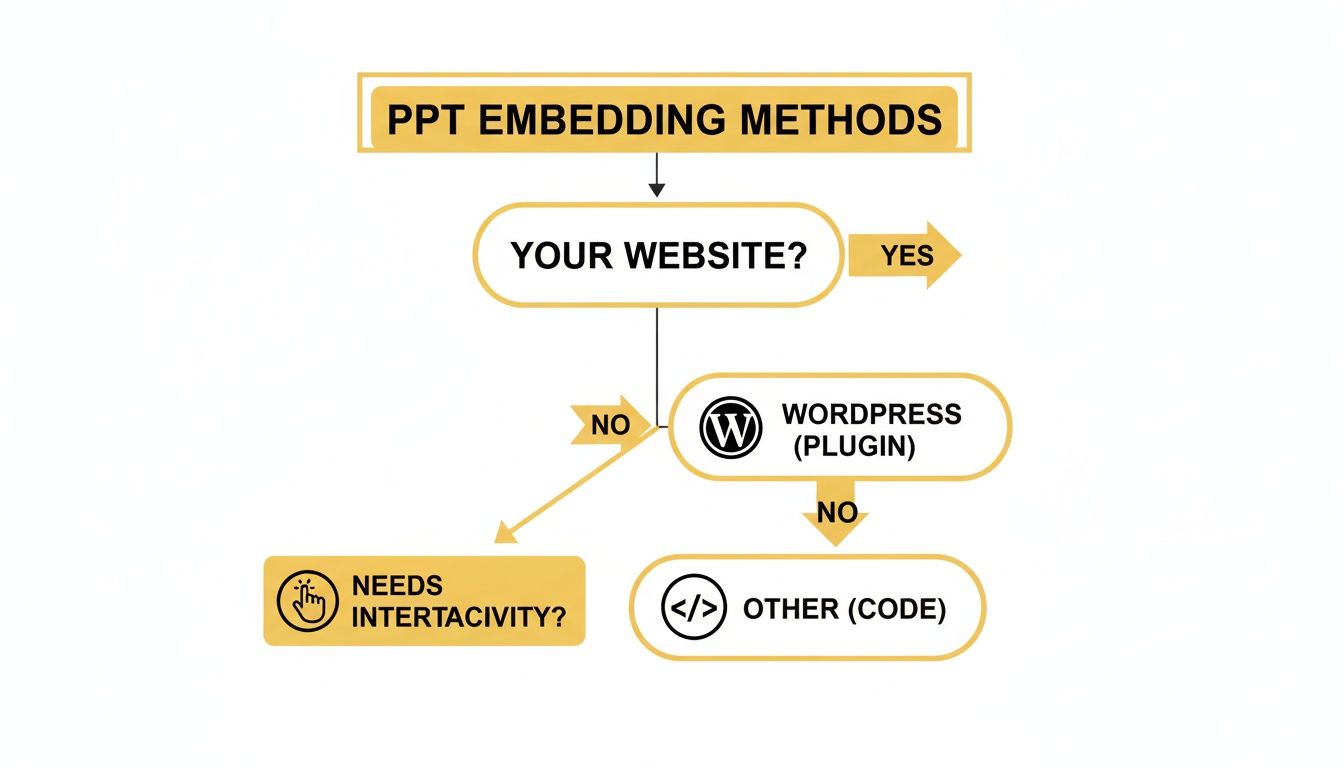
Deciding how to get a PowerPoint presentation onto your website isn't a one-size-fits-all deal. The best approach really depends on what your site is built with, how comfortable you are with a bit of code, and what you want your visitors to actually do with the slideshow.
There's no single "best" way, just the one that makes the most sense for you. A consultant sharing a sleek sales deck might just want a simple, mobile-friendly viewer. On the other hand, a tech blogger walking through a complex tutorial will probably want a method that keeps all their fancy animations intact. Getting this right from the start saves a lot of headaches later on.
Evaluate Your Technical Comfort Level
Let's be honest about your relationship with code. If the sight of an <iframe> snippet makes you nervous, a user-friendly WordPress plugin is going to be your best friend. These tools do all the heavy lifting, usually giving you a simple interface where you just upload your file and let it handle the rest.
But if you're perfectly fine with pasting a bit of code into your website's editor, using the built-in Microsoft OneDrive embed feature is a fantastic option. It's direct, incredibly reliable, and you don’t have to bog down your site with another plugin.
Consider Your Audience and Content
What’s the actual purpose of this presentation? Is it a straightforward, visual slideshow, or is it a deep-dive training module with clickable elements and quizzes?
- For simple, view-only presentations: You really can't go wrong with the direct embed from Microsoft OneDrive or converting it to Google Slides. Both are quick, free, and give you a clean, professional-looking viewer.
- For interactive or media-rich files: This is where things get tricky. If your slides have audio narration, video clips, or intricate animations, some of the simpler methods might strip them out. Your best bet here is often to export the whole thing as a video and embed it from a platform like YouTube or Vimeo. This way, you preserve the full, intended experience.
- For document-heavy slides: If your presentation is basically a report packed with text and data, think about exporting it as a PDF. Using a PDF viewer widget can provide a much better reading experience, letting users zoom, search, and navigate with ease.
Ultimately, the decision boils down to a trade-off between simplicity and functionality. A direct OneDrive embed is incredibly fast, but a third-party widget might give you far more control over the look and feel—much like the options you have when embedding an Instagram feed onto a website, where specialist tools can really enhance the final result.
Comparing Popular PowerPoint Embedding Methods
To make this decision a bit clearer, let's lay out the main options side-by-side. Each method has its own strengths and weaknesses, so have a look and see which one aligns best with your goals.
| Method | Best For | Ease of Use | Interactivity Level | Customisation |
|---|---|---|---|---|
| Microsoft OneDrive | Simplicity and reliability for standard presentations on any website. | Very Easy | Basic (slide navigation) | Limited (size, start slide) |
| Google Slides | Excellent mobile responsiveness and a clean user interface. | Easy | Basic (slide navigation) | Limited (size, auto-play) |
| WordPress Plugin | WordPress users seeking advanced features without coding. | Easy | Varies by Plugin | High |
| Third-Party Widget | Maximum customisation and a unique look on any platform. | Moderate | Varies by Widget | Very High |
| Video Export (YouTube) | Preserving complex animations, audio, and video content. | Moderate | High (video controls) | High (player options) |
Seeing it all laid out like this can really help you pinpoint the perfect tool for the job. Whether you need something quick and easy or a fully customised interactive experience, there's a solution here that will fit your needs.
Embedding Your PowerPoint with Microsoft OneDrive
Often, the most reliable way to get a job done is to go straight to the source. When it comes to embedding a PowerPoint, Microsoft’s own method using PowerPoint for the web and OneDrive is about as direct as it gets. This approach gives you a simple <iframe> embed code that you can pop right into your website’s HTML, making it a solid, universally compatible choice.
First things first, you'll need to get your presentation into your OneDrive account. Once it's uploaded, open it up using PowerPoint for the web. The great thing about this browser-based editor is that it does a fantastic job of keeping most of your original formatting, animations, and transitions intact, so your audience sees the presentation exactly as you designed it. From here, getting that embed code is just a few clicks away.
Getting Your Embed Code
With your presentation open, head over to File > Share > Embed. This will bring up a dialogue box, which is essentially your control panel for how the presentation will look and behave on your website.
This is where you can fine-tune the viewer before it ever touches your site. Microsoft gives you a decent amount of control right in this menu. You can pick from a few preset sizes or, even better, specify a custom width and height to make sure it slots perfectly into your page’s layout. Getting this right from the start saves a lot of headaches trying to fix ugly scrollbars or awkward empty space later.
Here are the main settings you’ll want to configure:
- Dimensions: Choose a size that complements your website's design. My advice? Start with a conservative size and increase it if you find you have more room to play with.
- Interaction: This lets you decide how your visitors will interact with the slides. You can enable auto-play to have the slides advance on a timer or even have the whole thing loop continuously—perfect for a presentation running in the background.
- Start Slide: Want to skip a title slide or two? You can tell the embed to start on any slide you choose, getting your audience straight to the most important content.
Once you’re happy with the settings, just copy the Embed Code. That little snippet of HTML is everything you need.
Permissions and Practical Tips
Here’s a pro tip that’ll save you some frustration: always double-check your file permissions. It’s the most common pitfall I see. Before you even think about pasting that code, you have to make sure the presentation is actually public.
Back in OneDrive, find your file, click Share, and set the permission to "Anyone with the link can view". If you skip this, your website visitors will be greeted with an error message instead of your brilliant presentation.
A Crucial Reminder: Always set your file permissions to "Anyone can view" before you generate the embed code. It’s a simple check that prevents that dreaded "access denied" error that trips so many people up.
After you’ve pasted the <iframe> into your website’s HTML editor (whether that’s in WordPress, Squarespace, or something else), hit preview. Does it load properly? Is the size right? Do the navigation controls work?
One of the best parts of using the OneDrive method is that your embedded presentation is dynamically linked to the source file. If you spot a typo or need to update a statistic, just edit the presentation in your OneDrive. The changes will automatically appear on your website without you needing to touch the embed code again. It’s a real time-saver.
Other Ways to Embed Your PowerPoint
The direct OneDrive method is a solid starting point, but let’s be honest, it’s not always the best tool for the job. Depending on what you're trying to achieve, you might need a different approach for a cleaner look, better performance, or specific features.
Sometimes, moving outside the Microsoft ecosystem is the key to a better user experience, particularly on mobile. Simply converting your presentation to another format before you embed it can sidestep a lot of the common formatting headaches that crop up with a direct .pptx file.
Try Converting to Google Slides
One of my favourite workarounds is to convert the PowerPoint into a Google Slides presentation. It's surprisingly easy. Just upload your .pptx file to your Google Drive, and when you open it, Google will handle the conversion automatically, keeping most of your formatting and animations intact.
Once it's in Google Slides, the embedding process feels very familiar. You just go to File > Share > Publish to the web, and you'll get an iframe embed code you can copy and paste.
So, why add this extra step? A few things make it worthwhile:
- A Better Mobile Experience: The Google Slides viewer is incredibly lightweight and responsive. It just works better on phones and tablets.
- A Cleaner Look: I find the controls and general interface of the Google Slides player to be more modern and less distracting than the default Microsoft viewer.
- Rock-Solid Performance: Google's infrastructure is built for this kind of thing, meaning your slides will load quickly and consistently for everyone, everywhere.
If a polished, professional look across every device is your main goal, this is an excellent route to take. When you're looking beyond OneDrive, it's always a good idea to check out the various presentation software options to see how their embedding features stack up for your brand.
Use a PDF Viewer for Text-Heavy Decks
What if your presentation is less about slick animations and more like a dense report or a technical guide? In that scenario, forcing people to click through slides can be a real pain. A much better experience is to convert it to a PDF.
Exporting your PowerPoint as a PDF turns it into a static, universal document. From there, you can use a PDF viewer widget to embed it right on your site. This gives your audience familiar controls for zooming, searching, and downloading—features far more suited for navigating dense information than simple "next slide" buttons. Most modern website builders have a PDF viewer built-in, but plenty of specialised third-party tools are also available.
Turn Your Slides into a Video
For presentations that are all about timing—with carefully choreographed animations, voice-overs, or video clips—the safest bet is to turn the whole thing into a video. This guarantees that every single element plays out exactly as you designed it, with zero risk of a browser messing things up.
In PowerPoint, you can do this by going to File > Export > Create a Video. This will save your presentation as an MP4 file. Upload that video to a platform like YouTube or Vimeo, grab their embed code, and you're good to go. You not only preserve every detail but also get to use their powerful, fast-streaming video players.
Key Takeaway: Converting your presentation to a video locks in the entire viewing experience. It’s the ultimate way to ensure that complex animations, transitions, and audio are delivered perfectly every single time.
Use a Dedicated WordPress Plugin
If your site is built on WordPress, you’re in luck. There’s a massive library of plugins designed specifically to embed PowerPoint in website posts and pages. These tools can make your life a lot easier, often adding features you can't get with the standard methods.
You might find plugins that offer advanced customisation, analytics on how people interact with your slides, or even options to password-protect your content. Digging into the plugin directory can be a great way to find new solutions, much like you might learn more about how to make widgets to add other kinds of functionality to your site.
Fine-Tuning Your Embedded Presentation for SEO and User Experience

Getting your presentation onto your website is a fantastic start, but the job isn't quite done. To really make that embedded PowerPoint work for you, a little optimisation for both user experience (UX) and search engines (SEO) goes a long way. This is all about making sure your presentation is easy to view, accessible to everyone, and actually understood by search engines.
If you skip this step, you might end up with an embed that loads sluggishly, looks broken on a phone, or is completely invisible to visitors using screen readers. These are more than just minor annoyances; they can hurt your visitor engagement and even drag down your search rankings over time.
Make Your Embedded PowerPoint Responsive
We live in a multi-device world, so a responsive design is non-negotiable. A presentation with a fixed width might look perfect on your desktop monitor, but on a smartphone, it could be cut off or force users into that dreaded horizontal scroll. That’s a surefire way to lose a mobile visitor's attention.
Luckily, the fix is straightforward. You just need to tweak the iframe code a little. Find the width attribute and change it to width="100%". This simple change tells the embed to automatically stretch to fit whatever container it's in. Your presentation will now scale beautifully on any screen, from a wide monitor to a narrow phone.
It's a small change with a big impact. With mobile traffic making up well over half of all website visits, ensuring your content is mobile-friendly is essential for reaching your full audience.
Improve Accessibility for All Users
Good accessibility isn't just about compliance; it's a cornerstone of a great user experience and a known factor in modern SEO. For an embedded presentation, this means making sure that people using assistive tech, like screen readers, can understand what they're encountering on the page.
Here are a few practical ways to boost accessibility:
- Add a Title Attribute: Pop a
titleattribute directly into your<iframe>tag. Something descriptive liketitle="Our Company's Q3 Growth Strategy Presentation"gives screen readers crucial context. - Keep Language Simple: Write the text on your slides to be clear and concise. Avoid jargon where possible.
- Check Your Colour Contrast: Make sure the text and background colours in your presentation have enough contrast to be easily read, especially for those with visual impairments.
These adjustments are relatively minor, but they show a commitment to inclusivity and create a better experience for everyone visiting your site.
Add Supporting Text for SEO Context
Here’s one of the biggest SEO challenges when you embed PowerPoint in website pages: search engine crawlers, like Google's, can't easily read the text inside the slides. The presentation lives in an iframe, which acts like a window to another document; its content isn't part of your page's actual code.
To get around this, you need to give search engines some clues. Add a descriptive paragraph or two on the page itself, right next to the embed. Summarise the key points and highlights of the presentation, and naturally include the keywords you're targeting. This surrounding text provides the context Google needs to understand and index your content correctly. It works on the same principle as when you learn how to write meta descriptions — you're giving search engines a clear, concise summary of what the content is all about.
Here is the rewritten section, designed to sound like an experienced human expert.
How to Troubleshoot Common Embedding Issues
Even when you follow all the steps perfectly, sometimes things just don't work as expected. Embedding a presentation can be a bit finicky, but don't worry. I’ve run into just about every possible issue over the years, and most of them have surprisingly simple fixes.
More often than not, the problem is that your presentation just won't load, showing a blank box or an error message instead. My first port of call, and where the issue lies 9 times out of 10, is a permissions problem. Before you start pulling your hair out, pop back into your OneDrive or Google Drive account and double-check your sharing settings. Make absolutely sure the file is set to "Anyone with the link can view". This is the classic culprit.
Fixing Sizing and Display Problems
Another common headache is getting the size wrong. You embed the presentation, and suddenly you’re stuck with ugly scrollbars or, even worse, your beautifully designed slides are awkwardly cut off. This almost always comes down to the width and height values in the iframe code not playing nicely with your website's layout.
Here’s how to sort it out:
- For a quick responsive fix: The easiest trick is to set
width="100%"directly in the embed code. This tells the presentation to stretch and fill whatever container it's in, which works brilliantly for most modern website designs. - For precise manual control: If you need a fixed size, you’ll just have to do a bit of trial and error. Tweak the
heightandwidthnumbers in your code, save the page, and hit refresh to see how it looks. Keep adjusting until it sits perfectly.
A little pro tip from experience: When you're manually changing the dimensions, try to maintain the original aspect ratio (usually 16:9 for modern slides). If you don't, your content can look stretched or squashed. A quick way to do this is to divide the original width by the original height to get the ratio, then use that to calculate your new dimensions.
Finally, what if your presentation refuses to auto-play? This is less of a bug and more of a feature of modern web browsers. To stop annoying users, browsers like Chrome and Safari are now very aggressive about blocking media that tries to play automatically. It might work for some of your visitors but not for others, so it's usually best to just let people click to start the presentation themselves.
Frequently Asked Questions
Even with the best instructions, you're bound to run into a few specific questions when you first try to embed a PowerPoint presentation. It's completely normal. I've pulled together the most common ones I hear to give you some quick, clear answers.
Can I Embed a PowerPoint Presentation on My Website for Free?
Yes, you absolutely can. The most direct methods don't cost a penny.
You can generate an embed code for free using Microsoft's PowerPoint for the web or OneDrive with just a standard Microsoft account. Another great free option is to convert your file to Google Slides and embed it from there.
The only time you might encounter costs is if you decide to go for premium third-party plugins or specialised hosting services that pack in a lot of extra features.
Will an Embedded PowerPoint Slow Down My Website?
It's a valid concern. Since an embedded presentation pulls content from another source, it can have a slight impact on your page load speed.
The good news is that modern iframes (the technology behind the embed) are usually loaded asynchronously. This just means they don't stop the rest of your webpage from appearing while they load in the background.
To keep things speedy, make sure your original presentation file is well-optimised. Compress your images before you even think about embedding, and try to avoid placing massive, complex presentations on your most important landing pages.
Can Viewers Download My Embedded PowerPoint Presentation?
This really depends on the embedding method you've chosen. If you're embedding directly from OneDrive, the viewer interface often includes a "Download a copy" option, which you might not want.
If you need to prevent downloads, one of the simplest workarounds is to convert the presentation into a different format first. Exporting it as a video or a series of images before you embed it completely removes any direct download button from the viewer.
For more general questions about building for the web, diving into broader resources can be really helpful. These General Web Development FAQs from Amino.dev are a great place to start.


